
GoHighLevel Workflow Not Firing: 12 Things to Check
If a GoHighLevel workflow is not firing, do not start by rebuilding it. Open the execution history first. It will tell you whether the contact never entered, failed a filter or reached an action that could not run. Then work through the checks below in order.
This is how we approach it: a workflow that looks completely broken may be receiving the contact and failing much later. During an audit, we trace one controlled contact from the trigger to the final action so the repair is based on evidence.
We use this sequence during workflow audits because it separates trigger problems from action problems. Randomly rebuilding steps often hides the original cause.
Use the troubleshooting path that matches the trigger: Facebook Lead Forms not syncing, a broken post-booking workflow, a WhatsApp integration problem, or an import that created the wrong contact state.
1. Start by confirming the workflow is published
Open the workflow and check its status. A draft workflow can be edited and tested manually, but it will not process normal live events. Save the latest changes and publish it.
2. Check the exact trigger
Make sure the trigger matches the event that actually occurred. For example, Form Submitted, Facebook Lead Form Submitted, Customer Replied and Appointment Status listen for different events.
HighLevel maintains a current workflow trigger reference. Use it when two triggers sound similar.
3. Review every trigger filter
A workflow may be published and still ignore a contact because a page, form, tag, pipeline, calendar or status filter does not match. Compare the trigger filters with the real contact record and event.
Remove a filter only when you understand its purpose. A controlled test with one filter at a time is safer than opening the workflow to every contact.
4. Check workflow re-entry
If the contact already completed or entered the workflow, the same event may not enroll them again. Review the Allow Re-entry setting and the workflow’s purpose.
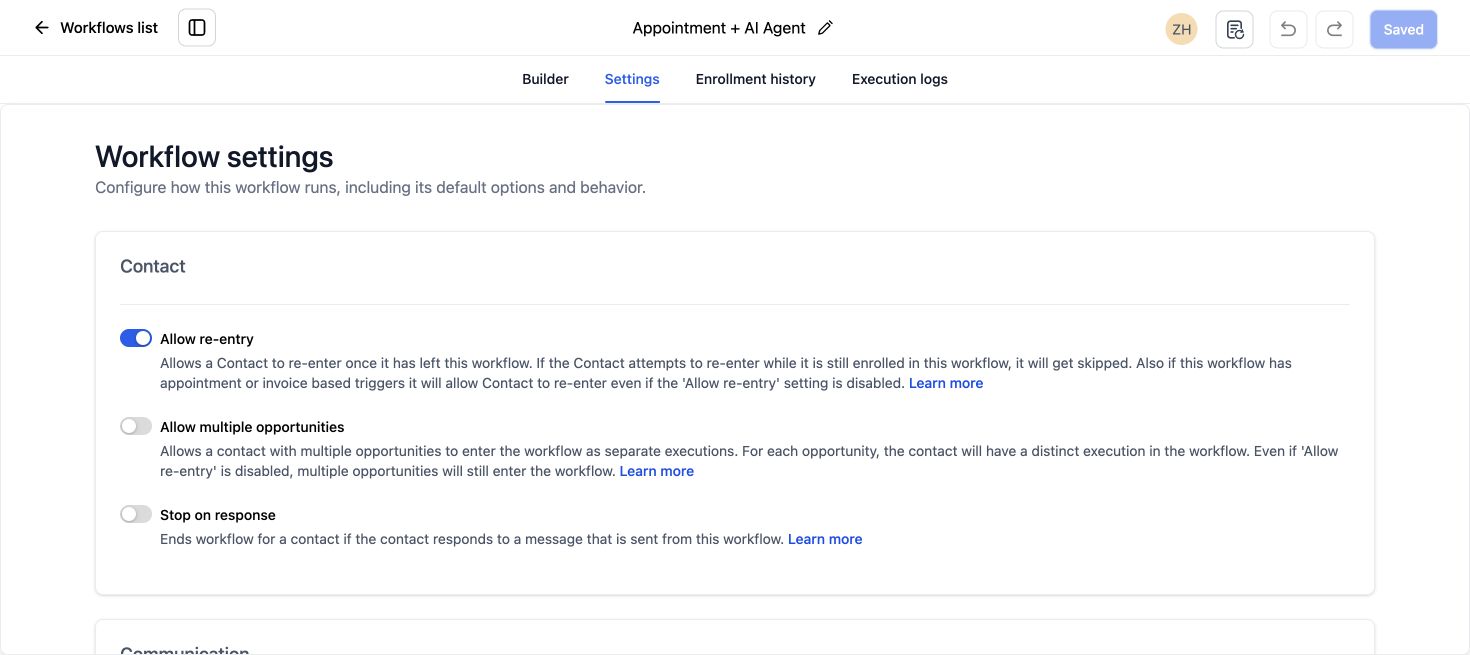
Re-entry is useful for repeat appointments, purchases or opportunities. It can be risky for one-time onboarding or welcome sequences because it may send duplicate messages.
5. Check the contact’s data
Filters and branches depend on the fields available at that moment. Confirm the contact has the expected email, phone, tag, owner, custom field and opportunity data.
If a previous action is supposed to create that data, inspect its execution before blaming the later branch.
6. Open the execution history
Search for the contact in workflow execution history. Look for:
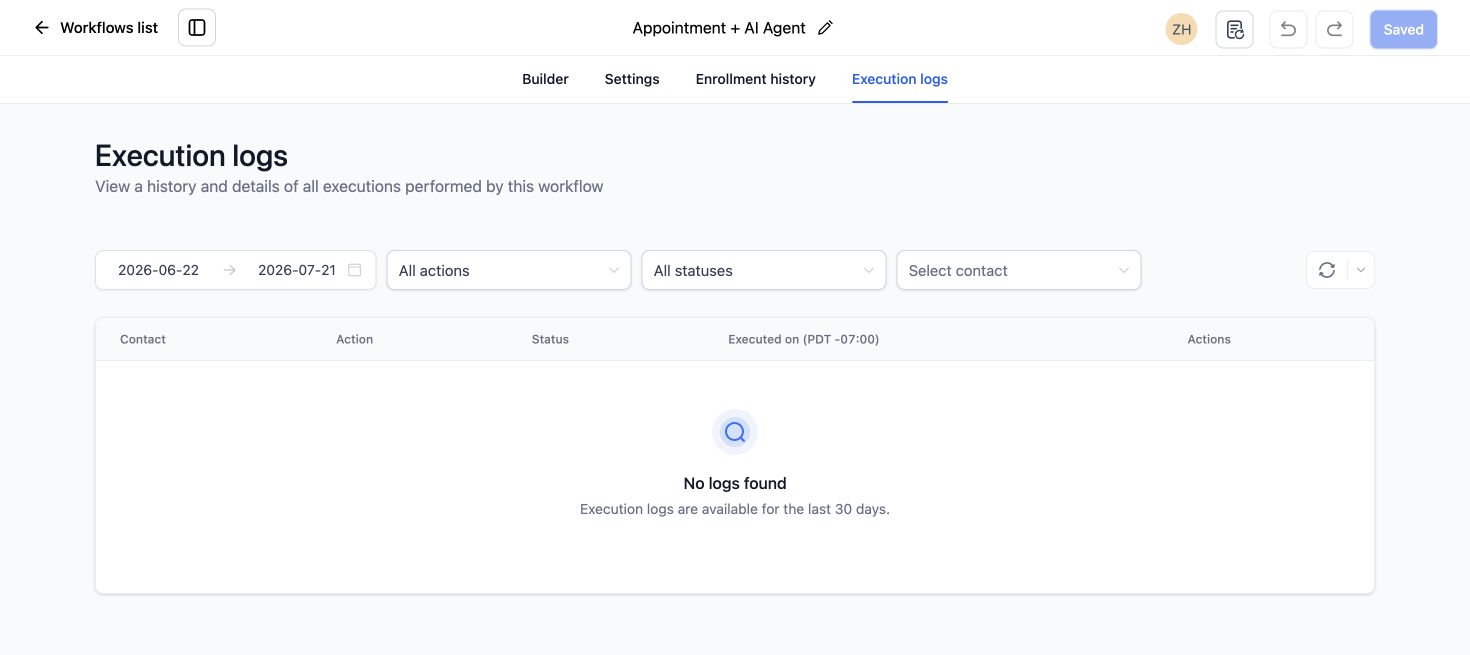
- No execution record, which points back to the trigger or filters.
- A skipped action caused by missing data or a condition.
- An error on email, SMS, webhook, opportunity or assignment actions.
- A contact still waiting for a scheduled time, event or reply.
7. Look at the workflow Error tab
HighLevel’s workflow Error tab highlights incomplete actions and missing mandatory fields. Clear these configuration errors before testing again.
8. Check waits, time windows and contact timezones
A workflow can appear stuck when it is respecting a wait step, a time window or the contact’s timezone. Open the active execution and confirm the next scheduled step.
Also check whether the workflow is set to pause on weekends or outside a permitted communication window.
9. Review If/Else branches and goals
An If/Else branch may send the contact down a path with no further action. A goal event can pull the contact forward or end part of the sequence. Read each condition using the contact’s current values.
10. Check DND, consent and communication settings
The workflow can run while an SMS, email or call action is blocked. Check Do Not Disturb settings, email validity, phone format, A2P registration and any consent requirements for the channel.
If only one channel is failing, the workflow itself may be healthy.
11. Verify connected apps and webhooks
For Zapier, Make, Facebook, Stripe or custom API steps, confirm the connection is active and the payload contains the required fields. A successful webhook request does not guarantee the receiving app accepted the data, so check both systems.
12. Test with a new contact and a controlled event
Create a test contact with a unique email and phone number. Perform the real trigger event once, then follow the execution from start to finish.
Document the contact, trigger time, expected result and actual result. This gives you a repeatable test instead of relying on memory.
Quick diagnosis table
| What you see | Where to check first |
|---|---|
| No execution record | Trigger, filters and publish status |
| Contact is waiting | Wait step, timezone and time window |
| Workflow ran but message did not send | DND, consent, email or phone settings |
| Wrong branch ran | Contact and opportunity values at branch time |
| It worked once but not again | Re-entry and duplicate settings |
For channel-specific failures, start with the exact event and its execution record. If the workflow is connected to several forms, calendars, pipelines or messaging channels, our GoHighLevel Workflow Audit and Repair service maps those dependencies before changes are made.
If the problem affects pipelines, calendars and messaging together, see our complete GoHighLevel service options.
Frequently asked questions
Why does my GoHighLevel workflow work in a test but not live?
The manual test may bypass the exact live trigger, filter or integration event. Test the real form, message, appointment or pipeline change with a new contact.
Can a contact enter the same workflow twice?
Yes, when re-entry is enabled and the trigger conditions are met. Decide whether repeat entry is appropriate for that workflow.
Why is a contact stuck on a wait step?
Check the scheduled resume time, account and contact timezone, business-hour restrictions, and whether the step is waiting for an event that has not occurred.
Does DND stop the whole workflow?
DND usually blocks the affected communication channel. Other actions may still run, so inspect the execution one step at a time.
Should I rebuild a workflow that is not firing?
Not before checking the trigger and execution history. Repairing the specific failure is safer than replacing a workflow without knowing why it failed.
Need this fixed for you?
Start with a $149 small fix for one clearly defined issue, subject to scope confirmation. If the cause is unclear or spans several workflows, choose the $200 workflow audit. The audit report is delivered within five business days after we receive the required access and journey details.

9 Comments