
Import Contacts into GoHighLevel Without Duplicates: CSV Mapping, DND and Error Fixes
If you want to import contacts into GoHighLevel without creating a mess, clean the CSV before you open the importer. Choose a reliable identifier, preserve known DND and consent data, then run a small test. HighLevel cannot know two incomplete rows belong to the same person.
I would treat a contact import as a data migration, not an upload button. A five-row test can prevent thousands of incorrect field updates, duplicate-looking records or messages to people who previously opted out.
If this import follows an agency move, check what must be reconnected in a GoHighLevel sub-account transfer. Before mapping the CSV, also confirm whether each value belongs in a custom field, custom value or custom object.
First, decide what this import is supposed to do
Before editing the CSV, decide what the import must do:
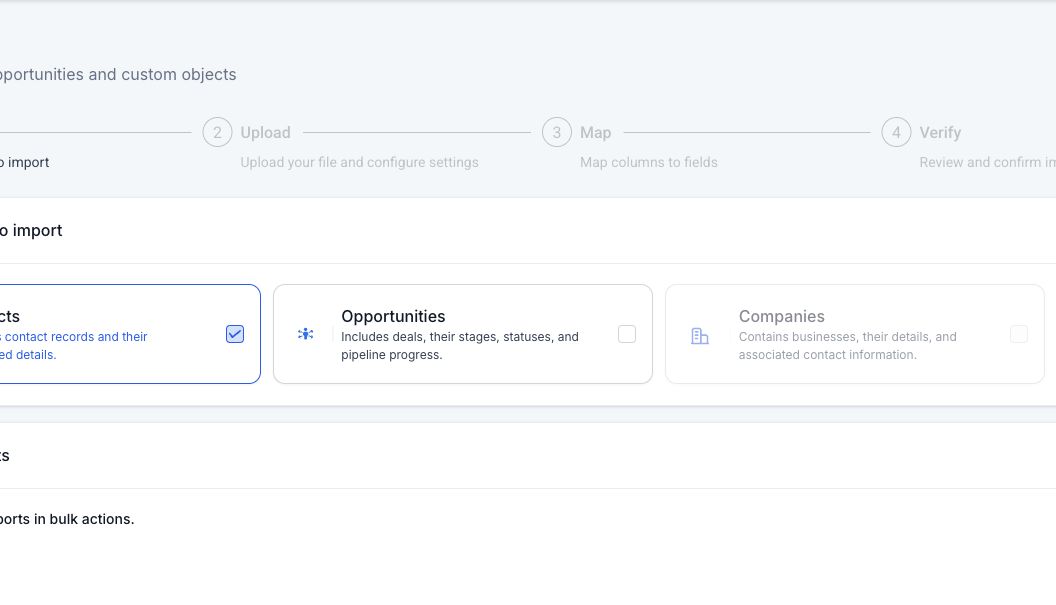
- Create new contacts: Add people who are not already in the location.
- Update existing contacts: Change fields on records already in HighLevel.
- Create and update: Update a reliable match, and create a contact when no match exists.
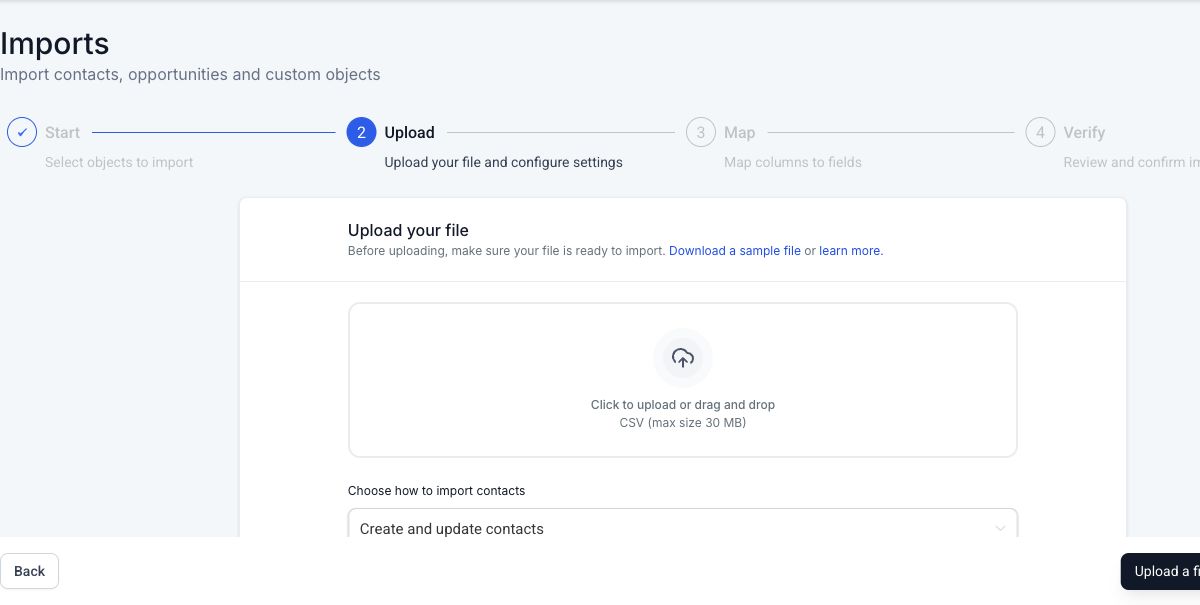
The labels can vary in the importer, so confirm the current options in the live screen. If the goal is to enrich existing contacts, an update-only test is safer than a broad create-and-update import.
HighLevel’s current CSV import guide says existing records are checked in this order when updating: Contact ID, email, then phone. Contact ID is the safest identifier for a database exported from the same HighLevel location. Email or normalized phone is more practical when migrating from another CRM.
Export and protect the existing data first
If the location already contains contacts, export the relevant list before importing. Keep that export unchanged as a recovery reference.
Record the current counts for:
- Total contacts in the target segment.
- Contacts with DND enabled.
- Contacts with active opportunities.
- Contacts enrolled in important workflows.
- Contacts missing email or phone.
Do not merge or delete existing contacts as part of import preparation unless a separate, reviewed cleanup is in scope. Contact merges cannot be casually undone.
Clean the CSV before opening HighLevel
Use one row per person and one header row. Save the file as CSV, not XLSX. HighLevel’s current help pages disagree on the maximum upload size, so use the limit shown in your live importer and split a large file when necessary.
A practical source file might look like this:
First Name,Last Name,Email,Phone,Contact Source,DND,Legacy ID,Import Batch
Sam,Reed,sa*@*****le.com,+14155550112,Old CRM,false,C-1042,2026-08-migration
Maya,Khan,ma**@*****le.com,+442071234567,Referral,true,C-1043,2026-08-migration
Before saving the final CSV:
- Remove completely blank rows and blank headers.
- Trim spaces before and after email addresses.
- Standardize email casing and remove clearly invalid addresses.
- Normalize phone numbers with country code where possible.
- Keep only one row for repeated Contact IDs.
- Decide which row has the trusted value when the same email appears more than once.
- Match dropdown and multi-select values exactly to the options already in HighLevel.
- Use an existing HighLevel user’s email for the Contact Owner field.
- Create required custom fields in HighLevel before mapping the CSV.
- Add a batch identifier or tag so the imported records can be isolated afterward.
Do not remove a DND value because it makes a campaign list smaller. An import should preserve known opt-outs, not erase them.
Choose the deduplication key deliberately
No single matching field works for every list.
Use Contact ID when updating the same HighLevel location
Export the existing records, make the required changes in a working copy, and retain Contact ID. This avoids relying on a phone number or email that may have changed.
Use email when it is consistently unique
Email works well for many B2B lists, but shared inboxes such as info@ or family email accounts can represent more than one person. Review repeated addresses before importing.
Use phone when phone is the main identity
Phone matching is useful for appointment and SMS-heavy businesses. Normalize the country code first. The same local number written with and without a country code can fail to look like a clean match.
Understand what deduplication cannot solve
If an existing contact has an old email and no phone, while the CSV has a new email and new phone, HighLevel has no reliable shared identifier. The importer may treat that row as a new person. Resolve those cases before the bulk import or map a trusted legacy ID into a custom field for later review.
HighLevel’s contact deduplication settings also control how forms and integrations handle matches. Review them, but do not assume the global duplicate toggle will repair a poorly prepared CSV.
Map contact fields without overwriting good data
Go to Contacts > Import, choose Contacts, upload the CSV, and map each column.
Map only fields with a clear destination:
| CSV column | HighLevel field | Check before importing |
|---|---|---|
| First Name | First Name | Do not map a full name into this field |
| Remove invalid and repeated values first | ||
| Phone | Phone | Include country code where possible |
| Contact Source | Contact Source | Use a consistent source name |
| DND | DND | Preserve known opt-outs |
| Legacy ID | Custom field: Legacy ID | Create the custom field before import |
| Import Batch | Tag or custom field | Use one unique batch label |
If a source column has no useful destination, leave it unmapped and explicitly confirm that it should not be imported. Do not map a notes column into a structured dropdown just to avoid an unmapped-field warning.
When updating records, use Don’t update empty values or the current equivalent if blank CSV cells should not erase values already stored in HighLevel. Verify that behavior with the test file before trusting it on the full list.
DND is not the same as consent
DND tells HighLevel not to send through a channel or at the contact level, depending on how it is set. Consent is the evidence that the person agreed to receive a specific type of communication from the sender.
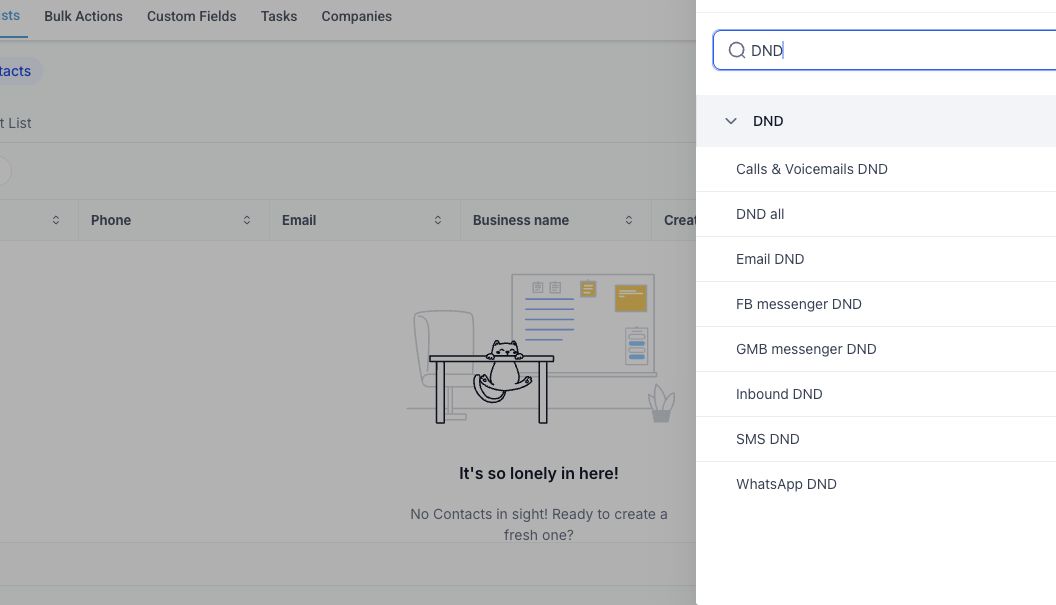
Importing a name and phone number does not create consent. Keep the original consent source, date, wording, and channel where available. If the old system has one broad DND field, map it conservatively and review whether separate email, SMS, or call restrictions are needed after the import.
For SMS, HighLevel’s phone messaging policy says consent cannot be bought, sold, or exchanged and that SMS should be sent only to opted-in contacts. Permanent opt-outs should not be manually reversed simply to place someone in a reactivation workflow.
Run a five-row test import
Build a test CSV that represents the difficult cases, not only the cleanest rows:
- A genuinely new contact.
- An existing contact matched by Contact ID.
- An existing contact matched by email.
- A contact with DND enabled.
- A row with a custom field, dropdown, or intentionally invalid value.
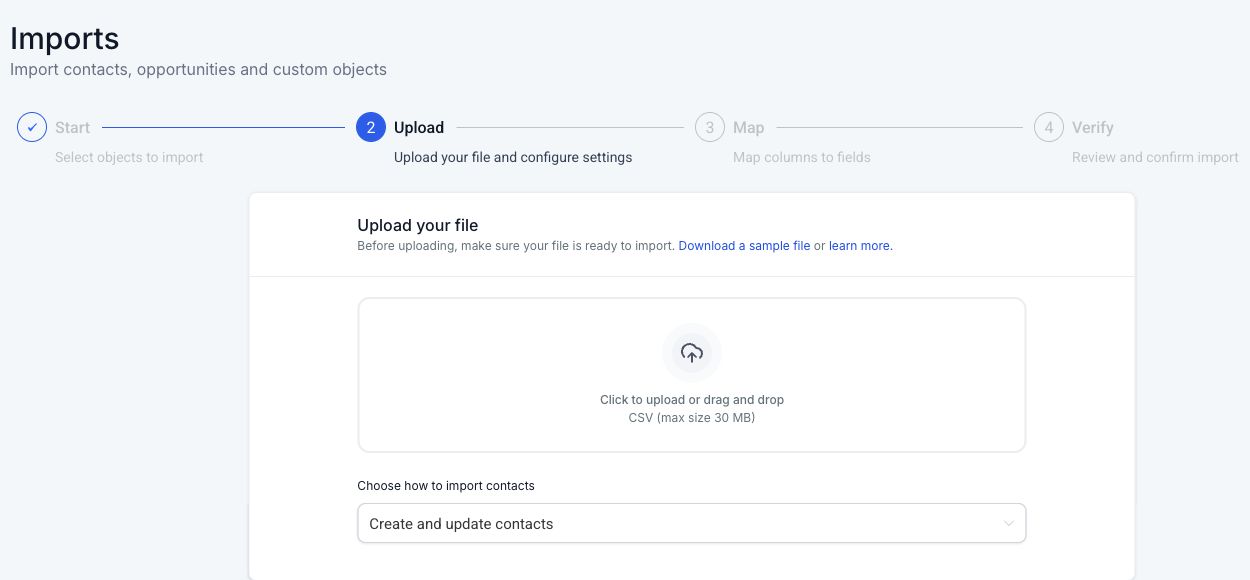
Name the import clearly, such as TEST - August CRM migration. Add a test-batch tag, but do not add the contacts to a live workflow.
After the test completes, open every resulting contact and confirm:
- The expected record was updated or created.
- No useful field was blanked.
- DND remained correct.
- The owner, source, tags, and custom fields landed in the right place.
- No live workflow or message started unexpectedly.
- The invalid row produced an understandable error.
Only then prepare the full file.
Import the full list in controlled batches
For a large database, use batches that can be reviewed and identified. A useful sequence is:
- Current customers.
- Active opportunities.
- Recent opted-in leads.
- Older leads with a valid consent record.
- Suppressed, DND, or archive-only contacts.
This order lets the team validate high-value data first and keeps contacts with different messaging permissions separate.
Do not automatically add the full import to a sales workflow from the importer. Finish data QA, build the segment, and test the workflow with internal contacts before enrolling a real audience.
Fix common CSV import errors
HighLevel provides row-level errors in the import or Bulk Actions area. Download or inspect the error list instead of rerunning the same file unchanged.
| Error pattern | What it usually means | Fix |
|---|---|---|
| Multiple owners found | A name matches more than one HighLevel user | Replace the owner name with the exact user’s email |
| Invalid sheet count | The source workbook contains more than one sheet or was not saved correctly | Export a one-sheet CSV |
| Invalid enumeration option | A dropdown, checkbox, radio, or multi-select value does not match an allowed option | Correct the CSV or add the intended option in HighLevel before retrying |
| Invalid Contact ID | Update mode references an ID that does not exist in this location | Export the current IDs or use a different trusted match field |
| Invalid email | The value is not a valid email format | Correct or remove the address, then retry only failed rows |
| Empty unique value | The chosen primary identifier is blank on that row | Add the identifier or separate the row into a suitable new-contact import |
| Duplicate Contact ID in the file | More than one row uses the same ID | Keep one reviewed row for that ID |
| Phone could not be parsed | The number contains invalid characters or ambiguous formatting | Normalize it with country code and retry |
The HighLevel CSV error reference lists the current error codes and expected fixes.
Check for duplicate-looking records after import
Compare the before and after contact counts, then inspect the import tag or batch field. Search several known contacts by email and phone.
If duplicates remain because the source data used different identifiers, use Contacts > Manage Duplicates or a manual merge only after reviewing the master record and field conflicts. HighLevel warns that a contact merge cannot be undone, so do not bulk-confirm suggestions based on a shared name alone.
What to do next
Once the data is clean, build a Smart List from consent, recency, source, status, and DND conditions. Test any follow-up with internal contacts first. A successful import means the CRM has accurate records. It does not mean every imported person belongs in the same campaign.
Frequently asked questions
Does GoHighLevel automatically prevent duplicates during a CSV import?
HighLevel uses identifiers such as Contact ID, email, and phone to match records, but the result still depends on the import mode and source data. If the same person appears with different or missing identifiers, HighLevel cannot safely infer that the rows belong together.
Should I match contacts by email or phone?
Use the field that is most complete and reliably unique in that database. Use Contact ID when updating records exported from the same HighLevel location. Run a representative test before the full import.
Can I import DND into GoHighLevel?
Yes, DND is a supported contact field. Preserve known opt-outs and verify the result on the test records. Do not treat a blank DND column as proof of consent.
Why did the import overwrite existing fields with blanks?
The update imported empty CSV values into populated fields. Use the current Don’t update empty values option when appropriate and confirm its behavior with a small update test.
Can I undo a contact import?
Do not assume the entire operation has a one-click rollback. Keep a pre-import export, add a unique batch tag, and test first. Avoid deleting the batch if some rows updated existing contacts, because deletion can remove records you intended to keep.
Related GHLFocus guides: handle spam contacts without deleting real leads.
Need this fixed for you?
Start with a $149 small fix for one clearly defined issue, subject to scope confirmation. If the cause is unclear or spans several workflows, choose the $200 workflow audit. The audit report is delivered within five business days after we receive the required access and journey details.
2 Comments