
What Happens After a Lead Books in GoHighLevel? Build the Complete Follow-Up Workflow
A booked appointment is not the end of your GoHighLevel workflow. It should start the sequence that confirms the booking, updates the opportunity, prepares the sales team, reduces no-shows and handles what happens after the meeting.
Here is the gap we often find: the business improves lead capture, but the post-booking journey is incomplete. The appointment exists, yet the user is not alerted, the pipeline never moves or the contact receives conflicting reminders.
Recommended flow: trigger from the correct appointment status, confirm the booking immediately, create or update one opportunity, assign an owner, send timed reminders, handle reschedules and cancellations separately, then branch after the appointment based on whether the contact showed up.
If bookings are not reaching this workflow reliably, check the branded calendar domain and embed setup. For leads that arrive outside office hours, connect this sequence to the wider after-hours response process and store the right data using custom fields or custom objects.
First, map what should happen after every booking outcome
Start by writing down what should happen after a successful booking. Keep the first version simple. A useful minimum is:
- The contact receives an accurate confirmation.
- The responsible team member is notified.
- The opportunity moves to a booked stage.
- Reminders stop if the appointment is cancelled.
- No-shows enter a recovery sequence.
- Attended appointments move to the next sales step.
Choose one source of truth for appointment status. If a form workflow, calendar workflow and external automation all update the same opportunity, duplicate actions become difficult to trace.
Build the complete GoHighLevel post-booking workflow
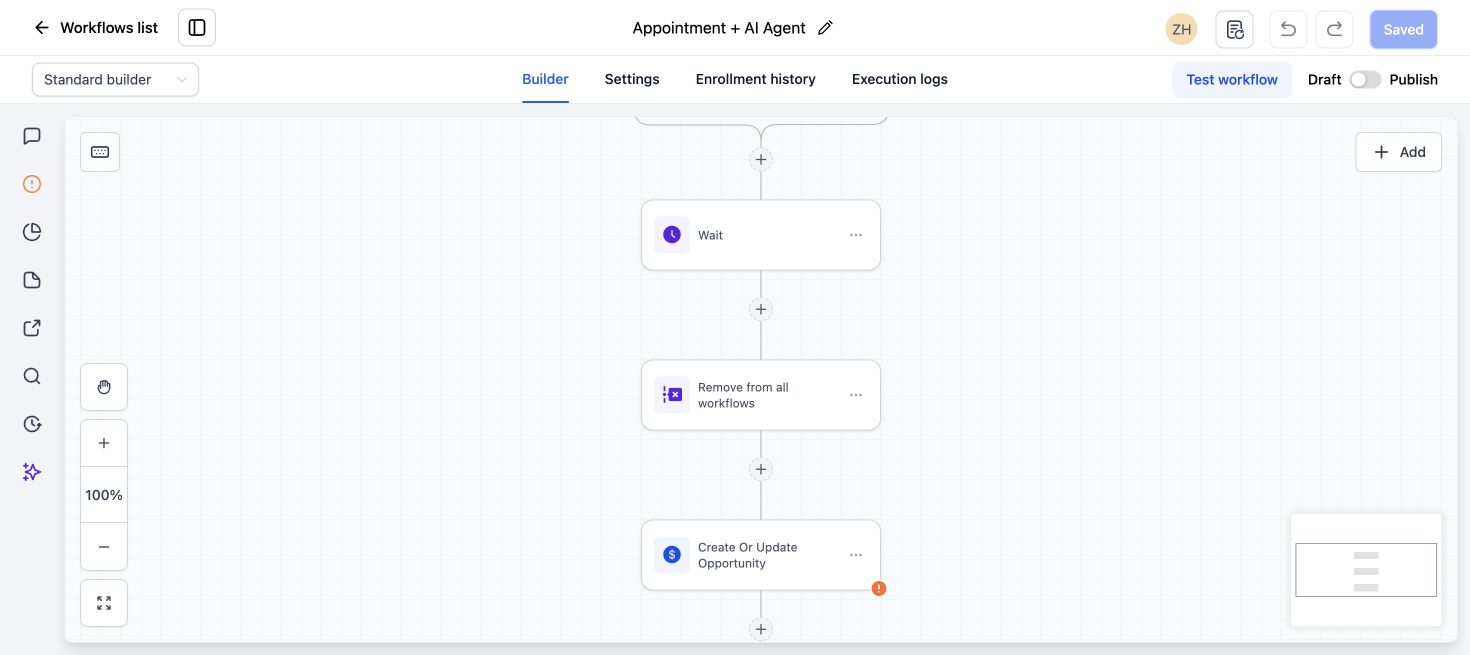
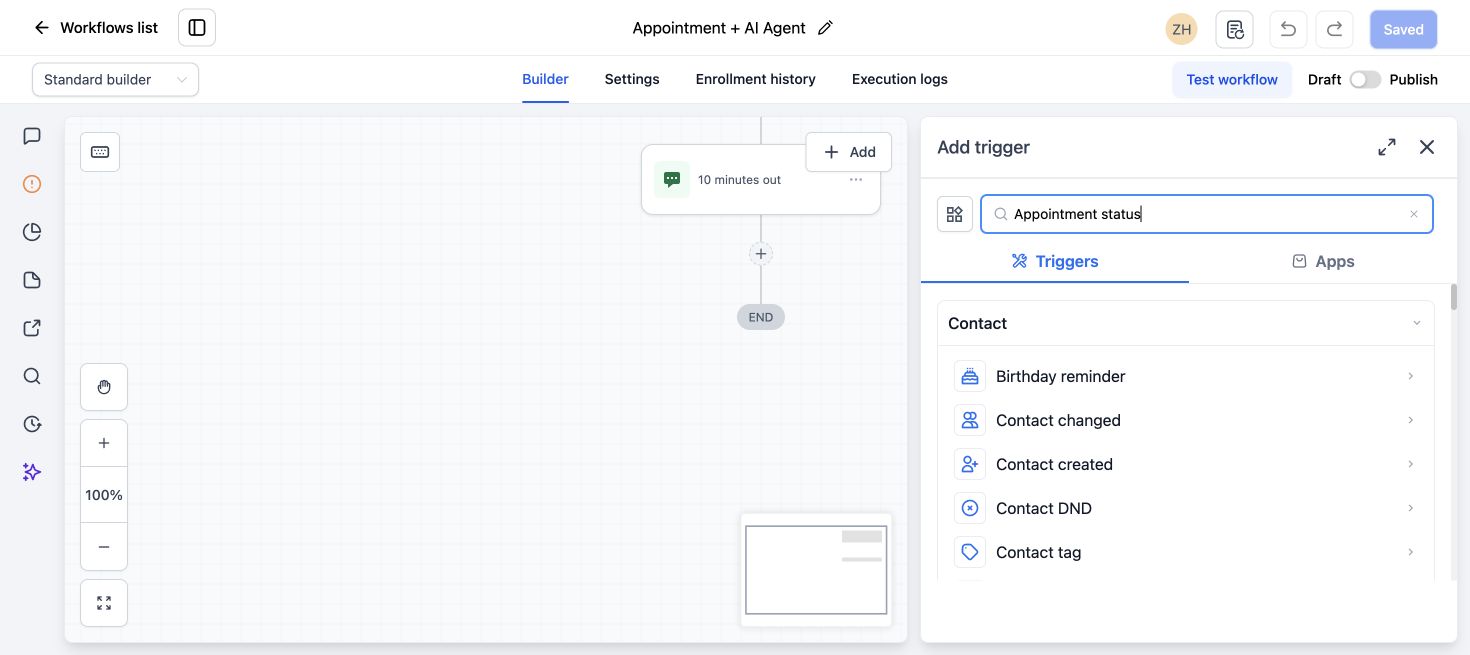
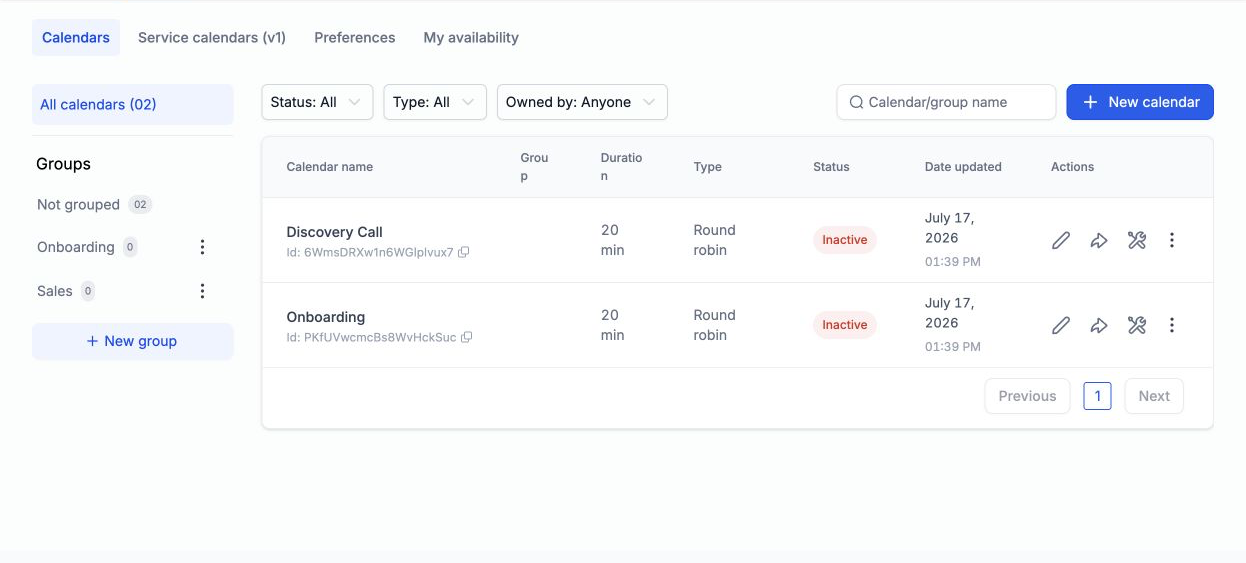
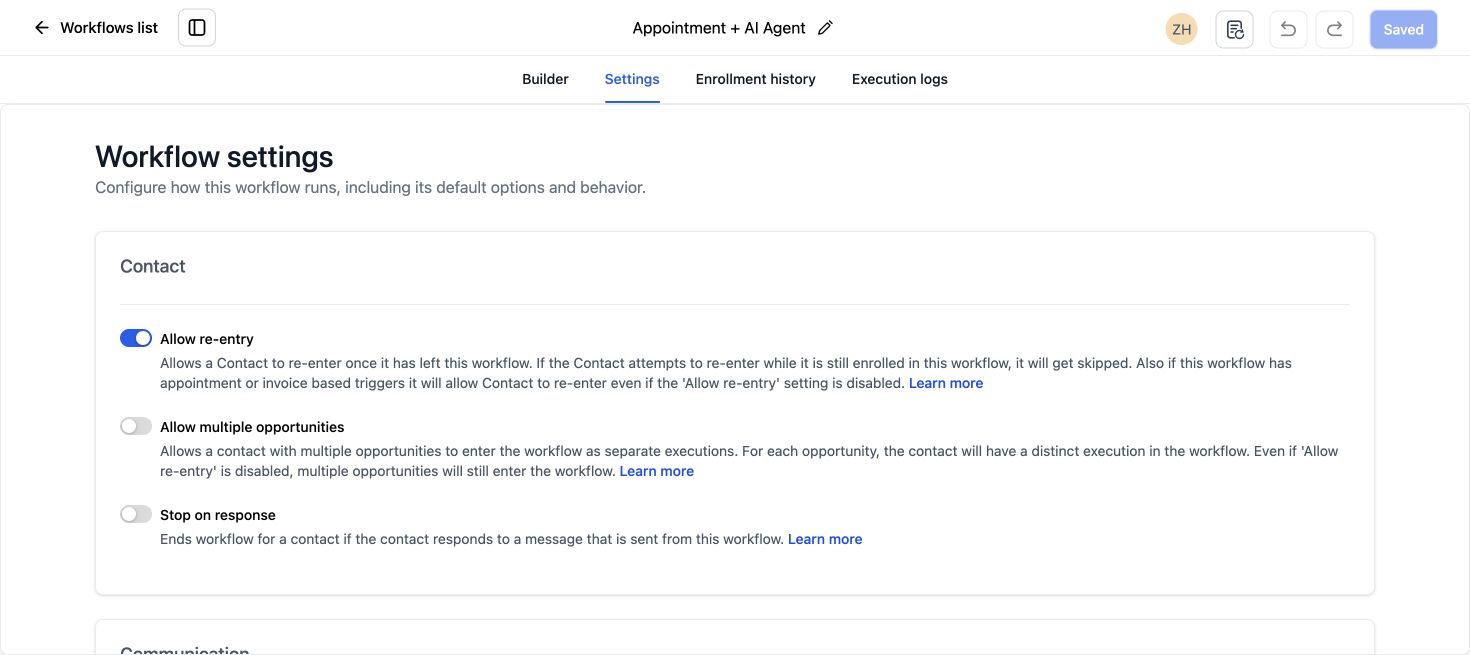
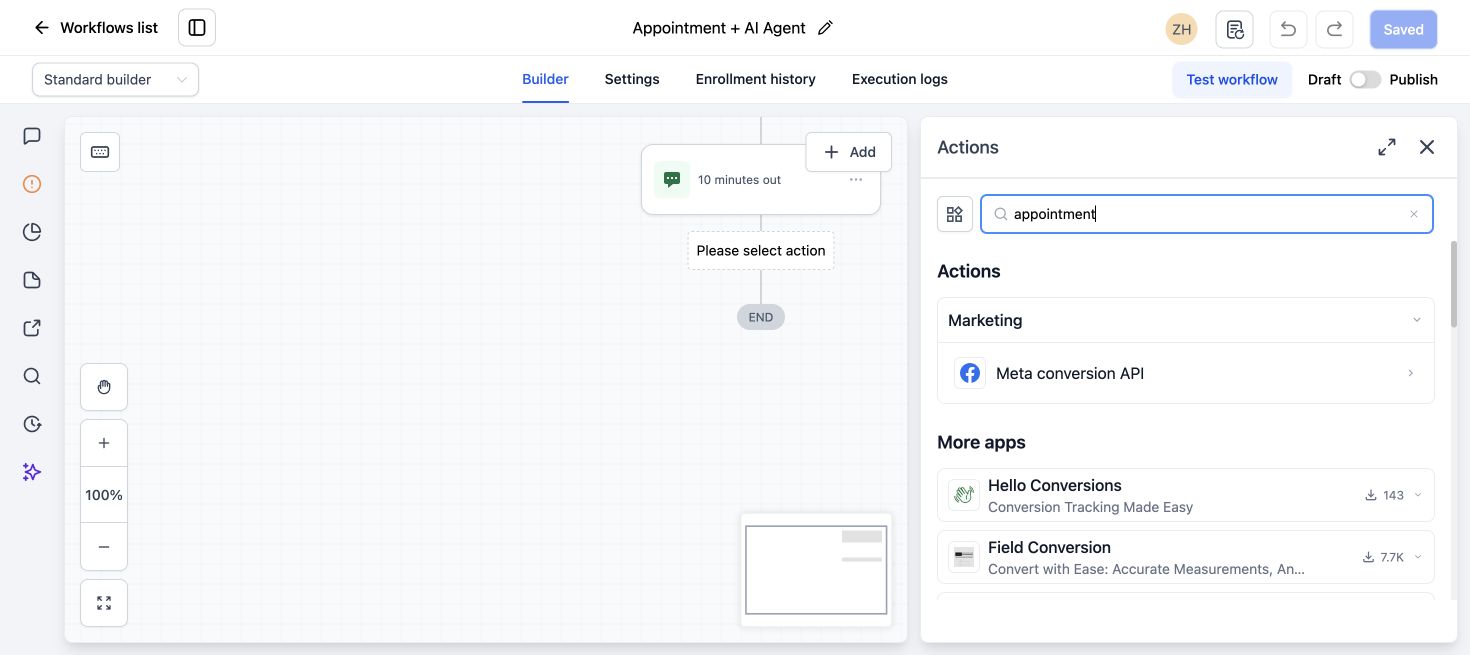
- Use an appointment-based trigger. Select the intended calendar and appointment status. Do not use a generic form trigger if the automation should run only after a confirmed booking.
- Add a clear confirmation. Include the date, time, timezone, meeting location and reschedule or cancellation link. Keep the message useful instead of promotional.
- Notify the assigned person. Send an internal notification with the contact name, source, appointment time and link to the contact record. If assignment happens earlier, verify the workflow uses the current owner.
- Create or update the opportunity once. Move the lead to the booked stage, add the expected value when appropriate and avoid settings that create a second open opportunity for the same service.
- Prepare the sales team. Create a task or add a note containing the form answers and qualification details that matter during the call.
- Schedule reminders. A common pattern is one reminder the day before and another shortly before the appointment. Use event-time waits so the timing follows the actual appointment.
- Handle changed appointments. Create separate logic for cancelled, rescheduled and invalid appointments. A cancellation should remove the contact from reminder steps that no longer apply.
- Branch after the meeting. Use appointment status or a controlled team action to separate showed, no-show and cancelled contacts. Each outcome needs a different next step.
How to reduce no-shows without over-messaging
More reminders do not automatically produce more attendance. The message should remove uncertainty and make it easy to act. Include who the meeting is with, what will be discussed and how to reschedule.
For high-intent calls, a short manual confirmation task can be more effective than another automated message. If the contact does not respond, let the team decide whether a call is appropriate instead of placing every lead into the same aggressive sequence.
Important: test email and SMS consent, quiet hours and sending-domain health before increasing reminder volume. A technically correct workflow can still create a poor customer experience.
What should happen after a no-show?
A no-show workflow should make recovery easy. Send a polite message acknowledging that plans change, provide the correct rebooking link and create a task for valuable leads. Stop the sequence as soon as a new appointment is booked.
Do not move every no-show directly to Lost. A separate No-show or Rebooking stage helps the team see which contacts still have a clear next action.
Test the workflow as a real contact
Create a test contact with an email address and phone number your team can access. Then book, reschedule and cancel separate appointments. Check the workflow history after each test.
- Was the contact enrolled only once?
- Did the confirmation show the correct timezone?
- Was one opportunity created or updated?
- Did reminders stop after cancellation?
- Did the assigned user receive enough context?
- Did a new booking stop the no-show recovery?
If the workflow never starts, use our GoHighLevel workflow audit and repair service. For account-wide setup, see our Business System Setup.
Post-booking workflow FAQs
Which trigger should I use after a GoHighLevel booking?
Use an appointment-based trigger filtered to the correct calendar and appointment status. This is usually more reliable than treating the booking form submission as proof that an appointment was created.
How do I stop reminders when someone cancels?
Use cancellation-specific logic to remove the contact from the active reminder workflow. Test the path because an ordinary wait step may otherwise continue after the appointment changes.
Should the workflow create a new opportunity?
That depends on your sales process. If one contact can buy several separate services, multiple opportunities may be valid. Otherwise update the existing open opportunity and protect against duplicates.
Can AI book appointments and start this workflow?
Yes. HighLevel Conversation AI and Voice AI can book supported calendars. The post-booking workflow should still use the confirmed appointment event rather than relying only on the conversation message.
Want this built for you?
Business System Setup starts at $997 for one defined customer journey, including calendar confirmations and reminders, SMS/email follow-up, basic missed-call text-back, testing and handoff. Review the full scope and exclusions before choosing it. Already built but broken? One clearly defined native HighLevel issue may fit the $149 small fix, subject to scope confirmation.
Related GHLFocus guides: appointment confirmation workflow with reply and timeout branches.
12 Comments