
GoHighLevel Reputation Management: Review Requests, Negative Feedback Routing and Reporting
Let me give you the safe answer first: GoHighLevel reputation management should make honest review requests easier, not filter customers by how happy they appear. It can send requests by SMS or email, automate them after completed work, collect connected-platform reviews, alert the team to negative feedback and report on the activity.
Negative feedback routing should mean fast internal ownership and service recovery. It should not mean hiding an unhappy customer from the same public review opportunity offered to everyone else.
See how review requests fit into the complete GoHighLevel system for roofers and the 14-day estimate follow-up workflow. Trigger requests from the correct point in the post-booking customer journey, and use the database reactivation guide when older customers need a separate campaign.
Here is what I would include in a complete reputation workflow
A practical system has five parts:
- A verified public review destination.
- A short request message with a clear sender.
- A reliable event that means the service actually happened.
- Internal routing for new reviews that need attention.
- Reporting that separates invitations from reviews received.
Do not begin with a long sequence. First prove that the destination, trigger, message, contact permission, and reply handling work.
Connect and verify the review destination
Go to Reputation > Settings > Review Link. Depending on the current account configuration, HighLevel can use a connected Google Business Profile, balance supported destinations, or use a custom review URL.
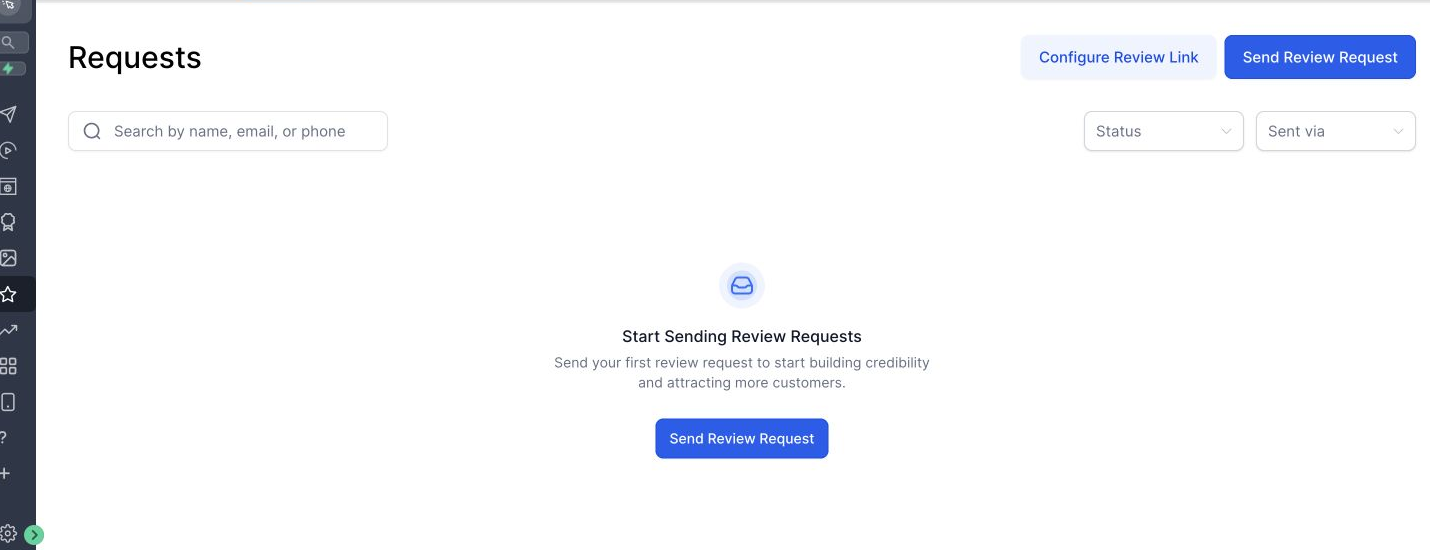
Check these items:
- The Google Business Profile belongs to the correct business and location.
- The link opens the actual review composer or intended review page.
- Mobile and desktop users reach the same business.
- The destination does not require an unexpected extra login or redirect.
- Multi-location businesses use the correct profile for each sub-account.
HighLevel’s review request settings guide explains the Review Link, connected Google destination, balancing, and custom-link options.
Send the link to yourself before placing it in a workflow. A valid-looking URL can still point to the wrong location.
Review gating is not a reputation strategy
Do not build this flow:
- Ask the customer to rate the business privately.
- Send only high ratings to Google.
- Send low ratings to an internal form.
That selectively solicits positive public reviews. Google’s Maps user-contributed content policy prohibits discouraging negative reviews and selectively soliciting positive reviews. Incentives for reviews, changes, or removal are also prohibited.
A compliant approach is:
- Ask every eligible customer for an honest review using the same destination and message.
- Collect a separate satisfaction survey from every customer if the business needs operational feedback.
- Route low satisfaction and negative reviews internally for follow-up.
- Never make access to the public review link depend on a positive score.
The business can improve service and respond to criticism without manipulating who gets asked to review it.
Write a review request people recognize
The message should identify the business, connect the request to a real experience, and make the action clear.
Example SMS:
Hi {{contact.first_name}}, thank you for visiting Northside Dental today. If you have a moment, would you share an honest review of your experience? {{reputation.review_link}} Reply STOP to opt out.Example email subject:
How was your visit to Northside Dental?Keep the request neutral. Do not ask for a five-star review, offer a discount for posting, or suggest that a negative experience should be handled privately instead of reviewed.
In Reputation > Settings, create or edit the current SMS and email templates. Use the documented review-link value rather than pasting a different listing URL into each message. Confirm the sender name and reply destination.
Choose the right trigger
The trigger should represent a completed customer experience.
Useful examples include:
- Appointment Status becomes Showed.
- A service or order is marked complete.
- A project reaches an approved handoff stage.
- A staff member applies a verified completion tag.
Avoid sending the request immediately after booking, invoice creation, or lead capture. The customer cannot review an experience that has not happened.
For appointment businesses, use Appointment Status with status Showed and filter it to the intended calendar. Confirm staff consistently mark attendance. An automation cannot repair missing operational data.
Build the review request workflow
Create a workflow named for the business event, such as REPUTATION - Review Request After Showed Appointment.
Step 1: Add the completion trigger
Use Appointment Status, Order Fulfilled, or the exact completion event. Add filters so unrelated calendars, services, or stages do not enter.
Step 2: Add a sensible delay
Wait long enough for the experience to finish and any immediate service issue to be logged. The right timing depends on the service. A restaurant can ask soon after a visit. A contractor may wait until the work is completed and accepted.
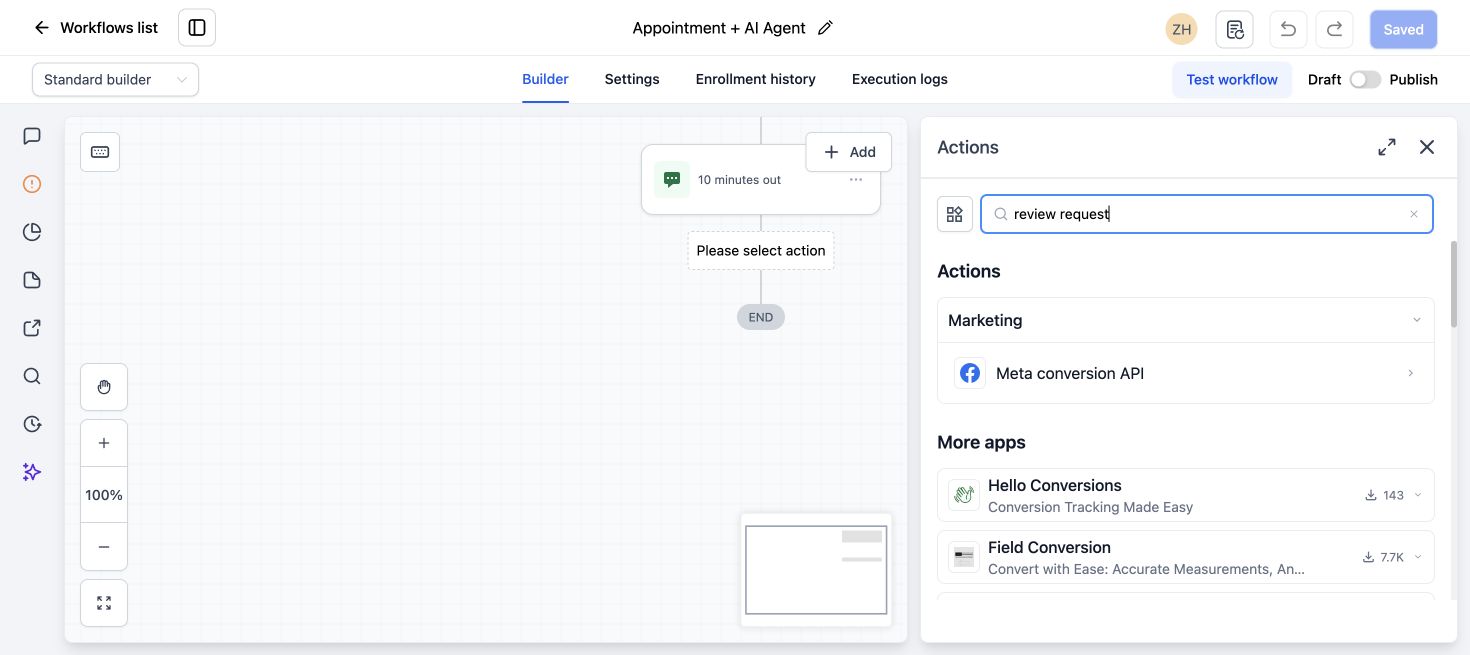
Step 3: Send the review request
Add the Review Request action and select SMS or email according to the channel and permission. HighLevel’s Review Request action guide says the message content is managed through Reputation settings.
Step 4: Limit retries
If using the Reputation retry sequence, configure a small number of reminders and stop after the contact clicks or the sequence ends according to the current settings. Do not send daily reminders for a voluntary review.
Step 5: Exclude inappropriate contacts
Add conditions or filters for:
- DND or unsubscribe status.
- Invalid phone or email.
- Duplicate completion events.
- An existing review-request-sent tag for the same service window.
- A serious unresolved complaint when legal or clinical review is required.
An unresolved complaint can be handled first, but the business should not permanently deny that customer the same honest review opportunity given to others.
Route negative feedback after it arrives
HighLevel includes a New Review Received workflow trigger in its current trigger list. Use the live UI to confirm available filters such as rating, source, or location.
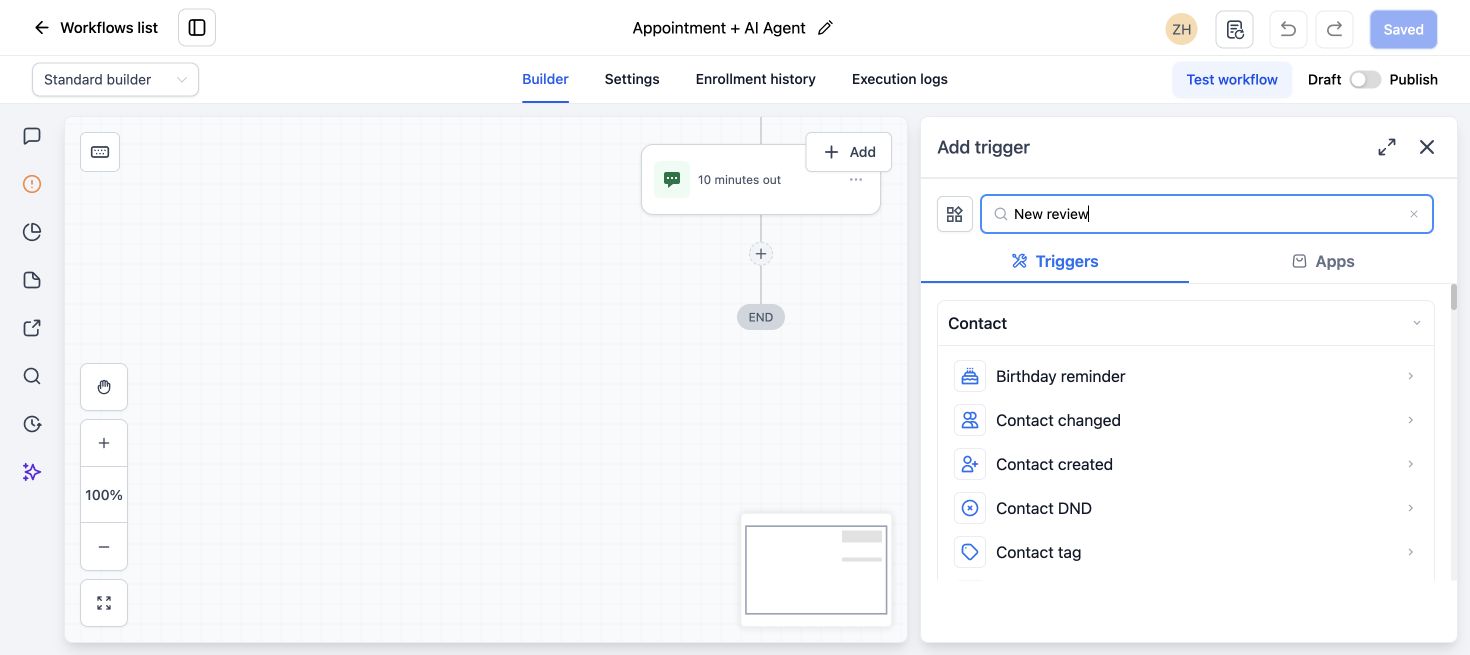
For a low-rating review or a review with concerning content:
- Send an internal notification to the location manager.
- Assign the conversation or record to a named owner.
- Create a task with a short due time.
- Add a
review_recovery_opentag or service-recovery status. - Include the platform, rating, review text, and direct review link in the internal alert when those values are safely available.
- Record the outreach and resolution without exposing private details in a public response.
Do not send an immediate automated public reply to every negative review. A person should read the review, verify the customer record, and choose an appropriate response.
Respond to negative reviews without exposing the customer
A useful public response is short and calm:
Thank you for sharing this. We are sorry the experience did not meet expectations. Our manager would like to understand what happened and help. Please contact us at [business contact method].Do not confirm treatment details, account balances, appointment history, or other private information in public. Do not accuse the reviewer of lying. If a review violates a platform policy, report it through the platform’s process, but do not report it merely because it is negative.
Google’s review response guidance recommends professional, relevant replies and moving complex details into a private conversation.
Use a separate internal feedback loop
If the business wants structured service feedback, send a survey to every eligible customer, not only to people who seem unhappy. The survey can ask about scheduling, communication, staff, and outcome.
Use its low scores to:
- Notify management.
- Create a follow-up task.
- Tag the issue category.
- Track service-recovery status.
- Identify repeated operational problems.
Keep that survey independent from the public review request. Every customer should retain the same public review opportunity.
Test the workflow with four safe contacts
Before publishing, test:
- A completed appointment that should receive SMS.
- A completed appointment with SMS DND that should not receive it.
- A duplicate Showed update that should not send twice.
- A low-rating test or supported review event that should notify the manager.
Check the public review link, message rendering, workflow logs, retries, internal alert, task owner, and contact activity.
Do not post a fake public review to test the integration. Use supported test methods, a non-public internal survey, or a real review from an authorized team member only when it reflects a genuine experience and follows the platform’s policy.
Understand the Reputation dashboard
HighLevel’s Reputation Overview can include:
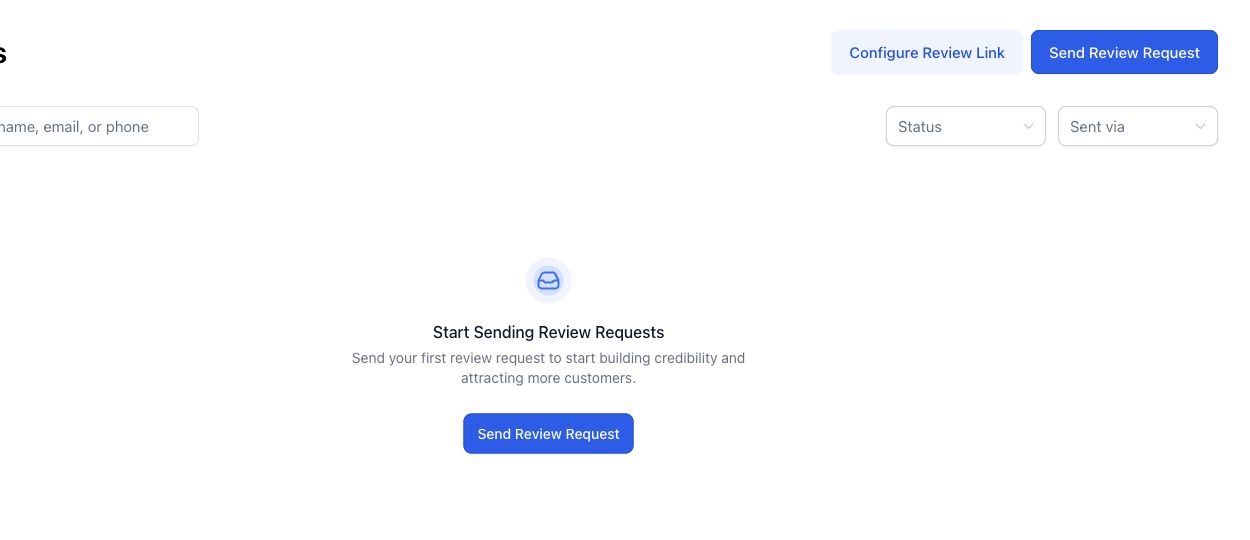
- Average rating for the selected period.
- Review sentiment.
- Invite trends for outbound SMS and email requests.
- Review trends over time.
- Latest review requests.
- Latest connected reviews.
HighLevel’s Reputation Overview guide explains that invite trends count requests while review trends count reviews received. Those are different metrics.
Track this simple funnel:
- Eligible completed experiences.
- Review requests attempted.
- Review requests delivered.
- Review-link clicks where available.
- Reviews received.
- Average rating and rating distribution.
- Negative reviews acknowledged within the team’s target time.
- Service-recovery tasks completed.
Do not calculate success only from the average star rating. A process can have a high rating and still fail to send consistently or respond to legitimate concerns.
Common setup problems
| Problem | Likely cause | Fix |
|---|---|---|
| Review link opens the wrong business | Wrong Google profile or custom URL | Reconnect or replace the destination and test on mobile |
| No request after a visit | Appointment was not marked Showed or workflow filter is wrong | Inspect the appointment status and execution log |
| Customer receives repeated requests | Duplicate trigger entry or retry sequence is too aggressive | Add a sent marker and review retries and re-entry |
| SMS is skipped | DND, invalid number, or messaging restriction | Respect DND and inspect the message error |
| Reviews do not appear in dashboard | Google or Facebook integration is missing or delayed | Check the connected platform and current sync status |
| Negative review is missed | No owner or New Review Received routing | Add an internal alert and task workflow |
| Only happy customers receive the Google link | Review gating | Give every eligible customer the same honest review request |
What to do next
Connect and test one destination, then automate one reliable completion event. Review the first real requests and responses before adding more calendars, locations, or retries.
Frequently asked questions
Can GoHighLevel automatically send Google review requests?
Yes. Configure the review destination and message in Reputation settings, then send a Review Request action from a workflow or use the request tools in the contact or Reputation area.
Can I send unhappy customers to a private form instead of Google?
Do not make the public review link available only to customers who first give a positive score. That is review gating. You can send a separate feedback survey to all customers and route low scores internally while still offering the same honest public-review opportunity.
How many review request reminders should I send?
Use a restrained sequence that fits the relationship and channel. Test one request and, when appropriate, one reminder before adding more. Stop according to the current click and retry behavior.
Can HighLevel respond to reviews?
Connected review tools can help teams view and manage reviews. For negative or sensitive reviews, use a human-reviewed public response and move private details to a direct conversation.
What should I report to a client each month?
Show eligible experiences, requests sent, delivery, reviews received, rating distribution, negative-review response time, and unresolved recovery tasks. Separate invitations from actual reviews.
Need this connected, built or tested for you?
Book a free 30-minute call to define the integration or automation scope and get a fixed quote. Custom APIs and integrations are quoted separately from Business System Setup. Already configured with one clearly defined native HighLevel issue? The $149 small fix may fit; we confirm eligibility and scope before payment.
One Comment