
GoHighLevel Custom Fields vs Custom Values vs Custom Objects: Which One Should You Use?
Here is the simplest way to separate these GoHighLevel data tools: use a custom field when the value belongs to one contact or record, a custom value when the same reusable value belongs across assets, and a Custom Object when you need a separate record type with its own fields and relationships.
The names sound similar, but the data jobs are completely different. When we plan an account, we decide what the information represents before creating anything in Settings. That prevents duplicated fields, fragile workflows and reporting nobody trusts.
Simple rule: A contact’s preferred service is a custom field. The agency’s support phone number is a custom value. A property, vehicle, policy or application that needs its own record is a Custom Object.
First, compare the three data jobs
| Option | Use it for | Example |
|---|---|---|
| Custom field | Information that changes for each contact, company, opportunity or supported record. | Roof type, lead source, budget or preferred appointment time. |
| Custom value | A reusable account-level value that should stay consistent across templates and automation. | Business address, support email, booking URL or standard offer name. |
| Custom Object | A new record type that needs multiple fields, relationships, lists and workflows. | Property, insurance policy, vehicle, case, enrollment or project. |
When to use a GoHighLevel custom field
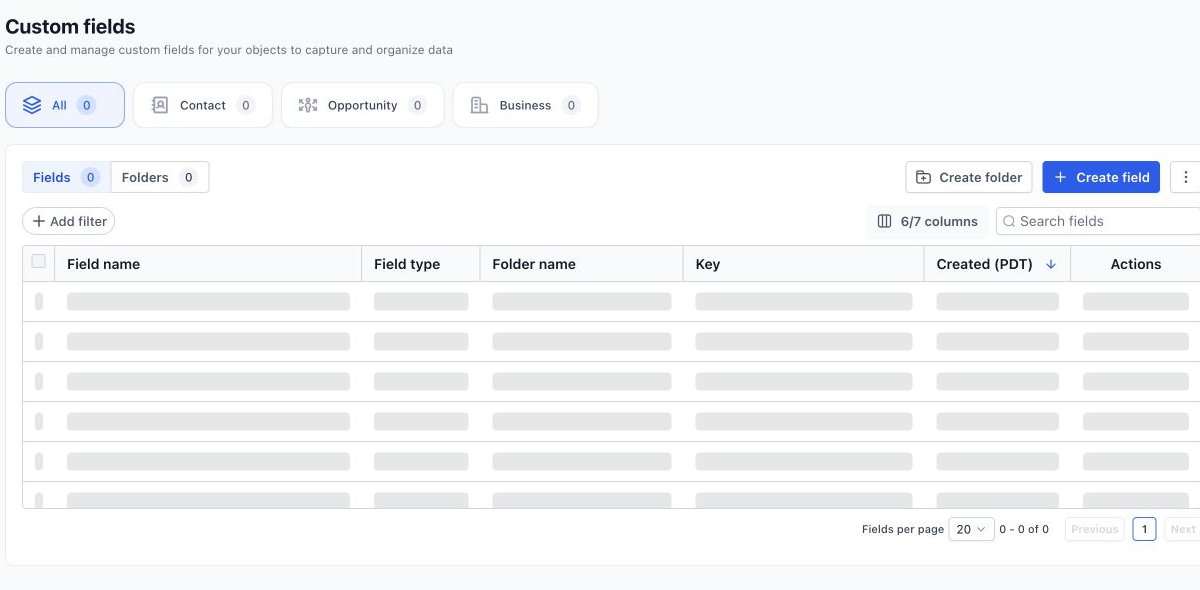
Create a custom field when the answer belongs to a specific record. A form can populate the field, a workflow can check or update it, and your team can use it for filtering and personalization.
Good custom-field examples
Service requested, preferred location, qualification status, estimated budget, renewal date and the contact’s consent source.
Avoid duplicate versions
Do not create “Service,” “Service Type,” “Requested Service” and “Interested Service” unless they genuinely represent different information. Decide on one field name and document how it is populated.
Choose the correct object
A field attached to an opportunity is not the same as a field attached to a contact. Put sales-deal information on the opportunity when a contact can have more than one deal.
When to use a custom value
Custom values work like reusable placeholders. If an agency changes its support email, booking link or office address, updating one custom value can update every template that references it.
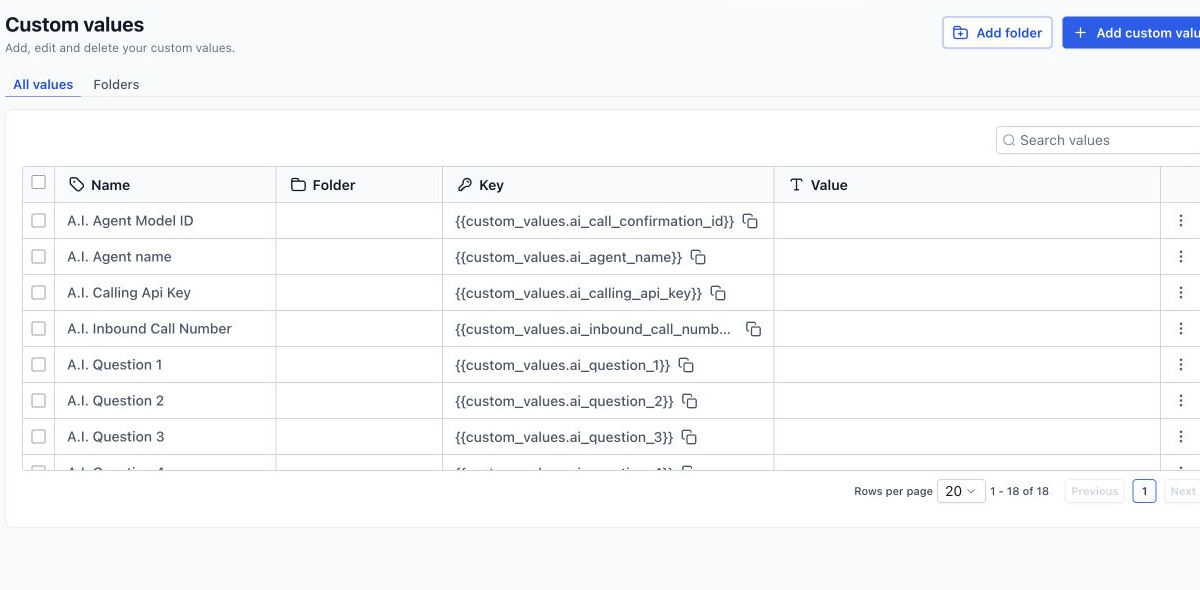
They are useful inside email, SMS, funnels and workflows when the information is consistent for the entire sub-account. They are not a replacement for contact fields. If every contact can have a different answer, use a field instead.
Common mistake: A custom value called “appointment date” will not automatically hold a different date for each contact. That belongs in an appointment, contact field or related record.
When a Custom Object is the better choice
A Custom Object is useful when your business needs to track something that is not simply a person, company or opportunity. Current HighLevel documentation supports Custom Objects across forms, workflows, Smart Lists, dashboards, APIs, webhooks and other areas, although some product surfaces still have limitations.
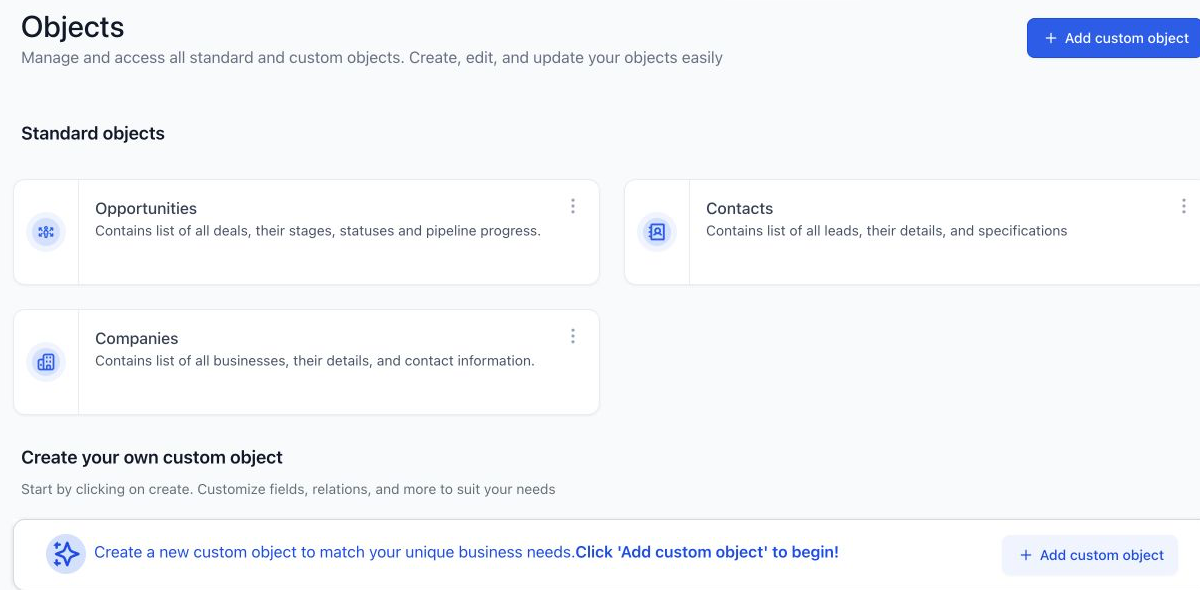
For example, a property-management company may have one contact connected to several properties. Storing “property address” as one contact field fails as soon as the owner adds a second property. A Property object can hold one record per property and associate those records with the same contact.
Use a Custom Object when all four are true
- The item can exist more than once for one contact.
- It needs several related fields.
- Your team needs to list, filter or report on those records.
- Workflows must run when the record is created or updated.
Do not create an object too early
If the business only needs one or two contact-level answers, a Custom Object adds unnecessary complexity. Start with the simplest structure that preserves the real relationship between records.
A practical data-design process
- Write down the real entities. Examples include contacts, companies, opportunities, properties, policies and projects.
- Identify relationships. Decide whether one contact can have several opportunities or several custom records.
- Choose the owner of each value. Put each field on the record it actually describes.
- Define names and allowed values. Avoid several spellings for the same status.
- Map data entry. Record which forms, integrations, users and workflows can create or update the value.
- Test reporting and automation. Confirm the structure produces the filters and workflow behavior your team expects.
If your data enters from WordPress, forms or another CRM, review the structure before connecting the integration. Our WordPress to GoHighLevel integration service includes field mapping and lifecycle planning. For an account that already has duplicated fields and unreliable automation, start with a GoHighLevel workflow audit.
Data architecture FAQs
Can a form create a GoHighLevel Custom Object record?
Yes. HighLevel supports using form submissions to create supported Custom Object records and associate them with a contact. Test required and unique fields before using the form publicly.
Can I use a custom value inside a workflow?
Yes. Custom values are useful for reusable account-level information inside workflow messages and other assets. Use contact or opportunity fields when the value must change by record.
Can I convert a custom field into a Custom Object later?
Not as a simple automatic conversion. Plan how existing values will be exported, transformed, imported and associated with the correct contacts before changing the structure.
How many Custom Objects can a location have?
HighLevel’s current 2026 documentation states that a location can create up to ten Custom Objects. Confirm current plan limits before designing a system that depends on the maximum.
Need this fixed for you?
Start with a $149 small fix for one clearly defined issue, subject to scope confirmation. If the cause is unclear or spans several workflows, choose the $200 workflow audit. The audit report is delivered within five business days after we receive the required access and journey details.
13 Comments