
GoHighLevel Duplicate Opportunities: Settings, Causes and Fixes
GoHighLevel duplicate opportunities usually come from three places. The global Allow Multiple Opportunities per Contact setting may be enabled, a workflow may be allowed to re-enter, or several automations may create an opportunity for the same event.
Okay, so what is actually happening in the account? Sales reps see several cards for the same person and no longer know which one to update. When we audit this, we trace the contact history back to every Create Opportunity action before changing pipeline settings.
Do not turn off every duplicate option immediately. A returning customer may need a new opportunity. The goal is to block accidental duplicates while keeping legitimate repeat deals.
If duplicates appear during automation, start with the workflow diagnostic checklist. If they began after a data move, review the guides for importing contacts without duplicates and transferring a sub-account between agencies. Then test the post-booking workflow that creates or updates the opportunity.
First, decide what should count as a new opportunity
Write one rule for the pipeline. For example:
- One opportunity per contact for a one-time onboarding pipeline.
- One opportunity per project for a service business.
- One opportunity per property for a real estate or roofing company.
- One opportunity per sales cycle after the previous deal closes.
This decision determines whether multiple opportunities are a problem or a required feature.
1. Check the global multiple-opportunity setting
Go to Settings > Objects > Opportunities and review Allow Multiple Opportunities per Contact. HighLevel’s multiple-opportunities guide explains that this global setting controls whether one contact can have more than one opportunity.
Turning it off does not automatically remove existing duplicates. It changes how future opportunity creation is handled.
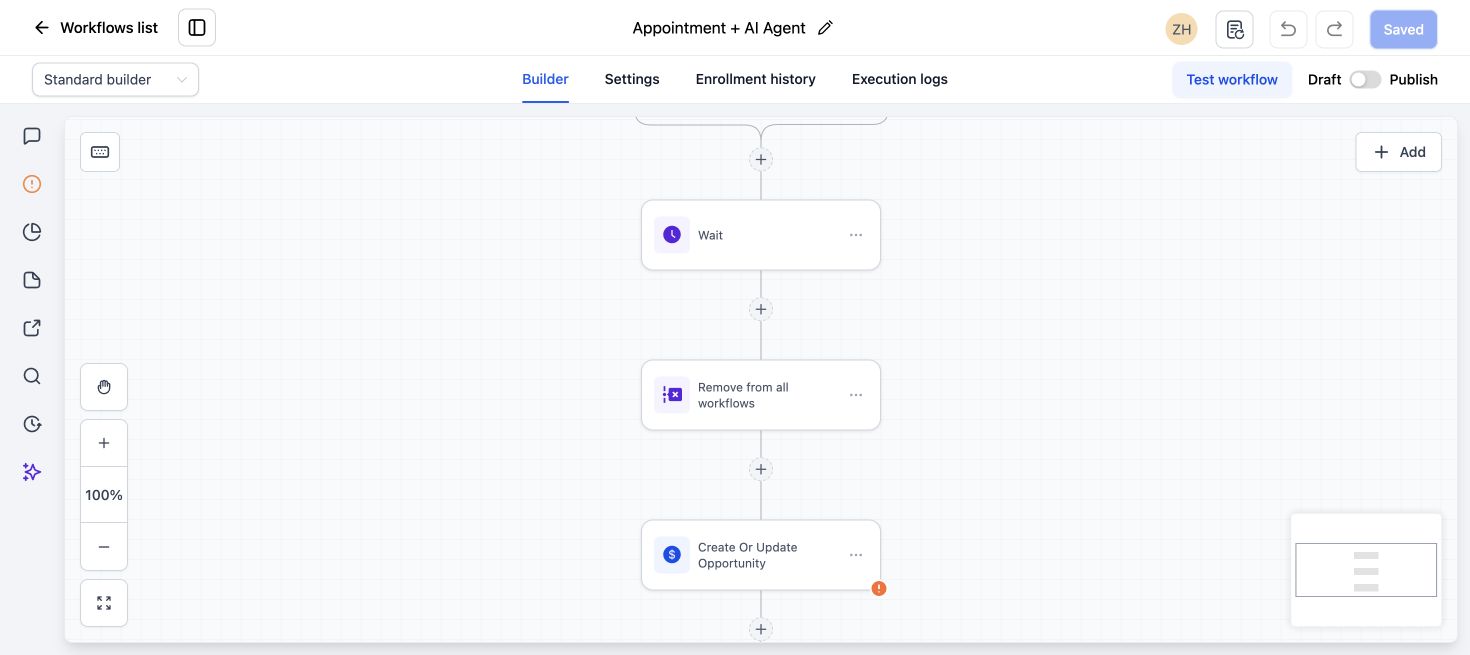
2. Check the workflow’s opportunity settings
Open the workflow that creates or updates pipeline records. Review its settings and actions. HighLevel notes that newer workflows may allow multiple opportunities by default, while older workflows may use different defaults.
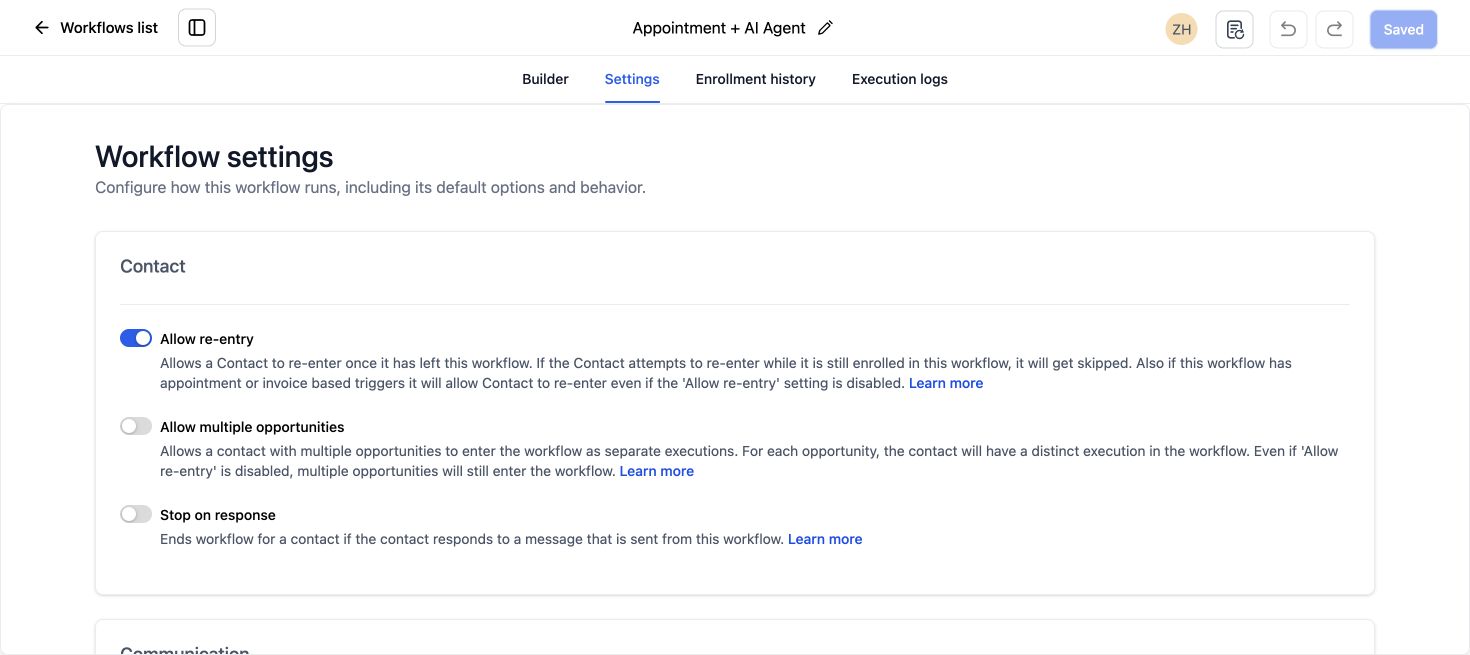
Use a deliberate setting rather than relying on whatever the workflow inherited when it was created.
3. Review every Create Opportunity action
Search the account for workflows that contain Create Opportunity. You may find one on the form workflow, another on the appointment workflow and a third in a snapshot.
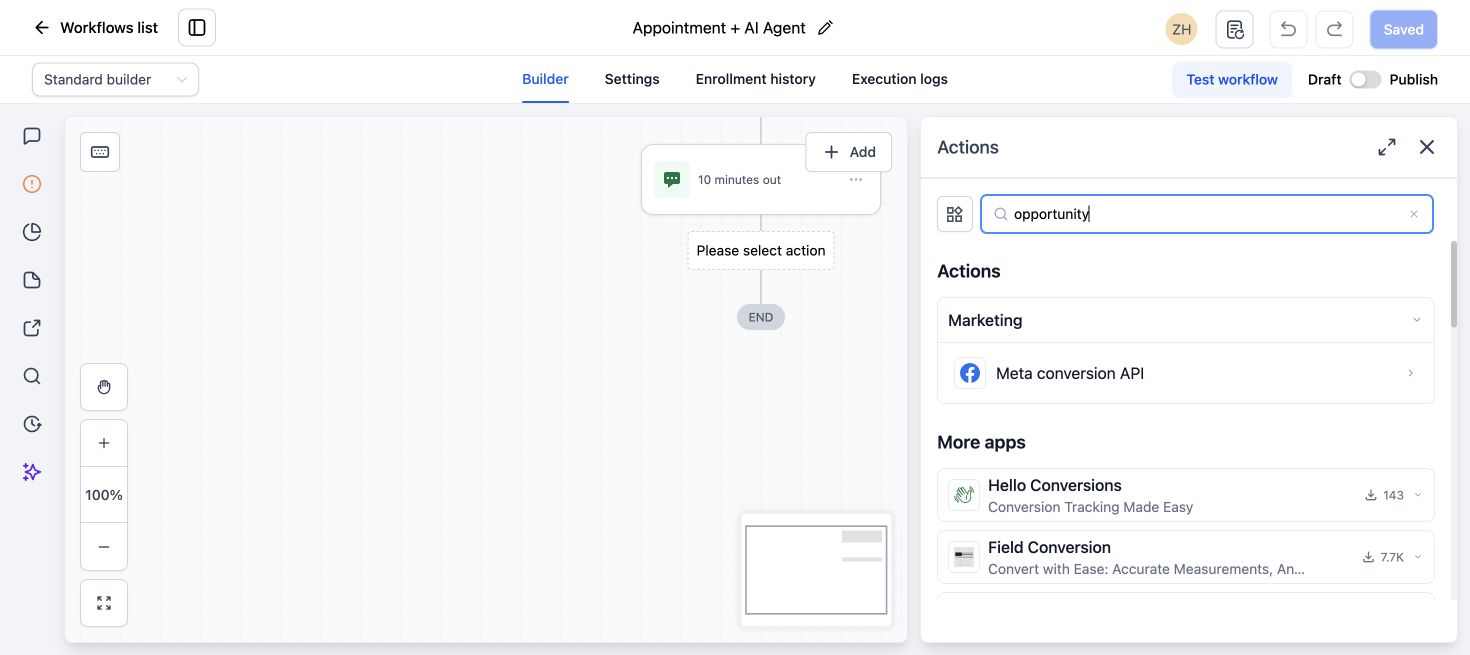
HighLevel’s Create Opportunity documentation says duplicate checking is associated with the contact ID, not the opportunity name. Renaming the card does not create a reliable duplicate rule.
4. Check whether the trigger fires more than once
Common examples include:
- A form and a Facebook Lead Ad both enter the same contact.
- An appointment is rescheduled and triggers another creation step.
- A tag is removed and added again.
- A webhook retries after a slow response.
- The contact re-enters the workflow.
Open execution history and compare the creation time of the duplicate cards with the contact’s workflow events.
5. Use Find Opportunity before updating
If your process should update an existing deal, find the relevant opportunity first and then update it. Do not use Create Opportunity as a substitute for finding the current record.
HighLevel’s Update Opportunity guide is important here: an update action changes an existing opportunity, but it does not create a new one simply because a duplicate option is enabled.
6. Handle closed opportunities intentionally
A contact with a won or lost opportunity may return later. Decide whether the workflow should reopen or update the old card, or create a new opportunity for the new sales cycle.
For repeat businesses, the cleanest rule is often:
- Search for an open opportunity in the target pipeline.
- If one exists, update it.
- If no open opportunity exists, create a new one.
- Store a source or project identifier for reporting.
7. Add an idempotency guard for external integrations
Zapier, Make and custom API integrations can retry. Store the external lead, order or appointment ID in a custom field and check it before creating another opportunity.
This is safer than relying only on email or phone matching when the same contact can submit more than once.
How to clean existing duplicates
- Export or record the affected opportunity IDs.
- Keep the card with the correct owner, stage, value and activity.
- Move useful notes or fields before removing an unwanted duplicate.
- Fix the workflow or integration that created the duplicates.
- Run one controlled test with a new contact.
Before you remove any opportunity cards, trace what created them and agree which record your team will keep. Preserve the useful notes and fields first, then review the specific duplicates you intend to remove.
Quick diagnosis
- Duplicate at the same second: Two workflows or a retried integration may be creating it.
- Duplicate after reschedule or reply: Re-entry or an event trigger may be creating it.
- No new card for a returning customer: Multiple opportunities may be disabled or the workflow is updating the closed card.
- Several opportunities are legitimate: Add a project, location or sales-cycle identifier so the team can tell them apart.
If you cannot see which automation owns the record, our GoHighLevel Workflow Audit and Repair service maps the opportunity triggers and creation actions before any changes are made.
For wider pipeline and automation cleanup, review our GoHighLevel services.
Frequently asked questions
Can one GoHighLevel contact have multiple opportunities?
Yes, when the global setting and workflow configuration allow it. This is useful for repeat purchases, projects or sales cycles.
Why did a closed opportunity stop a new one from being created?
The account may be set to keep one opportunity per contact, or the workflow may be finding and updating the previous card instead of creating a new sales cycle.
Does changing the opportunity name prevent duplicates?
No. HighLevel’s duplicate handling is tied to the contact and configuration, not only the visible opportunity name.
Will disabling multiple opportunities delete duplicates?
No. Existing cards remain. Fix the creation logic and review old records separately.
Should I merge duplicate contacts or opportunities?
They are different problems. Confirm whether you have one contact with several cards or several contact records before choosing a cleanup method.
Need this fixed for you?
Start with a $149 small fix for one clearly defined issue, subject to scope confirmation. If the cause is unclear or spans several workflows, choose the $200 workflow audit. The audit report is delivered within five business days after we receive the required access and journey details.