
GoHighLevel Database Reactivation Workflow: Segment Cold Leads, Handle Replies and Book Calls
A database reactivation campaign is not permission to message the entire CRM. I would start with a first-party segment that has a defensible consent record, exclude DND contacts and active conversations, send in controlled batches, stop automation when someone replies and give the sales team a clear reply-handling process.
If this were my account, I would begin with a small pilot. When the list, offer, routing or team capacity is weak, increasing the volume only makes the underlying problem larger.
Before reactivating the list, clean the database with the contact import and duplicate-prevention guide, confirm the correct custom data structure, and test the sequence with the workflow checklist. The after-hours response guide helps route replies that arrive when the team is offline.
I would start with eligibility, not list size
An old contact is not automatically an eligible marketing contact. Before building copy, identify why the business has the person’s details and what communication they agreed to receive.
Do not include:
- Purchased, scraped, rented, or partner lists without valid transferable consent.
- Contacts with permanent DND or a recorded opt-out.
- Invalid or unverified phone numbers and emails.
- Current customers who belong in a service workflow instead.
- Open opportunities already receiving personal follow-up.
- Contacts in another active nurture or appointment sequence.
- Jurisdictions or channels the business is not prepared to handle lawfully.
HighLevel’s LC Phone messaging policy states that consent cannot be bought, sold, or exchanged and that opted-out contacts are skipped by SMS workflows and bulk sends. The business is still responsible for its consent records, sender identity, and applicable laws.
Define the reactivation job
Choose one audience, one reason to reply, and one next step.
Good campaign jobs include:
- Ask old estimates whether the project is still planned.
- Offer previous consultation leads a current availability check.
- Invite opted-in prospects to book a short review call.
- Reopen a conversation after a documented seasonal pause.
Avoid vague messages such as “Just checking in” when the contact may not remember the business. Identify the company, provide context, and make the response easy.
Build the segment in GoHighLevel
Go to Contacts > Smart Lists > Advanced Filters. The exact fields depend on the database, but a reactivation segment often combines:
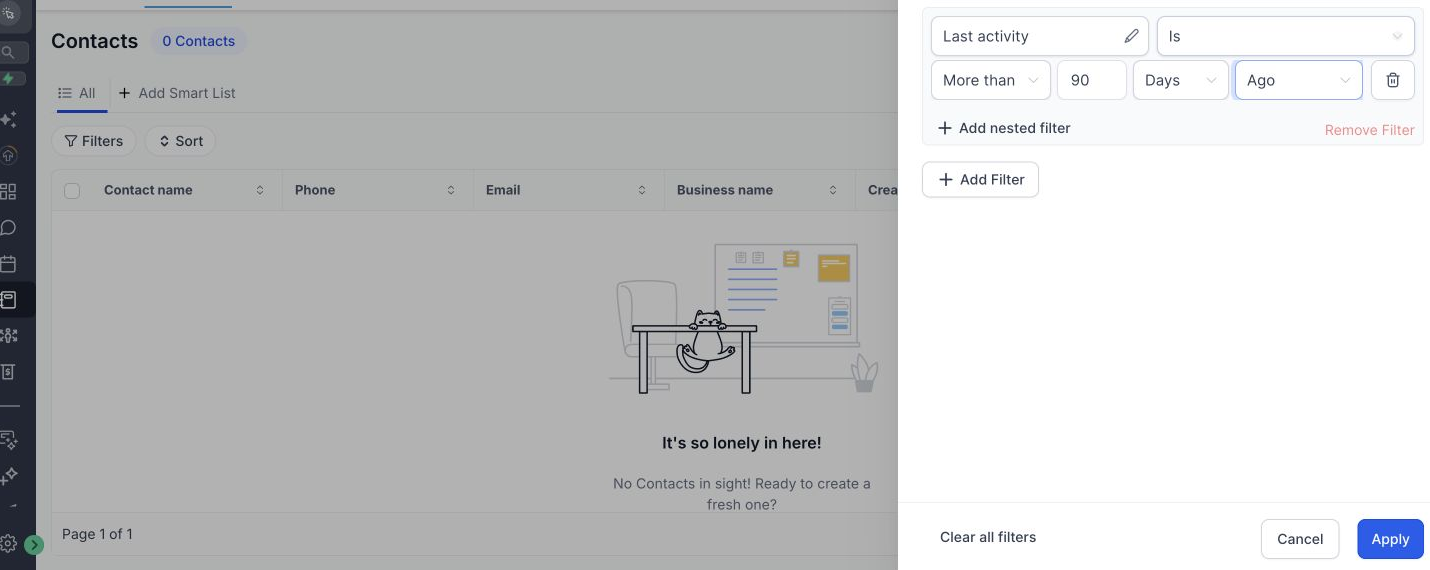
Inclusion filters
- Original lead source or form.
- Contact created before a chosen date.
- Last activity older than the active-sales window.
- A tag or field showing the relevant offer or service.
- A stored SMS or email consent state where available.
- A valid phone or email for the selected channel.
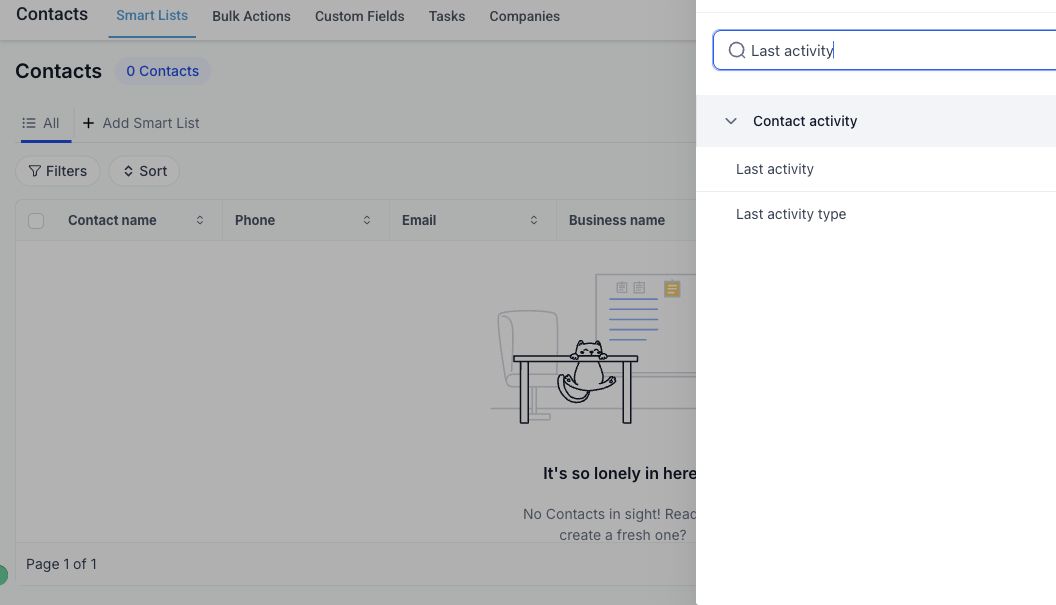
Exclusion filters
- DND is enabled for the channel or contact.
- Opportunity status is Open in an active sales pipeline.
- Appointment status is upcoming.
- Customer or active-client tag exists.
- Unsubscribed, complaint, wrong-number, or invalid tag exists.
- Contact is already in the reactivation workflow.
- Contact replied or was manually contacted recently.
Save the filtered view as a Smart List and record its logic. Review a sample of contacts manually. Filters can be technically correct while the underlying data is stale or incomplete.
Create a pilot batch
Start with a small group the team can inspect and answer. The right pilot size depends on team capacity, channel, and list quality. It is not a race to send as many messages as possible.
Tag the pilot, for example:
reactivation_aug_2026_pilotKeep the broader eligible Smart List separate from the contacts actually enrolled. This makes reporting and rollback decisions clearer.
Build the reactivation workflow
Create a workflow named for the audience and date, such as REACTIVATION - Old Estimates - Aug 2026.
Configure workflow settings first
Set these before writing the messages:
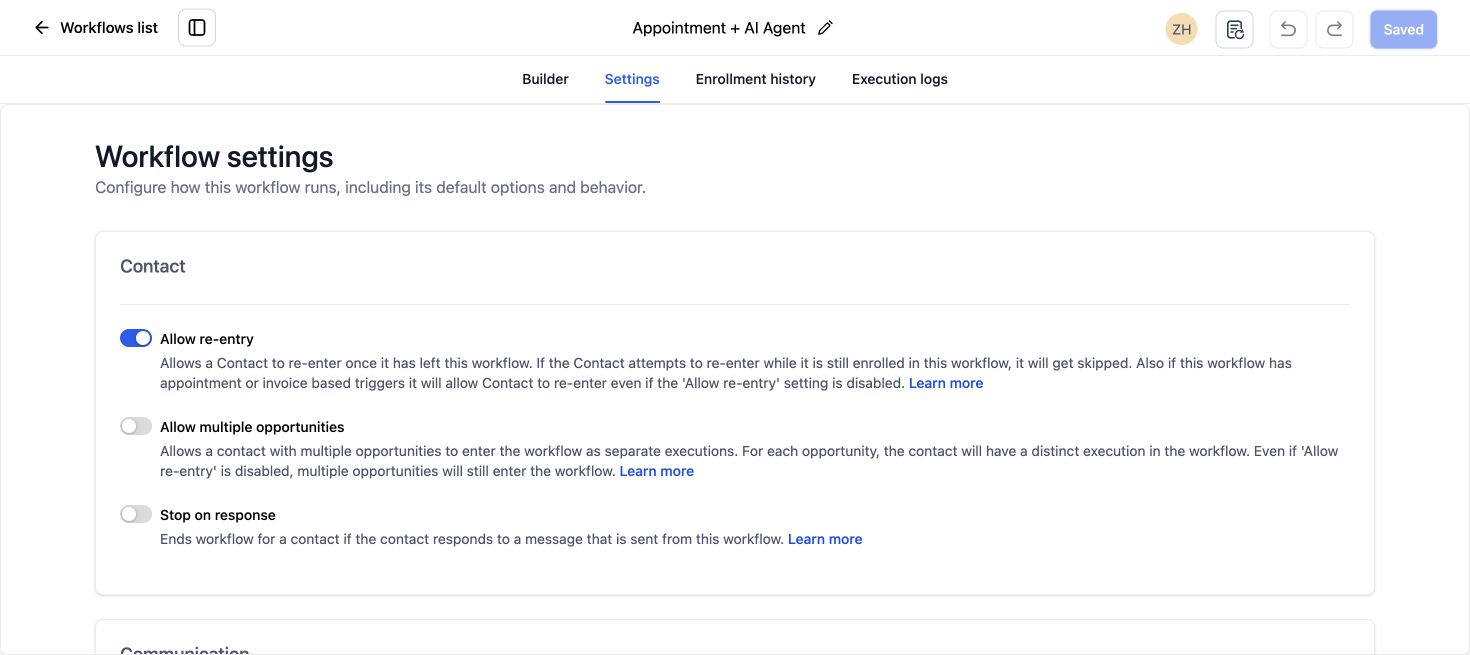
- Stop on Response: Enable it so the automated sequence ends when the contact replies to a message from this workflow.
- Timezone: Use Contact Timezone only when the records contain reliable time zones. Otherwise use the account zone and restrict the audience geographically.
- Time Window: Limit messages to appropriate business hours and days.
- Sender Details: Use a recognizable sender name, email, and phone number.
- Re-entry: Keep it off for a one-time reactivation pilot unless there is a documented reason to repeat.
- Mark as Read: Do not automatically hide conversations that need a human response.
HighLevel’s workflow settings guide explains that Stop on Response removes the responding contact from that workflow, not every contact in the campaign.
Use a short message sequence
A simple SMS sequence might contain one opening message and one reminder. Email may justify more context, but it should still remain concise.
Example opening SMS:
Hi {{contact.first_name}}, this is Aisha from Northside Dental. You asked us about an implant consultation earlier this year. Are you still looking for an appointment, or should we close the enquiry? Reply 1 for times, 2 to close it. Reply STOP to opt out.Why it works:
- It identifies the sender.
- It reminds the contact why the business has their details.
- It asks one clear question.
- It offers an easy close-out response.
- It includes opt-out language.
Do not claim the person requested a service unless the CRM record proves it.
Wait before the reminder
Add a wait period that fits the channel and business hours. Stop on Response should remove contacts who reply. The reminder can be shorter:
Hi {{contact.first_name}}, one last note from Northside Dental about your earlier implant enquiry. If you still want appointment options, reply 1. If not, reply 2 and we will close it.End the workflow after the reminder. A reactivation sequence should not become a long nurture by accident.
Build a separate reply-routing workflow
The reactivation workflow stops when the contact replies. A second workflow should decide what happens next.
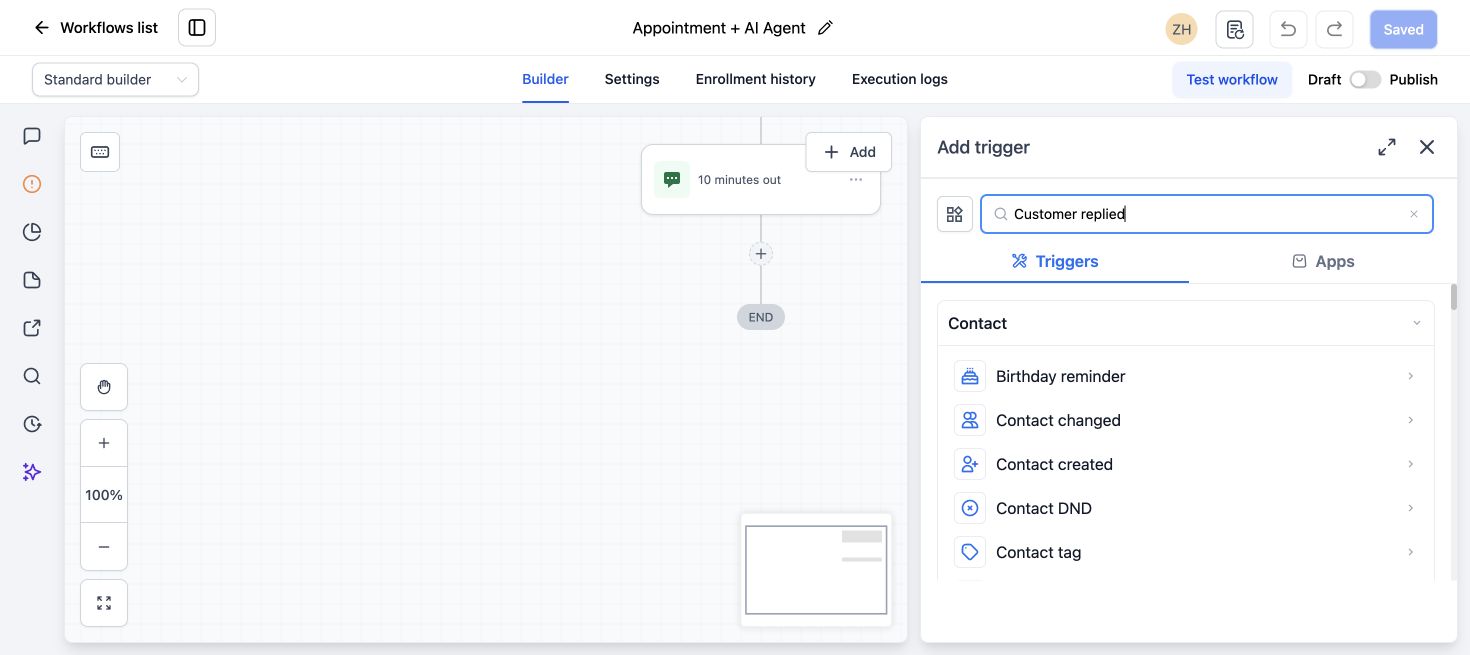
Use the Customer Replied trigger and filter Replied to Workflow to the reactivation workflow. HighLevel’s Customer Replied guide also supports filters for phrases, intent, tags, and reply channel.
Positive or booking reply
For replies such as 1, yes, interested, or a supported positive intent:
- Add a
reactivation_positivetag. - Assign the contact to the correct user.
- Create an opportunity in a Reactivated or Qualified stage if one does not already exist.
- Send an internal notification with the contact and reply context.
- Create a short-due task for personal follow-up.
- Send a calendar link only when it is the natural next step.
Close or negative reply
For replies such as 2, not interested, or close:
- Add a
reactivation_closedtag. - Remove the contact from related promotional workflows.
- Close or update the old opportunity according to the sales process.
- Do not argue or send a new offer.
If the reply is an opt-out keyword, let the platform apply the permanent DND behavior. Do not create a workflow that reverses it.
Question or uncertain reply
For anything that needs interpretation:
- Assign the conversation.
- Notify a person.
- Create a reply task.
- Avoid an automated sales answer when the intent is unclear.
Conversation AI can help categorize or answer messages only after it is trained, scoped, and tested. A human handoff remains necessary for complaints, pricing exceptions, sensitive information, and ambiguous requests.
Book calls without creating a dead end
A calendar link is useful only when the calendar works and someone owns the resulting appointment.
Before including it:
- Test the public booking page on mobile.
- Confirm time zone, availability, buffers, and conflict calendars.
- Use a calendar that matches the promised call.
- Add confirmation and reminder messages.
- Route replies from contacts who cannot find a suitable time.
- Remove booked contacts from the reactivation sequence.
For a positive reply, a personal response with two options can outperform an immediate link when the contact has questions. The workflow should support the team, not force every person into the same self-booking path.
Add contacts in controlled drip mode
Once the workflow passes internal tests:
- Open the pilot Smart List.
- Select the reviewed contacts.
- Choose Trigger Automation or the current Add to Automation control.
- Select the published reactivation workflow.
- Choose Send in Drip Mode.
- Set the first batch time, contacts per batch, and interval based on staff capacity.
- Track the operation under Contacts > Bulk Actions.
HighLevel’s bulk workflow enrollment guide describes immediate, scheduled, and drip-mode enrollment. Drip mode controls entry volume, but it does not replace the workflow’s time window or consent filters.
Test before enrolling real leads
Use internal contacts representing these cases:
- Positive reply.
- Close reply.
- STOP opt-out.
- Question or complaint.
- No reply.
- Calendar booking.
- DND contact that should be skipped.
Confirm the original workflow stops, the reply-routing workflow starts, the correct tags and opportunity actions occur, and the team sees the conversation.
Measure usefulness, not only sends
Track the pilot with a simple funnel:
- Eligible contacts.
- Enrolled contacts.
- Attempted messages.
- Delivered messages.
- Failed messages.
- Opt-outs.
- Total replies.
- Positive replies.
- Human follow-ups completed.
- Calls booked.
- Appointments showed.
- Opportunities created or reopened.
- Revenue attributed only when the sales record supports it.
Do not hide high opt-outs or error rates inside a broad engagement number. Those are signals to stop, inspect the segment and copy, and decide whether another batch is appropriate.
Stop conditions for the pilot
Pause the next batch when:
- DND or consent records are unreliable.
- Staff cannot answer replies promptly.
- Messages are failing or being filtered at an unusual rate.
- Recipients frequently do not recognize the business.
- Opt-outs or complaints rise.
- The calendar or opportunity routing fails.
- The offer does not produce useful conversations.
There is no value in finishing the list after the campaign has shown that the inputs are wrong.
What to do next
Build one narrow segment and test every reply branch with internal contacts. Run the pilot, review the actual conversations, then decide whether to change the audience, message, offer, team process, or batch size before expanding.
Frequently asked questions
Can I reactivate every old lead in GoHighLevel?
No. Include only contacts whose consent, source, DND state, recency, and campaign purpose support the message. Exclude purchased lists, opt-outs, active clients, and people already in live sales conversations.
Should I use a bulk SMS or a workflow?
A workflow gives you timing, stop-on-response behavior, reply routing, tasks, and booking logic. Use controlled bulk enrollment to place the reviewed segment into that workflow.
What does Stop on Response do?
It ends the current workflow for the individual contact who replies to a message from that workflow. Build a separate Customer Replied workflow to route and handle the response.
How many messages should a reactivation sequence send?
Use the fewest messages needed to make the offer clear and provide one reasonable reminder. There is no universal sequence length. Let consent, channel, prior relationship, and actual pilot response guide the decision.
Can Conversation AI handle all reactivation replies?
It can help with narrow, tested intents, but unclear replies, complaints, pricing exceptions, and sensitive conversations need a human path. Never launch AI reply handling without testing its knowledge, exclusions, and escalation behavior.
Need this connected, built or tested for you?
Book a free 30-minute call to define the integration or automation scope and get a fixed quote. Custom APIs and integrations are quoted separately from Business System Setup. Already configured with one clearly defined native HighLevel issue? The $149 small fix may fit; we confirm eligibility and scope before payment.
One Comment