Facebook Lead Forms Not Syncing With GoHighLevel: How to Fix It
If Facebook lead forms are not syncing with GoHighLevel, start with the Facebook connection, page permissions and field mapping. Test the exact form used by the ad. Manual sync can recover older leads, but it will not repair the reason new leads are still being missed.
Here is how we test it in a real account: we submit one fresh lead and trace it through the Facebook connection, contact record and workflow before rebuilding anything.
When we troubleshoot this problem, we follow the lead from Meta to the contact record and then to the workflow. That prevents a workflow change from hiding an integration problem.
Once Facebook leads arrive, map them into the correct HighLevel fields or objects, connect them to the after-hours response process, and verify the post-booking workflow if the campaign sends people directly to a calendar.
1. Start with the Facebook account connection
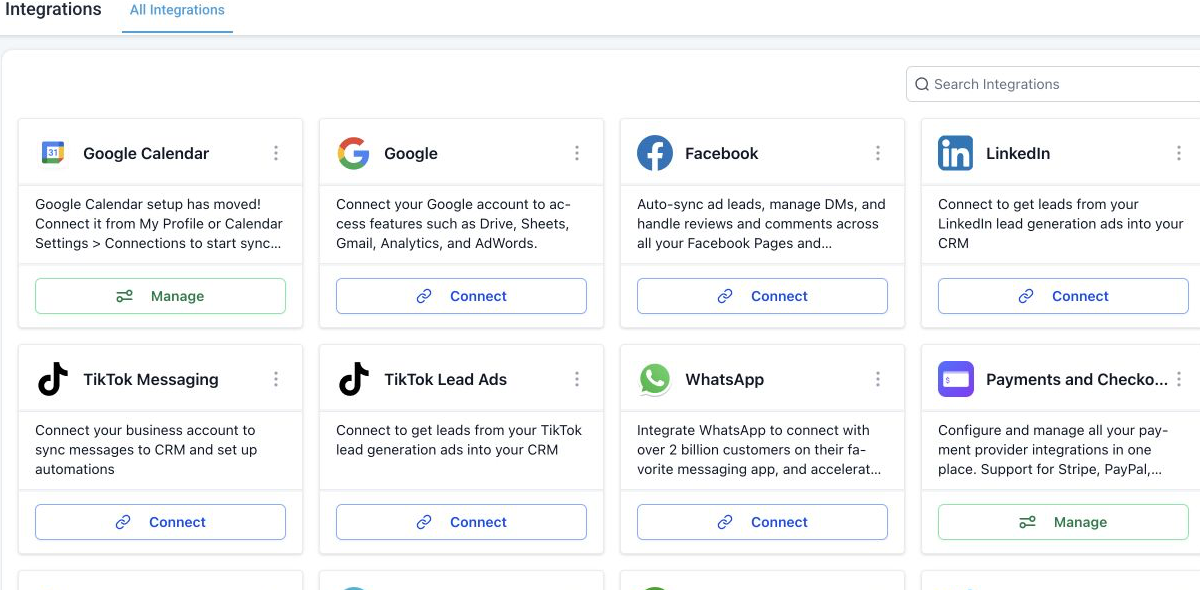
Open Settings > Integrations > Facebook in the correct GoHighLevel subaccount. Confirm that the connected Facebook user has access to the page, lead forms and ad account used by the campaign.
If the connection belongs to a former employee or an account with limited access, reconnect it with a Facebook user who has the required permissions.
2. Check the selected Facebook page
A connected Facebook account can manage several pages. Make sure the page running the ad is enabled for this subaccount. HighLevel’s multi-page Lead Ads guide also recommends using the Facebook troubleshooting screen to review page and LeadConnector access.
3. Map every form field
Go to Settings > Integrations > Facebook Form Field Mapping. Select the form and map each Facebook question to a GoHighLevel contact field.
Pay close attention to custom questions. A standard name and email may sync correctly while an unmapped phone, service or location field prevents the workflow from receiving the data it expects.
4. Open the workflow trigger
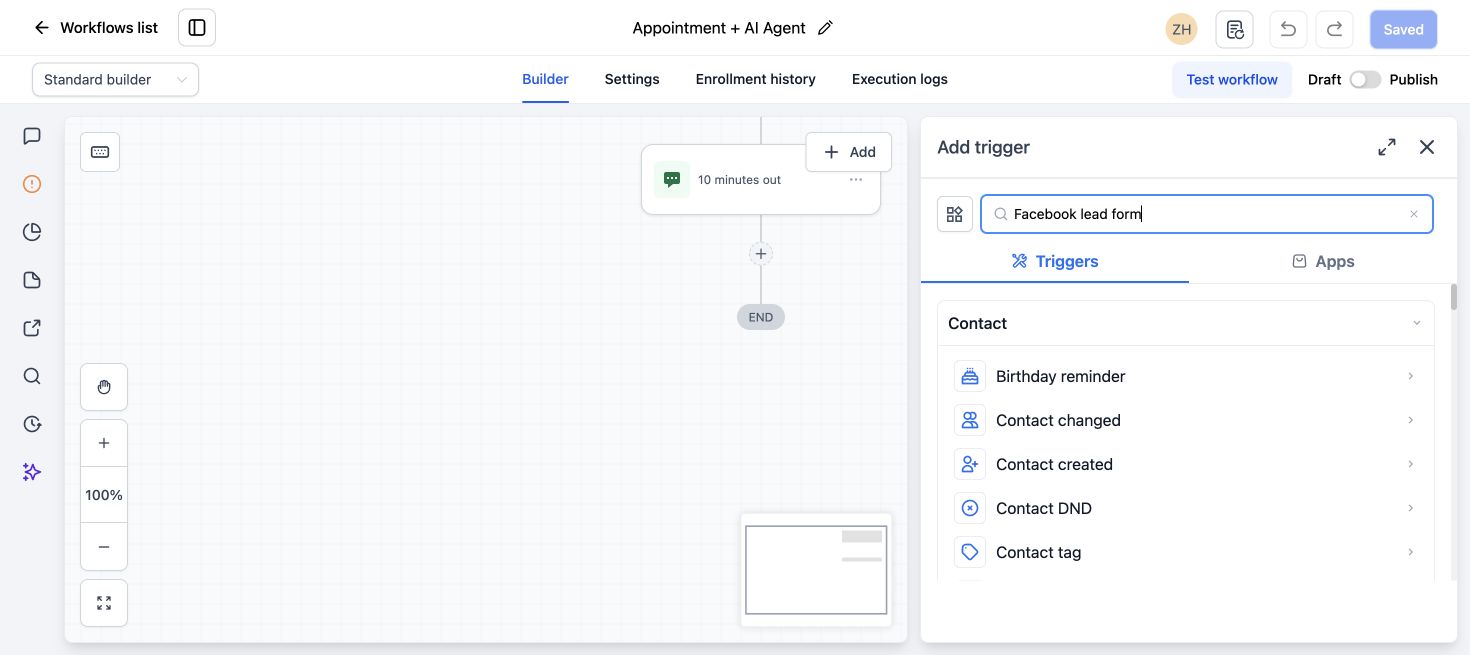
The workflow should use the Facebook Lead Form Submitted trigger. Check its page and form filters. HighLevel’s trigger documentation recommends selecting the specific page and form you intend to process.
If the ad was duplicated, Meta may have created or selected a different instant form. Compare the form ID or exact form name instead of assuming the old workflow filter still applies.
5. Make sure the workflow is published
A correct trigger inside a draft workflow will not process new leads. Confirm the workflow is published, the trigger is saved and any filters match the submitted test lead.
6. Check whether the lead exists without the expected automation
Search Contacts using the test email or phone number. If the contact exists but no opportunity, task or message was created, the Facebook sync probably worked and the problem is inside the workflow.
Open the workflow execution history for that contact. Look for filter failures, missing fields, disabled communication channels or an action error. If the automation needs a deeper review, our GoHighLevel Workflow Audit and Repair service covers that second stage.
7. Run a fresh Facebook test lead
Use Meta’s lead ads testing tool or submit the live instant form with a unique email address. Reusing the same contact can confuse the test when duplicate rules or workflow re-entry settings are involved.
After submission, verify these four results:
- The contact appears in GoHighLevel.
- The Facebook source and form data are present.
- The contact enters the expected workflow.
- The opportunity, message or assignment action completes.
8. Use manual sync only to recover missed leads
HighLevel provides a manual sync option inside Facebook integration troubleshooting. Use it to bring in leads that were collected while the connection was broken. Then submit a new test lead to confirm automatic syncing is working again.
Common fixes that solve this quickly
- Reconnect Facebook with the correct admin user.
- Grant LeadConnector access to the page and lead data.
- Enable the correct page in the subaccount.
- Map custom questions to valid contact fields.
- Update the workflow trigger to the current instant form.
- Publish the workflow and allow the contact to enter it.
If several lead sources are failing, compare the available GoHighLevel setup and support services before fixing each workflow separately.
Frequently asked questions
Why do Facebook leads appear only after a manual sync?
This usually points to an expired connection, missing page permissions or an integration that is not receiving new lead events automatically.
Will changing field mapping import old Facebook leads?
Field mapping affects how data is stored. Use the manual sync tool to recover older leads, then test a new submission.
Why is the Facebook lead in Contacts but not in my pipeline?
The integration created the contact, but the workflow action that creates or updates the opportunity did not run or did not match its filters.
Can one workflow listen to several Facebook forms?
You can use appropriate triggers and filters, but verify each form individually. Separate workflows may be easier to troubleshoot when the forms serve different campaigns.
Does reconnecting Facebook delete existing leads?
No. Reconnecting changes the integration authorization. Existing GoHighLevel contacts should remain in the subaccount.
Need this fixed for you?
Start with a $149 small fix for one clearly defined issue, subject to scope confirmation. If the cause is unclear or spans several workflows, choose the $200 workflow audit. The audit report is delivered within five business days after we receive the required access and journey details.
4 Comments