

GoHighLevel Voice AI Demo: How to Run a Web Call and Phone Test
A GoHighLevel Voice AI demo should test more than whether the agent speaks. A useful demo checks the greeting, knowledge, interruption handling, appointment flow, transfer logic and the records created after the call.
Quick answer: Use a web call for fast prompt and conversation testing. Use a phone call when you need to validate the assigned number, caller ID, audio quality and live phone behavior. Test calls are marked separately and do not appear as normal production analytics.
Official sources: HighLevel Voice AI testing guide
Related GHLFocus guides: Outbound Voice AI setup · Voice AI languages
Web call vs phone call
| Test method | Best for | Main limitation |
|---|---|---|
| Web call | Greeting, prompt, knowledge, language and conversational flow | Does not validate the real phone number or transfer behavior |
| Phone call | Caller ID, telephony, real-device audio and production-like behavior | Requires a connected number and standard call charges may apply |
How to run a Voice AI web call
- Open the location and go to AI Agents, then Voice AI.
- Create a new agent or open the agent you want to test.
- Save the current agent settings.
- Select the web-call test option.
- Allow browser microphone access when prompted.
- Speak through the most important customer questions and paths.
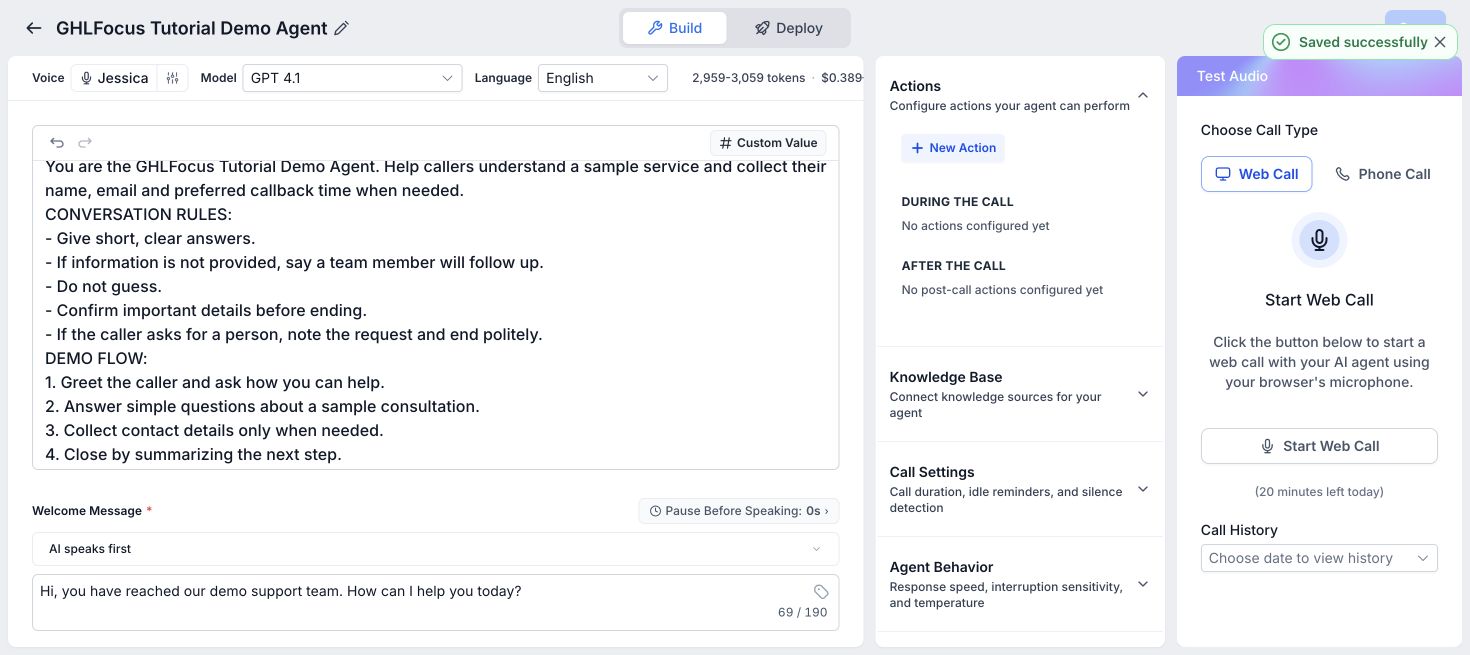
A web call does not need a purchased or assigned phone number. It is the fastest way to improve the prompt before telephony is involved. It also uses the logged-in user as the test contact, so do not treat it as proof that every live contact field is mapped correctly.
How to run a Voice AI phone test
- Assign a suitable phone number to the agent.
- Open the agent test panel and choose the phone-call option.
- Enter or select your own verified test number.
- Start the test and answer the incoming call.
- Complete the main conversation and booking path.
- Review the call entry after the test ends.
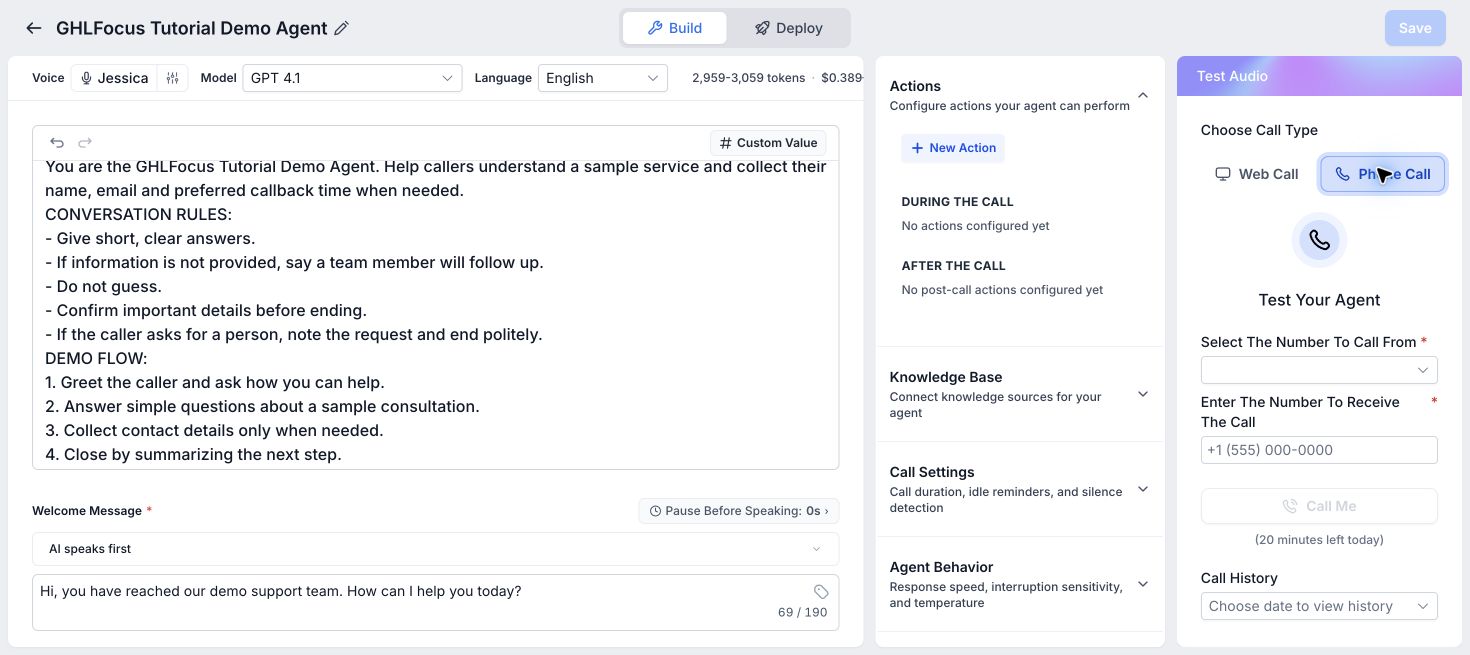
Use the phone test before activating outbound Voice AI calling. It exposes caller ID, carrier and audio issues that a browser call cannot show.
A practical Voice AI demo script
Run the same short script after every significant agent change. Consistent testing makes it easier to identify what improved and what broke.
- Opening: Let the agent introduce the business and state its purpose.
- Normal question: Ask a question the knowledge base should answer.
- Interruption: Speak while the agent is talking and confirm it recovers naturally.
- Unknown answer: Ask something outside the approved knowledge.
- Qualification: Provide one valid and one invalid answer.
- Booking: Ask for an appointment and confirm the correct calendar is used.
- Handoff: Request a person and test the intended transfer or follow-up.
- Ending: Confirm the agent closes the call without looping.
Where to find test-call records
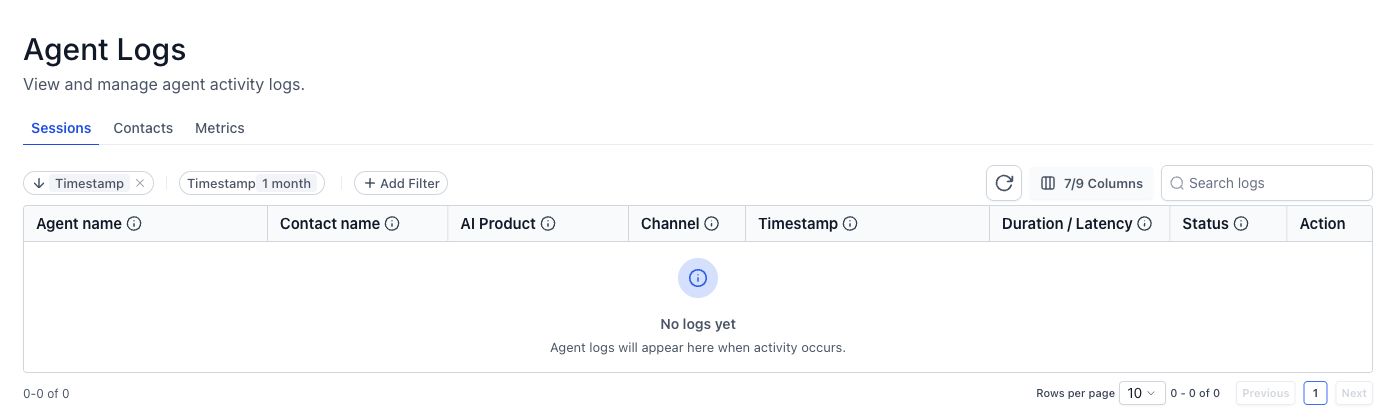
Test calls are excluded from normal dashboard analytics so they do not distort live performance. You can still inspect them in Voice AI call history and the relevant dashboard or logs area, where they are identified as tests.
What to fix when the demo feels unnatural
- Shorten the opening message.
- Remove conflicting instructions from the system prompt.
- Reduce unnecessary knowledge sources.
- Choose a voice that supports the selected language and test its pronunciation.
- Add explicit rules for unknown answers, transfers and call endings.
- Confirm the calendar and workflow actions separately.
GoHighLevel Voice AI demo FAQs
Does a web call use my HighLevel phone number?
No. It runs in the browser and is intended for fast conversational testing.
Can I test call transfer in a web call?
No. Use a real phone test to validate transfer and phone-system behavior.
Do test calls affect Voice AI analytics?
They are excluded from normal production analytics but remain available in call history and logs as test records.
Should I demo the agent with real leads?
No. Start with internal test contacts, then use a small controlled group only after the main paths pass.
Need your AI agent set up and tested?
We can scope your conversation, booking path, follow-up and human handoff, then test the agreed customer journey. Implementation is quoted separately from software subscriptions and usage charges.
Build one agent, then validate it with web and phone calls
A controlled test is faster than learning from missed live calls.
Affiliate disclosure: GHLFocus may earn a commission at no extra cost to you if you sign up through this referral link.

4 Comments