
How to Transfer a GoHighLevel Sub-Account Between Agencies: What Moves and What Must Be Reconnected
Let me make one thing clear: a GoHighLevel sub-account transfer moves the entire client location. It is not a merge, snapshot import or selective copy. HighLevel assets and records can move, while external authorizations, payment settings, some email services, SaaS settings and paid add-ons may need preparation or reconnection.
The transfer button is the short part. The real work is the inventory before it and the reconnection test after it.
If the account also contains a reusable package, review how to package and hand off GoHighLevel snapshots. Then confirm the destination data model with the custom data guide and reconnect integrations using the correct API V2 authentication method.
First, confirm you actually need a transfer
Use a sub-account transfer when the same client location needs to move from a releasing agency to a receiving agency while retaining its HighLevel data.
Do not use it when you need to:
- Merge two locations.
- Move only contacts or only workflows.
- Copy a reusable setup to several clients.
- Transfer an agency’s own designated Agency Sub-Account.
- Preserve two live copies of the same location.
For a reusable build, create or share a snapshot. For selected contact data, use a controlled export and import. For a complete change of agency ownership, use the transfer process.
HighLevel’s current sub-account transfer guide states that the operation moves the whole sub-account and cannot partially transfer or merge its data into another location.
Who can send or accept the transfer?
The Agency Owner can perform the transfer by default. An Agency Admin can do it only when the owner has granted the specific sub-account transfer permission.
The receiving agency must provide its Relationship Number. Confirm the number through the receiving agency’s own HighLevel account. Do not rely on a number copied from an old email or a different agency.
Before either side starts, assign one person at each agency to own the handoff. That person should know the intended transfer window, the current providers, and the acceptance checklist.
What moves with a GoHighLevel sub-account?
According to HighLevel’s current transfer documentation, these assets move with an eligible client sub-account:
- Websites and funnels.
- HighLevel calendars, although external calendar connections are disconnected.
- Workflows and their enrolled-contact data.
- Contacts, conversations, appointments, opportunities, and contact history.
- Membership data listed as supported by HighLevel.
- Sub-account API keys that already exist.
- Users with the Account user type who are assigned only to this location.
For transfers to an existing agency, HighLevel currently says automations move in a live state. Treat that as a reason to prepare carefully, not as permission to assume every action can continue. A live workflow can still fail when its Google account, Facebook page, email service, payment account, or other authorization has been cleared.
What does not transfer or must be reconnected?
The highest-risk items are connections and subscriptions outside the location’s stored CRM data.
| Item | Transfer behavior | Required action |
|---|---|---|
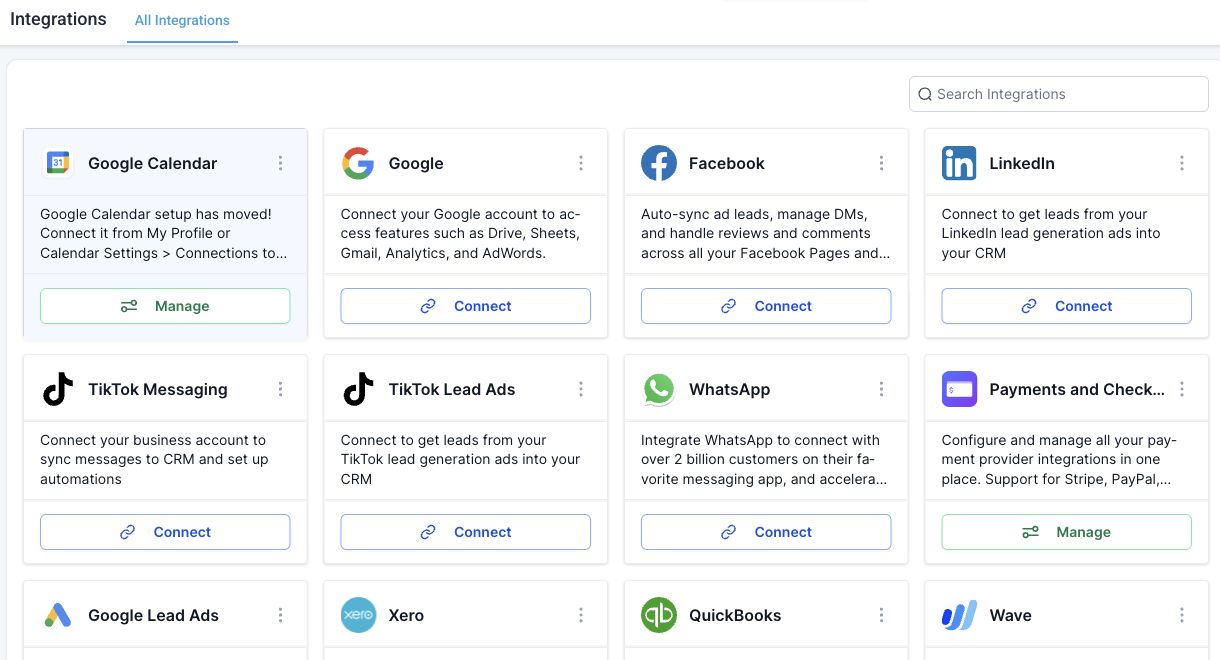
| Google, Facebook, Instagram and other OAuth connections | Cleared | Reconnect with the correct owner account and permissions |
| External calendar connections | Disconnected | Each user reconnects their own calendar and verifies linked and conflict calendars |
| Sub-account Stripe fields | Cleared | Connect the intended Stripe account and test products, payments, and subscriptions |
| SaaS settings | Not transferred | Disable before transfer when required, then rebuild or re-enable under the receiving agency |
| Smart Lists | Not transferred | Record every important filter and recreate it after the move |
| Agency-provided Mailgun or SMTP | Removed or replaced by the receiving agency’s provider | Configure the new provider and test sending and replies |
| WordPress, Listings, WhatsApp, Dedicated IP and similar active subscriptions | Do not transfer as active subscriptions | Cancel or resolve them before the transfer as HighLevel requires, then subscribe or reconnect under the receiving agency |
| Agency-owned email domain or dedicated IP assignment | May be removed | Review domain ownership and reconnect the correct sending configuration |
Do not cancel paid add-ons without a written handoff plan. First record what is active, who pays for it, what data it holds, and how it will be restored. The transfer guide requires some active subscriptions to be canceled before the request can proceed, but the timing still needs coordination.
What happens to phone numbers and A2P registration?
Phone behavior depends on the provider used by both agencies.
When the releasing agency, receiving agency, and sub-account all use LeadConnector phone, HighLevel says the phone numbers transfer automatically with the sub-account and existing A2P registration is retained.
When either side uses Twilio instead of the supported LeadConnector-to-LeadConnector path, HighLevel does not automatically move those phone numbers. The agencies need to coordinate with Twilio and HighLevel support as appropriate.
Record these items before the transfer:
- Every phone number and its purpose.
- Current phone provider.
- A2P brand and campaign status.
- Call forwarding, IVR, voicemail, and missed-call behavior.
- Workflows that send from a specific number.
After acceptance, place an inbound call, send an outbound SMS to a consenting test contact, reply to it, and confirm that the correct conversation and user receive the activity.
Email service and domain behavior needs a separate check
Email is not one setting. A location may use an agency-assigned domain, a location-owned dedicated domain, LC Email, a dedicated IP, Mailgun, or SMTP.
HighLevel’s transfer guide distinguishes between agency-assigned and sub-account-owned resources. A location-owned dedicated domain can transfer, while an original agency’s assigned domain is removed. A dedicated IP assignment does not simply follow the location. Mailgun and SMTP configurations from a non-LC agency are removed, and the location adopts the receiving agency’s email setup.
Before the move, record:
- The sending domain and who owns its DNS.
- The provider currently sending each workflow and campaign.
- SPF, DKIM, DMARC, and tracking-domain status.
- Dedicated IP or shared-pool use.
- From addresses used in workflows.
- Reply handling and forwarding.
After the move, send a test email through the actual workflow path, confirm authentication, inspect delivery, and verify where the reply lands.
Pre-transfer checklist for the releasing agency
Complete this inventory before clicking Transfer Sub-account:
- Confirm that this is a client sub-account and not a designated Agency Sub-Account.
- Export or record critical asset lists, including workflows, domains, calendars, phone numbers, pipelines, users, products, and integrations.
- Capture the status of key workflows and their current enrollment.
- Save Smart List filters because the Smart Lists themselves do not transfer.
- Make sure every user who should move has user type Account and is assigned only to this location.
- Disable SaaS mode and resolve active add-on subscriptions as required by the live transfer screen.
- Confirm the phone and email-provider path.
- Schedule a short change window with the receiving agency and client.
- Get the receiving agency’s Relationship Number from the receiving agency.
- Agree on who will reconnect Google, Meta, Stripe, calendars, domains, email, and WhatsApp.
We would not start a transfer while a paid campaign, appointment launch, or billing run depends on an unverified connection.
How to send the transfer request
Step 1: Open the client sub-account from agency view
At Agency Level, go to Sub-Accounts, find the location, and open Manage Client.
Step 2: Choose Transfer Sub-account
Open Actions > Transfer Sub-account. Select the option to transfer to an existing agency.
Step 3: Enter the Relationship Number
Enter the receiving agency’s confirmed Relationship Number. Review the destination before submitting.
Step 4: Send and track the request
Confirm the request. Track it from Sub-Accounts > Sub-account Transfers > Send. The releasing agency can cancel a pending request before it is accepted.
How the receiving agency accepts it
The receiving agency can use the email review link or go to Agency Level > Sub-Accounts > Sub-account Transfers. Review the location and releasing agency, then approve the request.
Approval completes the transfer. That is when the receiving agency’s reconnection runbook should begin.
Post-transfer reconnection order
Reconnect in this order so that you test dependencies before sending live traffic:
- Users and permissions: Confirm owners, account users, assigned users, and access.
- Phone: Verify numbers, inbound routing, SMS, A2P state, voicemail, and call recordings.
- Email: Configure provider, domains, authentication, from addresses, and reply handling.
- Calendars: Each user reconnects their external calendar. Check linked, conflict, and write-back settings.
- Meta and Google: Reconnect pages, ad accounts, lead forms, reporting, and attribution settings.
- Stripe and payments: Connect the correct account and test a safe product or payment flow.
- Other integrations: Reconnect accounting, listings, medical, legal, and third-party applications.
- Paid add-ons: Re-subscribe only after confirming ownership, pricing, and the correct location.
- Smart Lists and SaaS: Recreate filters and rebuild the required agency-level configuration.
- Workflow QA: Test each business-critical entry point and confirm all dynamic resources still resolve.
Run end-to-end tests, not connection checks
A tile that says Connected does not prove the client journey works. Test the most important paths from beginning to end:
- Submit a website form and verify contact, source, assignment, opportunity, and follow-up.
- Book and reschedule a test appointment, then confirm both HighLevel and the external calendar.
- Call and text the business number, then confirm routing and replies.
- Trigger one real workflow email and inspect delivery and reply handling.
- Submit a safe test payment if payments are in scope.
- Confirm that Meta lead forms and reporting use the intended business assets.
Record the test contact, time, expected result, and actual result. This gives both agencies a clear handoff rather than a verbal claim that the transfer is finished.
Frequently asked questions
Can two GoHighLevel sub-accounts be merged?
No. HighLevel’s transfer operation moves one complete sub-account between agencies. It does not merge that location into another one.
Will workflows and contacts remain in the account?
Supported workflows, contacts, and workflow enrollment data move with the location. However, workflow steps can still fail when they depend on cleared integrations, payment accounts, calendars, or agency-owned services.
Do Google Calendar and Facebook stay connected?
No. External authorization connections are cleared during the transfer. Reconnect each service under the receiving agency and test the actual lead or appointment flow.
Do LeadConnector phone numbers transfer?
HighLevel says they transfer automatically when both agencies and the location use LeadConnector phone. If Twilio is involved, the number transfer requires a separate provider process.
Can a HIPAA-enabled sub-account be transferred?
HighLevel says the receiving agency must already have the HIPAA compliance add-on before accepting a HIPAA-enabled location. Confirm the live requirement with both agencies before initiating the request.
Planning a HighLevel migration?
Bring your source platform, account access requirements and the journeys that must keep working. We can map the move, reconnections, testing and rollback plan before agreeing on a scope and fixed quote.
2 Comments