How to Connect GoHighLevel to Claude with MCP (Step-by-Step)
If you want to connect GoHighLevel to Claude with MCP, the setup is easier than most tutorials make it look. Claude can already help you plan campaigns, clean data and write content. MCP gives it a controlled way to work with the contacts, pipelines and conversations inside your GoHighLevel account.
I tested both connection routes while setting this up. The OAuth route is the quickest and is the right choice for most people. A Private Integration Token gives you tighter scope control, but it is better suited to Claude Code or another MCP client that can send custom authorization headers.
Important update: HighLevel now recommends its Claude-specific MCP endpoint:
https://services.leadconnectorhq.com/mcp/anthropic/v2. Older tutorials may show the original/mcp/endpoint. That endpoint still exists, but it exposes a narrower toolset.
This tutorial was checked against the current HighLevel MCP documentation and Anthropic connector documentation on August 4, 2026.
What can Claude do in GoHighLevel through MCP?
The current LeadConnector MCP server gives Claude a small set of unified tools. Claude uses those tools to search your account, inspect available operations and run an action only when your permission grant allows it.
Depending on the scopes you approve, Claude can help with:
| Area | Practical examples |
|---|---|
| Contacts | Find, create, update, tag and clean contact records |
| Opportunities | Create opportunities, move stages and review stalled deals |
| Conversations | Read threads and send supported messages |
| Calendars | Check availability and manage appointments |
| Payments | Review orders, transactions and subscriptions when permitted |
| Products and stores | Work with products, prices, inventory and store settings |
| Content | Draft or manage supported blog, email and social content |
| Forms and surveys | Read forms, surveys and submissions where the operation is available |
The new Claude endpoint can discover hundreds of operations across many HighLevel areas. I still would not assume that every button you see inside GoHighLevel has an API action behind it. Ask Claude to run search_operations before planning a large job so you can confirm what is genuinely available to your connection.
What MCP still cannot fully build
The public HighLevel API can list workflows and funnel pages, but it does not currently expose the full visual builders needed to create an entire workflow or design a funnel page from scratch.
That means Claude can help you inspect data, perform supported CRM actions and prepare content, but a request such as “build this complete workflow with all branches” may still need browser control or manual work inside GoHighLevel.
This is why I separate two jobs:
- Use MCP for structured account data and supported operations.
- Use browser control for parts of GoHighLevel that only exist inside the visual interface.
If your main problem is workflow reliability rather than data access, use our guide to monitoring GoHighLevel workflow errors across client sub-accounts before rebuilding anything.
OAuth or Private Integration Token: which route should you use?
| OAuth connection | Private Integration Token | |
|---|---|---|
| Setup time | Usually a few minutes | Around 10 to 15 minutes |
| Token handling | No token to copy or store | You create and protect a fixed token |
| Available operations | Widest supported operation catalog | Limited by the PIT scopes you select |
| Best fit | Claude.ai, Claude Desktop, Cowork and Claude Code | Claude Code or another client that supports custom headers |
| My recommendation | Best option for most users | Use when you need strict scope control |
For your own account, I would normally start with OAuth. For a client account, review every requested permission first and use a test sub-account where possible.
If the requested OAuth permissions are broader than the work requires, use a Private Integration Token with a client that can send headers. Do not place a private token in a normal Claude conversation.
Route A: Connect GoHighLevel to Claude with OAuth
Step 1: Open Connectors in Claude
In Claude, open Customize, then select Connectors.
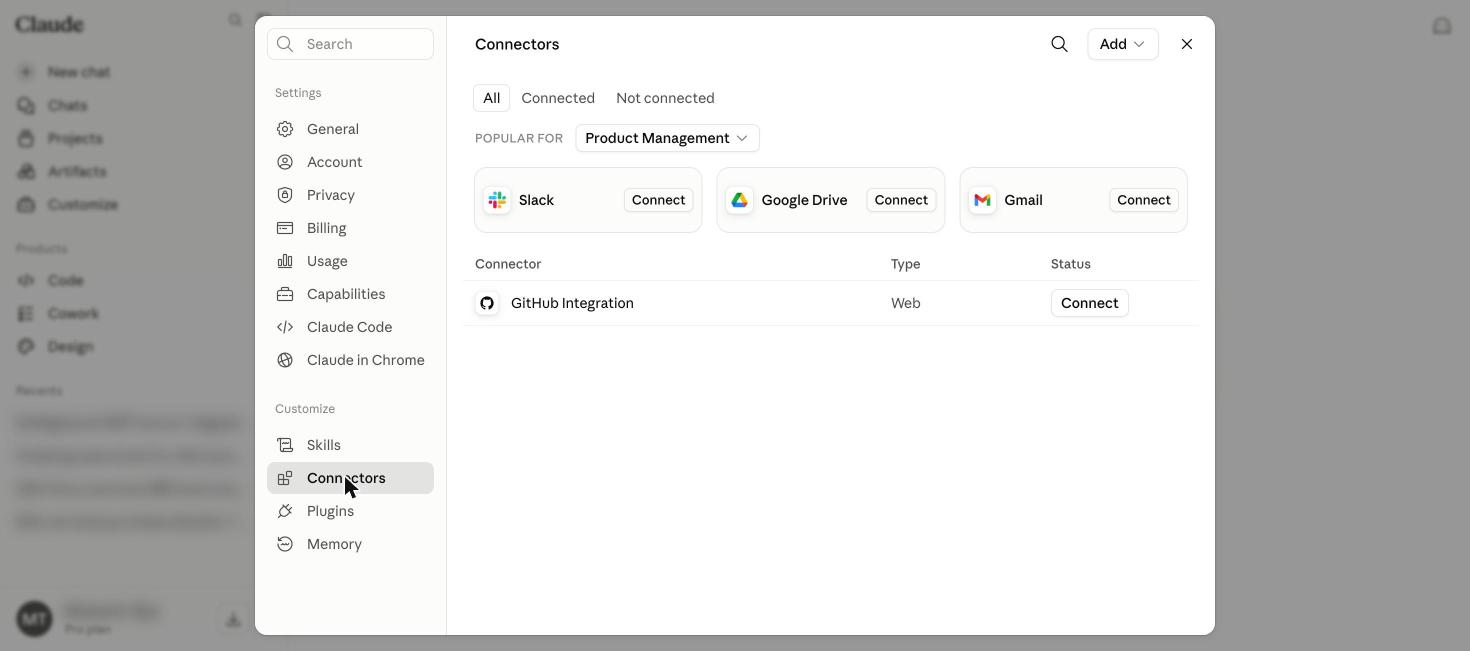
Anthropic has moved connector management into the Customize area, so an older connectors settings link may redirect you here.
Step 2: Add a custom connector
Click Add in the top-right corner, then choose Add custom connector.
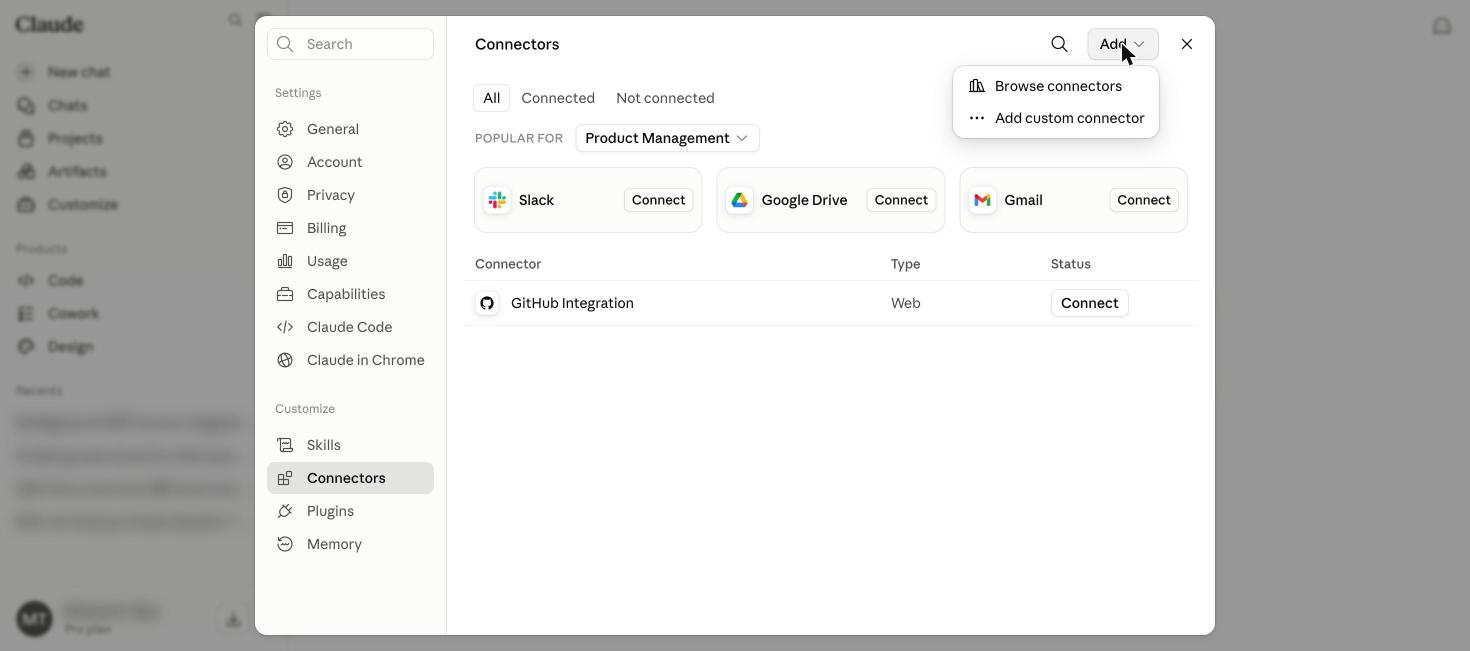
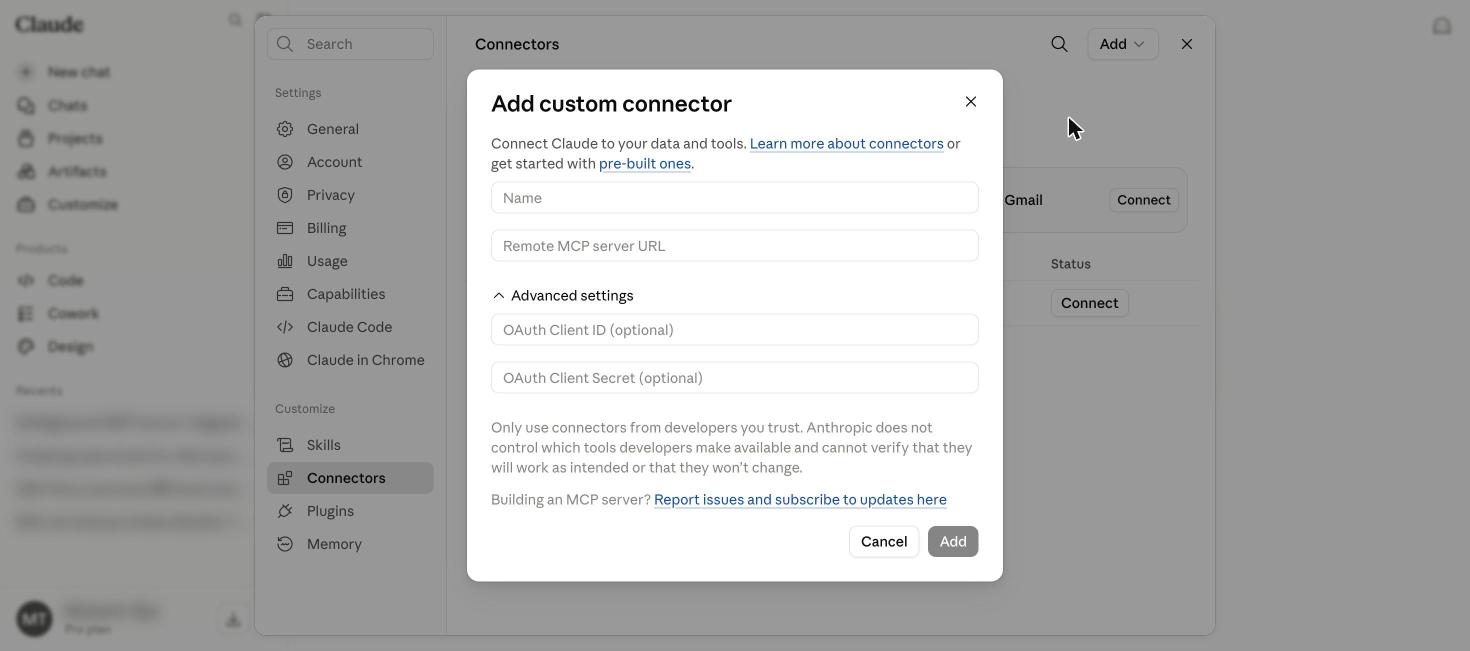
You will see fields for a connector name and remote MCP server URL.
Step 3: Enter the current Claude MCP endpoint
Use a clear name such as GoHighLevel and enter this URL:
https://services.leadconnectorhq.com/mcp/anthropic/v2Leave the optional OAuth Client ID and OAuth Client Secret fields blank. HighLevel handles the OAuth flow when Claude connects to the endpoint.
Do not copy the shorter endpoint from an older screenshot or tutorial. HighLevel still supports https://services.leadconnectorhq.com/mcp/, but its documentation now recommends the Claude-specific /mcp/anthropic/v2 endpoint for the widest coverage.
Step 4: Review the LeadConnector authorization screen
After you add the connector, Claude sends you to the official LeadConnector authorization flow.
The current official app requests a broad set of permissions. You may see access for contacts, conversations, calendars, users, payments, products, invoices, forms, blogs and other areas.
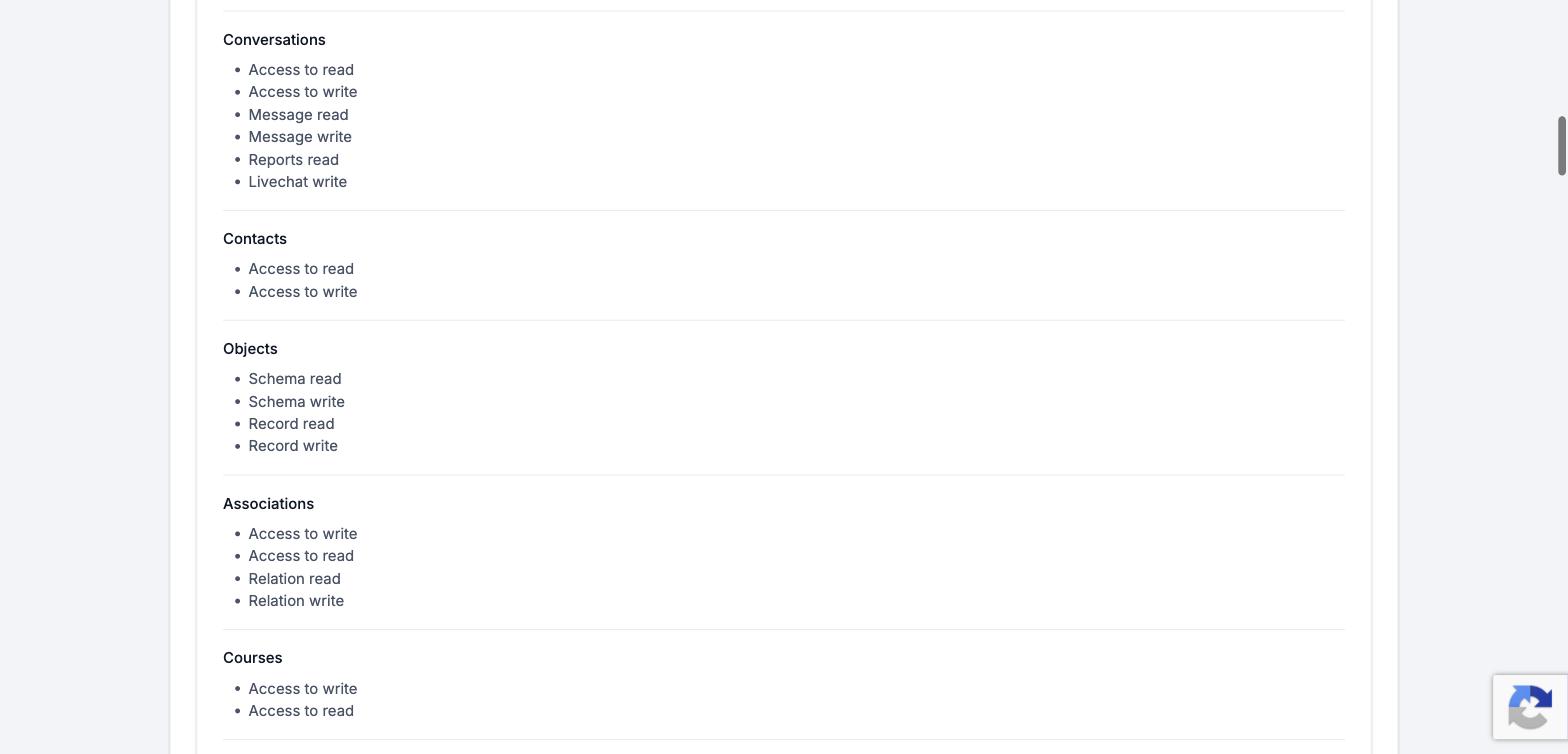
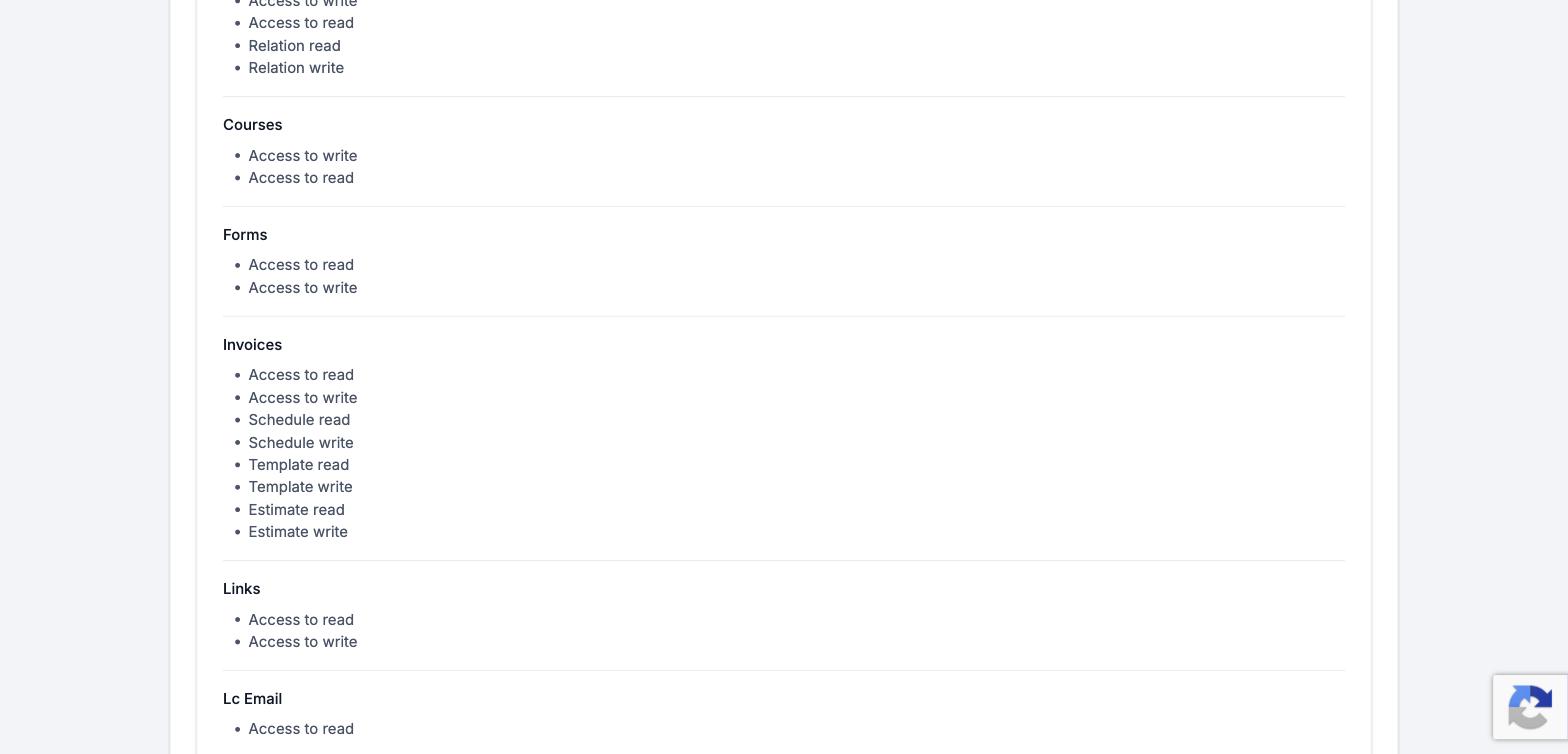
Read the permission list before approving it. The authorization screen is the point where you decide whether the convenience is worth the access being requested.
If the account contains live client data, I recommend starting with one test sub-account. HighLevel’s current Claude endpoint can also support an agency connection across selected sub-accounts, but only include locations you genuinely want Claude to access.
Step 5: Select the sub-account and finish connecting
Choose the sub-account you want to expose and complete the authorization. If you are installing at agency level, select only the sub-accounts that should be available through the connection.
Once authorization finishes, return to Claude and start a new chat. Open the connector menu for that conversation and make sure GoHighLevel is enabled.
Route B: Use a Private Integration Token for tighter scope control
This route is useful when you do not want to approve a broad OAuth grant. You choose the exact HighLevel scopes and keep payment permissions read-only unless the job genuinely needs more.
There is one important limitation: Anthropic’s Claude.ai custom connector form currently documents OAuth client fields, not arbitrary request headers. A Private Integration Token is therefore most practical with Claude Code or another MCP client that lets you send an Authorization header.
Step 1: Open Private Integrations in GoHighLevel
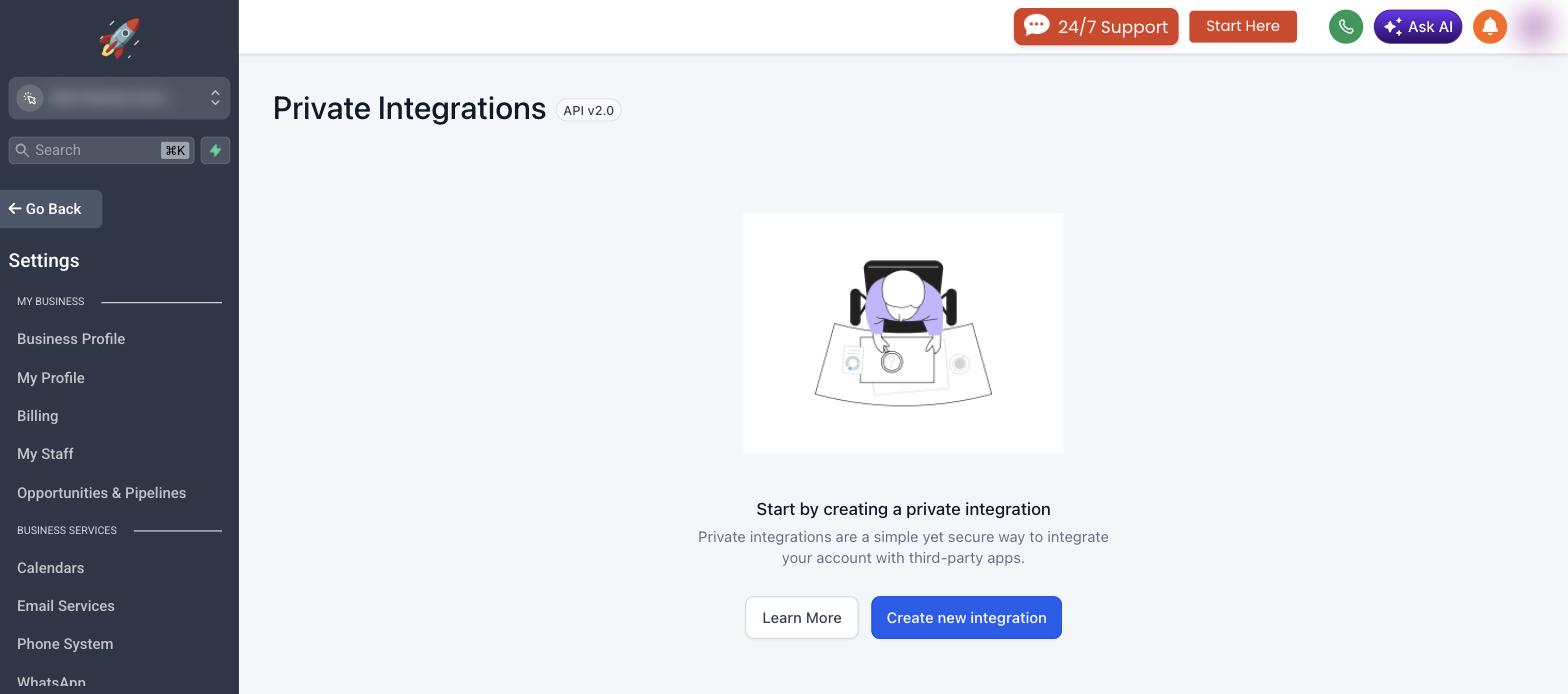
Inside the correct sub-account, open Settings and select Private Integrations.
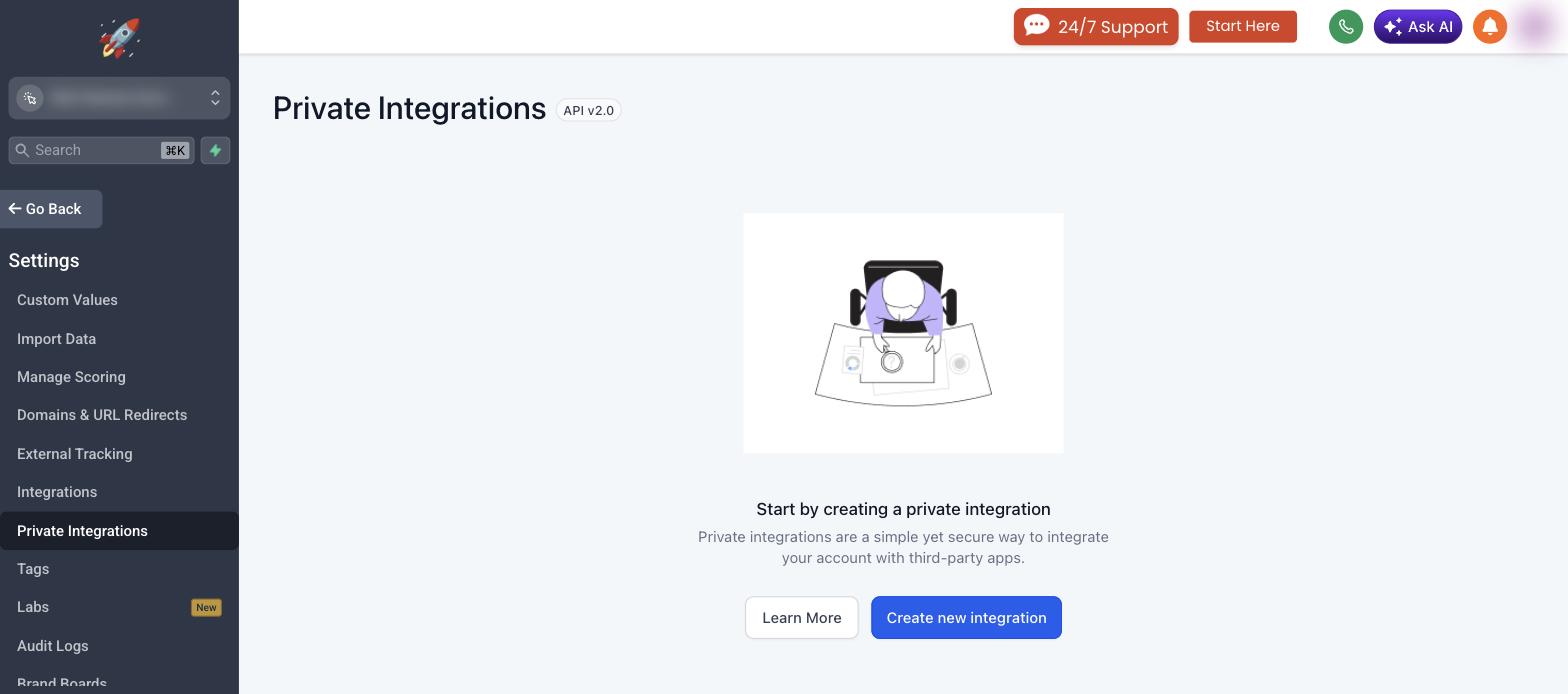
You should see the API v2.0 label and an option to create a new integration.
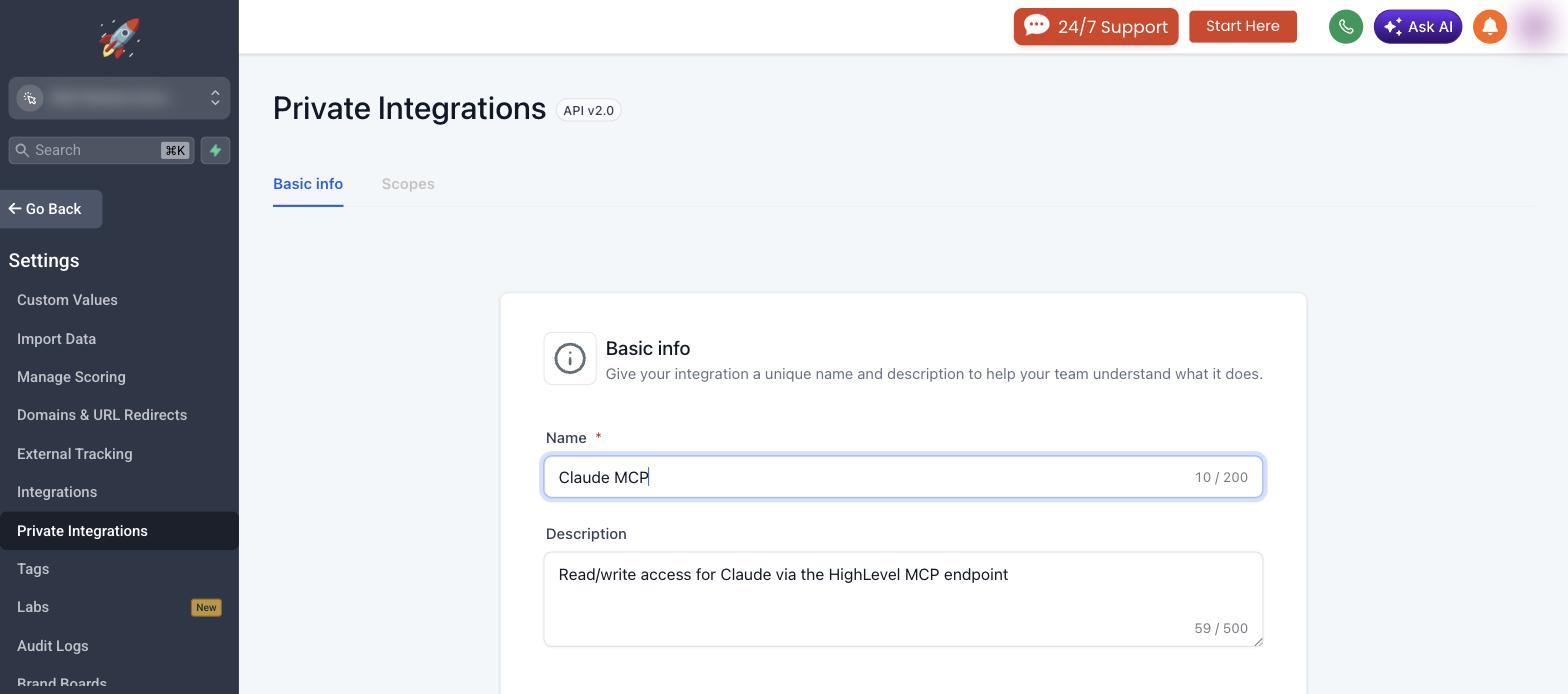
Step 2: Name the integration
Use a name that will still make sense six months from now.
- Name:
Claude MCP - Description:
Scoped access for Claude through the HighLevel MCP endpoint
Step 3: Choose only the scopes you need
The scope picker controls which operations can succeed. Selecting too few scopes causes permission errors. Selecting everything removes the main security benefit of using a Private Integration Token.
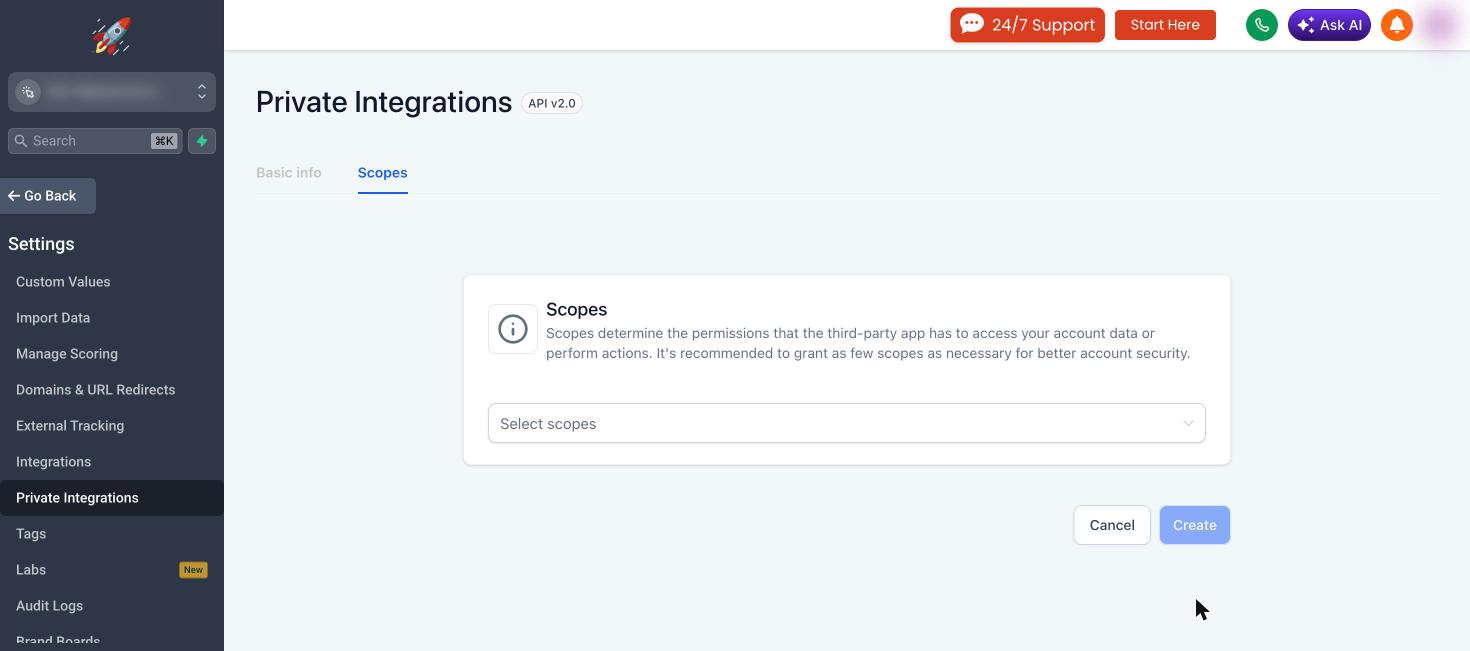
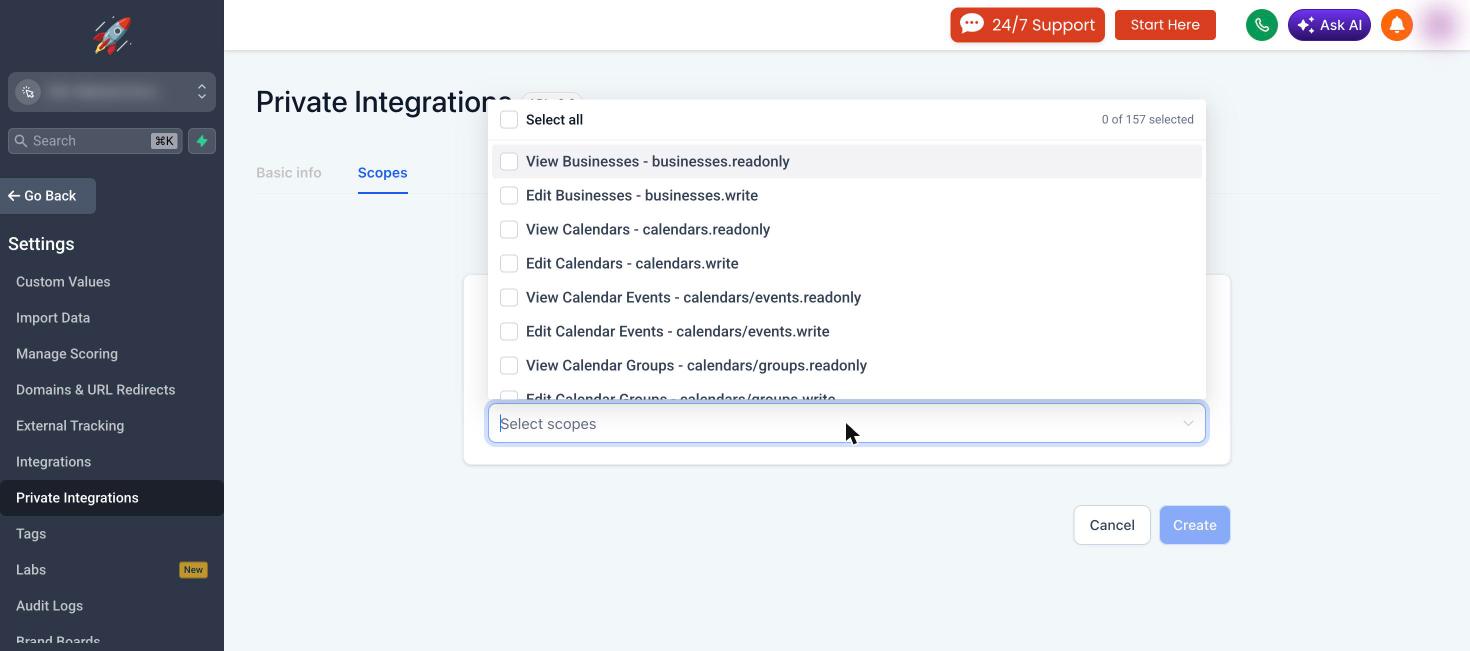
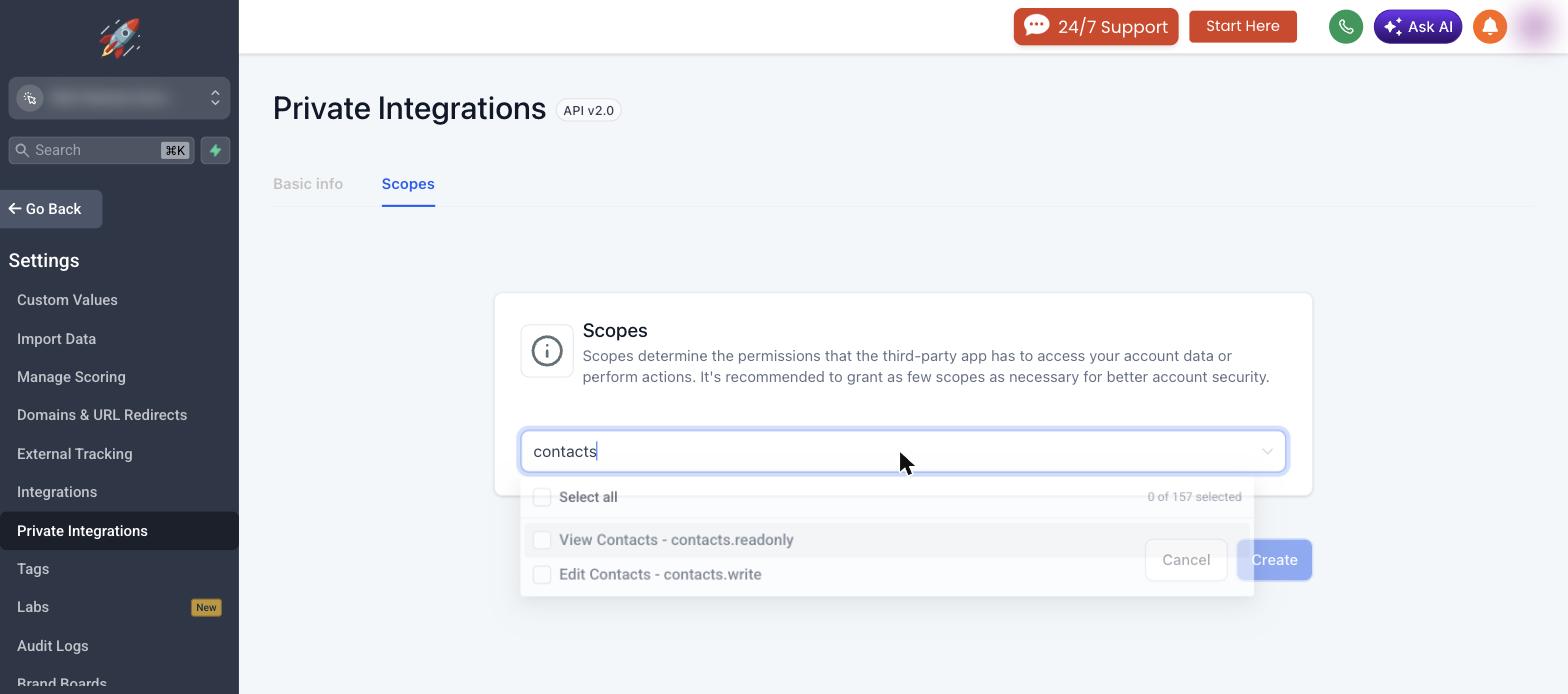
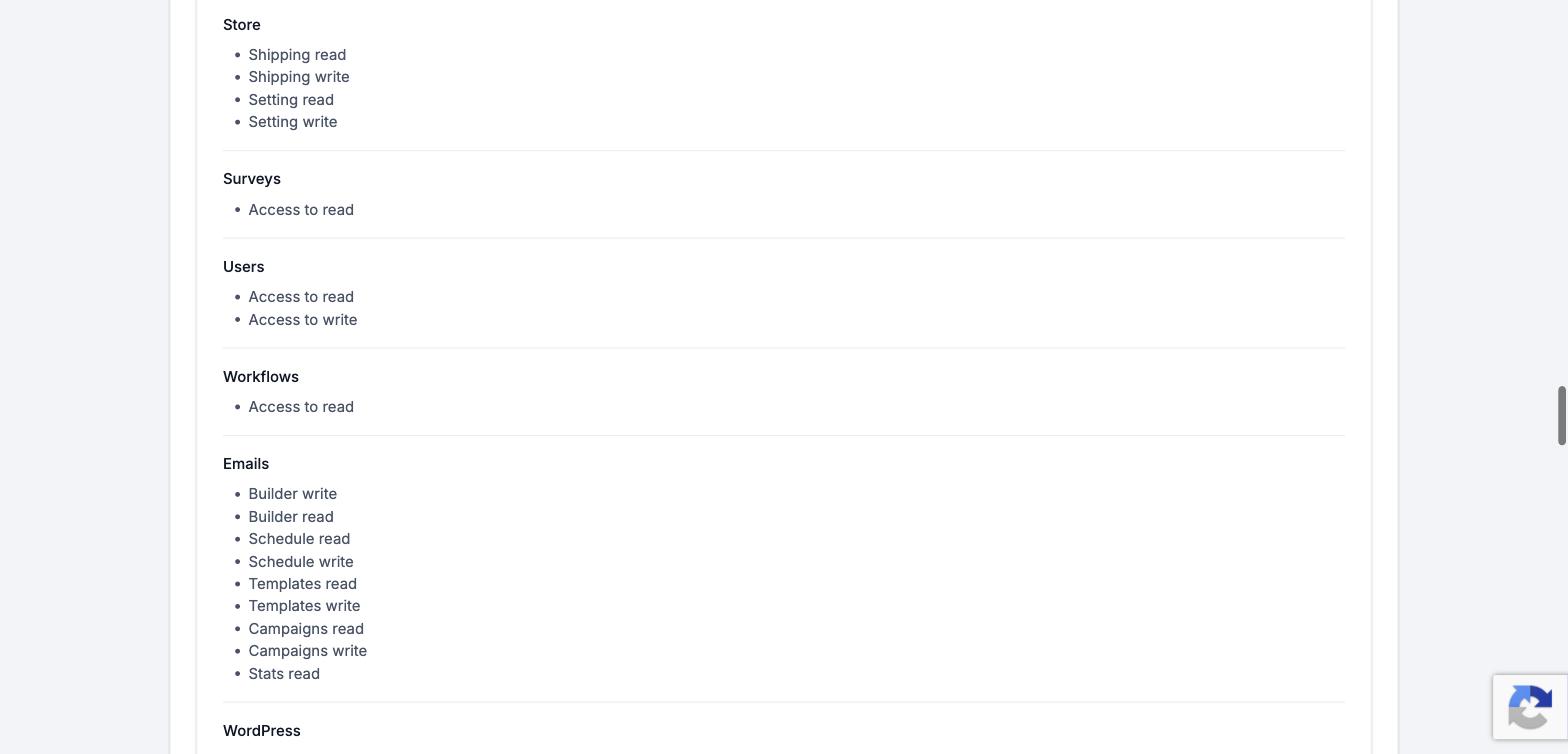
The 38 scopes below are a practical starting set for common CRM, calendar, content and reporting work. They are not a universal requirement. Remove anything your use case does not need.
Contacts
contacts.readonly
contacts.write
Conversations
conversations.readonly
conversations.write
conversations/message.readonly
conversations/message.write
Calendars
calendars.readonly
calendars.write
calendars/events.readonly
calendars/events.write
Opportunities
opportunities.readonly
opportunities.write
Location data
locations.readonly
locations/customValues.readonly
locations/customFields.readonly
locations/tasks.readonly
locations/tasks.write
locations/tags.readonly
Payments and invoices
I keep these read-only by default:
payments/orders.readonly
payments/transactions.readonly
payments/subscriptions.readonly
invoices.readonly
Blogs
blogs/post.write
blogs/post-update.write
blogs/check-slug.readonly
blogs/category.readonly
blogs/author.readonly
blogs/posts.readonly
blogs/list.readonly
Social planner
socialplanner/post.readonly
socialplanner/post.writeemails/builder.write
emails/builder.readonly
emails/campaigns.readonlyOther useful read-only scopes
workflows.readonly
users.readonly
forms.readonly
surveys.readonly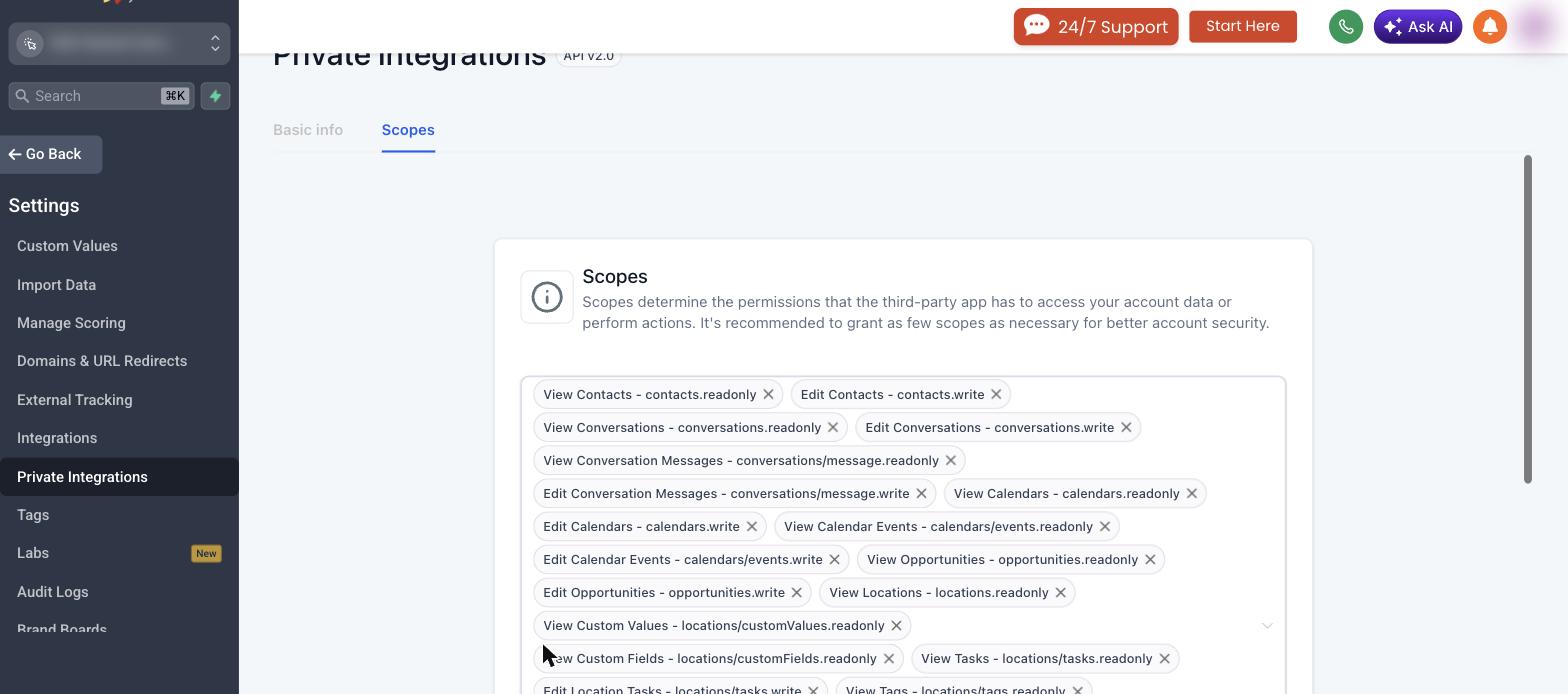
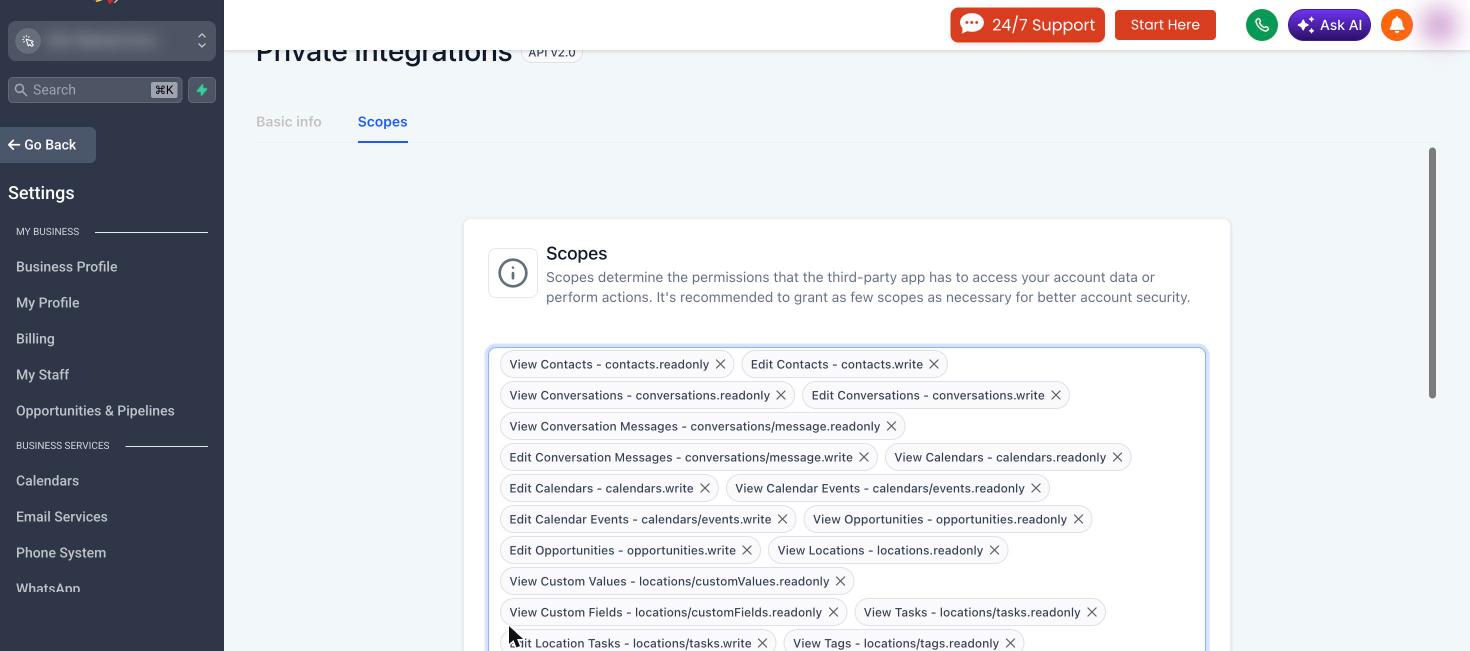
Watch the selected-scope counter as you work. In my test, the picker occasionally missed a click, so I checked the count after each group rather than assuming every selection was saved.
Step 4: Create the token and store it safely
Click Create.
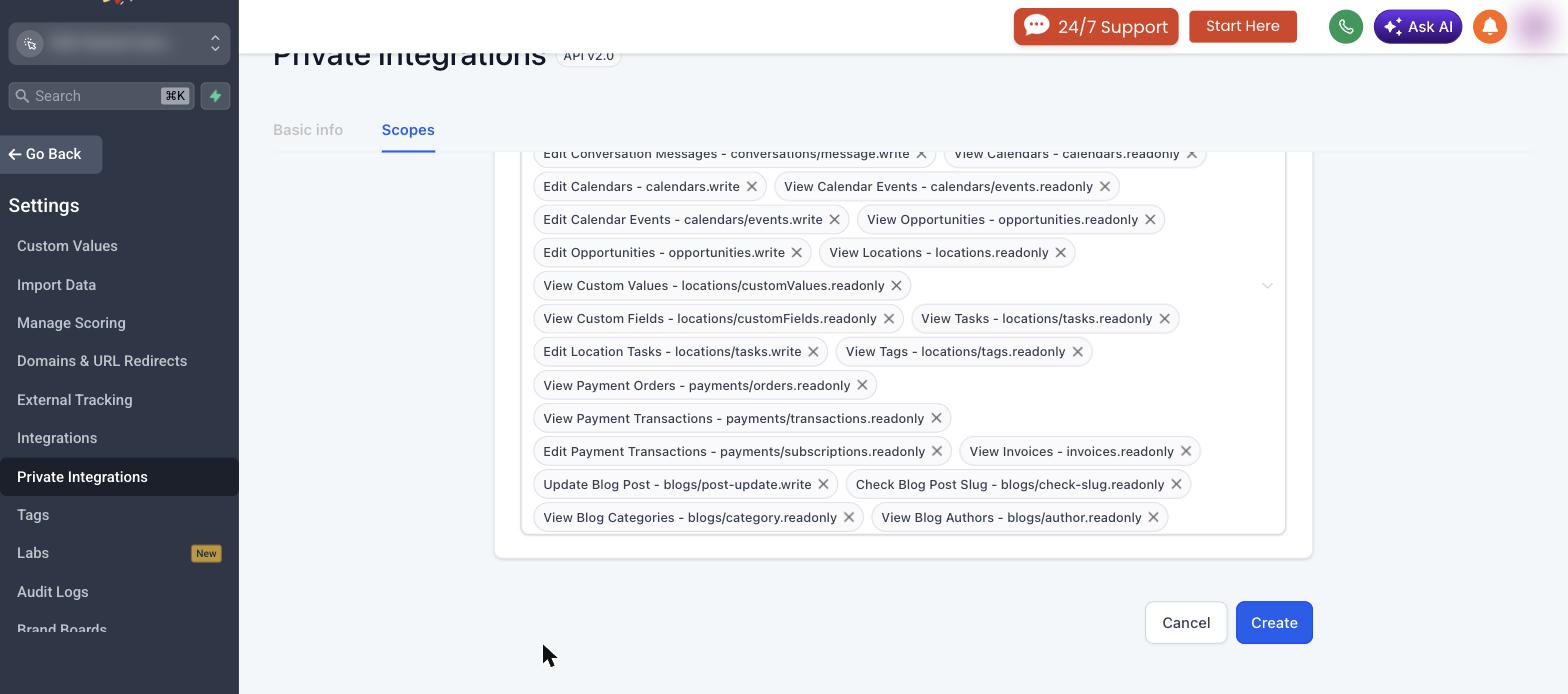
HighLevel generates a token beginning with pit-. Copy it into a password manager as soon as it appears because the full token is shown only once.
Never paste this token into a normal chat. Anyone who has the token can use the permissions you selected. HighLevel recommends rotating Private Integration Tokens every 90 days, and you should rotate or revoke one immediately if it is exposed.
Step 5: Connect the PIT through Claude Code
Claude Code supports authorization headers for remote MCP servers. Run the following command locally and replace the placeholder with your actual token:
claude mcp add --transport http \
  --header "Authorization: Bearer pit-your-token" \
  leadconnector https://services.leadconnectorhq.com/mcp/anthropic/v2
Keep the token out of screenshots, shell history and project files that could be committed to version control. If you use a JSON configuration, reference a protected environment variable instead of hard-coding the token.
After adding the server, run:
claude mcp listIf you only use Claude.ai in the browser, choose Route A. Do not paste the PIT into the OAuth Client ID or OAuth Client Secret fields because those fields do not accept a bearer token.
Test the connection before using it on live data
Start with a simple read-only request:
- “Find the last five contacts added to this sub-account.”
- “List the pipelines and show the opportunity count in each stage.”
- “Show me the last five conversations without sending a reply.”
A successful read proves that authentication works, but it does not prove that every write permission works. Test one small and reversible write next, such as adding a temporary tag to a test contact, then remove it.
For any bulk job, ask Claude to show you its plan and estimated record count before it changes anything.
Useful prompts for GoHighLevel MCP and Claude
These are the kinds of tasks that make the connection useful:
- “Find contacts created in the last 90 days that have no tags. Show me the count before making changes.”
- “Audit this pipeline and list opportunities that have not changed stage in 30 days.”
- “Draft eight local SEO posts and create them as drafts only.”
- “Review last quarter’s transactions and summarize revenue by month.”
- “Find the operations available for workflows and explain which actions this connection can actually run.”
The final prompt is important. It makes Claude confirm the current operation catalog instead of guessing from the GoHighLevel interface.
For a practical example of where AI should stop and a person should take over, see how we qualify and book leads automatically without removing the human handoff.
GoHighLevel Claude MCP FAQs
What MCP endpoint should I use for Claude and GoHighLevel?
Use https://services.leadconnectorhq.com/mcp/anthropic/v2. It is HighLevel’s current Claude-specific endpoint.
Can Claude build a complete GoHighLevel workflow through MCP?
Not completely. The visual workflow builder is not fully exposed, so a full build still needs browser control or manual work.
Can one Claude connection access multiple GoHighLevel sub-accounts?
Yes. An agency connection can include selected sub-accounts, but Claude cannot access a location you did not approve.
Is the OAuth route safe for a client account?
Review the requested permissions and start with a test location. For tighter scope control, use a Private Integration Token with Claude Code.