
GoHighLevel Facebook Conversions API: Send Qualified Leads and Won Opportunities Back to Meta
Let me simplify the Facebook Conversions API setup. Use one GoHighLevel workflow to capture the Facebook lead and create the opportunity, then use another to send meaningful stage changes, such as qualified or won, back to Meta. The identifiers, dataset, token, stages and filters all need to describe the same sales process.
The reason to do this is not to send more events. It is to help Meta learn which form submissions became useful leads after they entered your CRM.
Conversions API depends on the earlier data path. Confirm UTMs and attribution fields, make sure Facebook Lead Forms are syncing, test the webhook and authentication flow, and use the workflow checklist if the event never reaches the send step.
What you are actually sending back to Meta
Meta’s browser Pixel records supported website activity. Conversions API sends supported events from a server-side system such as HighLevel. For a Meta Instant Form campaign, the important CRM events happen after the form:
- A lead submits the Facebook form.
- HighLevel creates or updates the contact.
- HighLevel creates an opportunity in the correct pipeline.
- Sales qualifies the opportunity.
- The opportunity later becomes won or lost.
The workflow can send a Lead Event with stage information when the opportunity reaches the defined milestones. The goal is to give Meta a cleaner quality signal than form volume alone.
This does not guarantee lower costs or better campaign performance. Meta decides how it uses eligible event data, and match quality depends on the identifiers available.
Funnel Event versus Lead Event
HighLevel’s Meta Conversion API action currently distinguishes between two broad use cases:
- Funnel Event: A supported HighLevel form, survey, customer-booked appointment, or order-form action tied to a web journey.
- Lead Event: A Facebook lead-form submission or a later supported pipeline-stage change for that Facebook lead.
For qualified and won opportunities from Meta Instant Forms, use the Lead Event workflow pattern described in HighLevel’s Facebook conversion leads walkthrough.
Do not use a generic Contact Created trigger and assume Meta can identify the ad source. Start with Facebook Lead Form Submitted or preserve and map the relevant Facebook identifier when the supported setup requires it.
Prerequisites
Prepare these items before building the workflows:
- The correct Meta Business Portfolio, Page, ad account, and lead form.
- A connected Facebook integration in the intended HighLevel sub-account.
- A Meta dataset or Pixel for the business.
- A Conversions API access token with access to that dataset.
- A HighLevel pipeline with explicit stages such as New Lead, Contacted, Qualified, and Won.
- A clear rule for what qualifies a lead and what counts as won.
- Permission to edit workflows and Meta Events Manager.
- A test lead form that can be submitted without polluting production reporting.
Define the business milestones before the event names. A stage called Qualified is not useful if each sales rep applies a different standard.
Step 1: Connect the correct Facebook assets
In the HighLevel sub-account, connect Facebook through the current integration flow. Confirm the Page and lead form that feed this specific location.
Test one Facebook lead submission before adding CAPI. The contact should appear with the expected form, source, and Facebook information. If lead-form syncing is already broken, adding a CAPI action will not repair it.
Step 2: Create or select the Meta dataset
In Meta Events Manager:
- Open the correct business and ad account.
- Connect a data source suitable for the lead or CRM setup.
- Create or select the intended dataset or Pixel.
- Record its Dataset ID, which HighLevel may label as the Pixel ID in the action.
- Generate the Conversions API access token from the data source settings.
Do not share the access token in email, screenshots, article drafts, or a support ticket. Store it only in the intended secure configuration.
Step 3: Build the lead-entry workflow
Create a workflow named clearly, such as META - Capture Lead and Create Opportunity.
Trigger
Use Facebook Lead Form Submitted and filter it to the intended Page and form. Avoid a trigger that accepts every Facebook form across every offer unless they all belong in the same pipeline and stage.
Actions
- Create or update the opportunity in the intended pipeline.
- Place it in the New Lead stage.
- Set the opportunity source consistently.
- Assign the owner or team.
- Send the first follow-up only after the CAPI and lead-routing tests are complete.
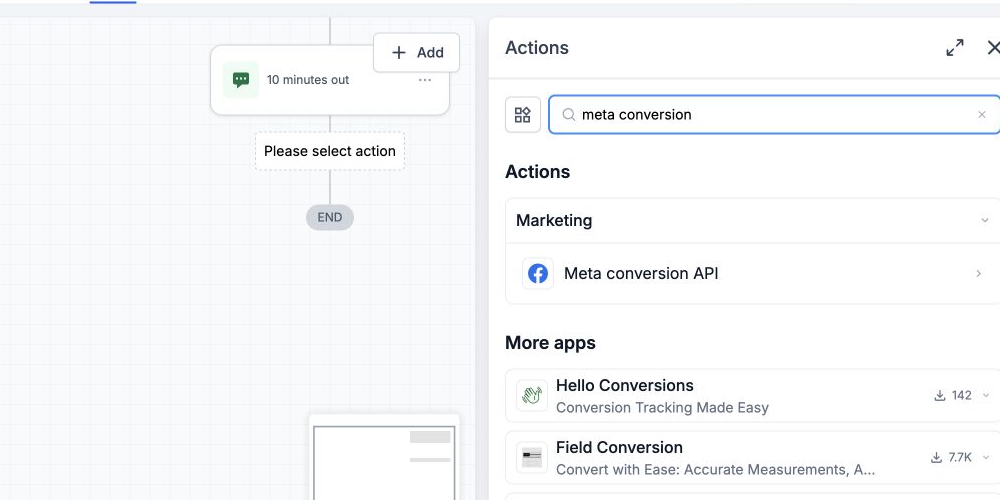
HighLevel’s official walkthrough shows a Meta Conversion API action in this entry flow and a Create or Update Opportunity action. Keep the order consistent with the data each action needs, then confirm it with a real test lead.
If the account allows multiple opportunities for the same contact, configure that intentionally. Do not enable duplicates simply because a tutorial does. The correct choice depends on whether one contact can submit separate legitimate enquiries.
Step 4: Build the qualified-lead workflow
Create a second workflow named META - Qualified Lead Event.
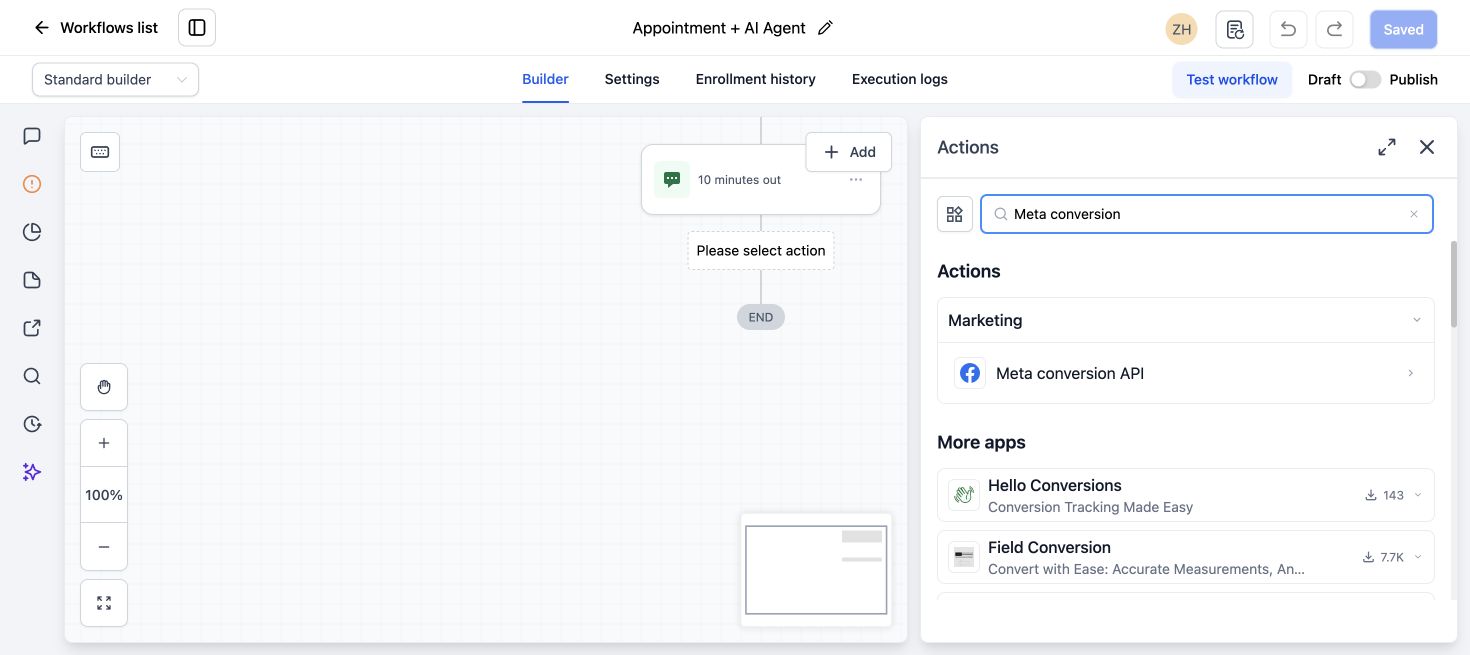
Trigger
Use Pipeline Stage Changed and filter it to:
- The intended pipeline.
- The Qualified stage.
- Any additional source condition needed to keep non-Meta leads out.
If a pipeline contains leads from several channels, verify the contact’s Facebook source or stored identifier before sending the event. Do not send every qualified opportunity to a Meta dataset simply because the pipeline is shared.
Action
Add Meta Conversion API or the current Facebook Conversion API action.
Configure:
- Event Type: Lead Event.
- Access Token: The token for the correct Meta dataset.
- Pixel ID or Dataset ID: The matching data-source ID.
- Stage Name: A stable value such as the current opportunity stage.
- Custom Mapping: Enable it when the setup needs the stored Facebook Lead ID or FBCLID and the field is available.
HighLevel’s current CAPI documentation says custom mapping can prioritize a supplied Facebook Lead ID for lead events or FBCLID for funnel events. If mapping is left empty, HighLevel uses its available internal values.
Save the action, enable the required re-entry or multiple-opportunity behavior only when the business process needs it, and publish after testing.
Step 5: Build the won-opportunity workflow
You can use a separate workflow for Won or add a separate tightly filtered trigger when the design remains clear.
Recommended structure:
- Trigger: Pipeline Stage Changed.
- Pipeline: The same sales pipeline.
- Stage: Won.
- Source check: The opportunity or contact came from the intended Meta lead path.
- Action: Meta Conversion API Lead Event.
- Stage Name: A stable Won label that matches the reporting design.
Keep Qualified and Won as separate workflow executions so logs clearly show which event was sent and why. If an opportunity can move backward and forward between stages, prevent repeated sends with a field or tag such as meta_qualified_sent and meta_won_sent.
Matching data is the part that makes the event useful
Meta needs enough eligible information to associate the CRM event with a person or earlier ad interaction. Depending on the supported event and source, that can include:
- Facebook Lead ID.
- FBCLID or click data retained from the original interaction.
- Email.
- Phone.
- First and last name.
- Browser identifiers for relevant funnel events.
- Event source URL for relevant web events.
The exact fields differ between Lead Events and Funnel Events. Do not send an invented identifier or map an unrelated contact field simply to fill the box.
HighLevel’s Facebook Conversions API behavior guide says a later opportunity status event can use the last available Facebook data when the original contact came through Facebook. If that data is absent, Meta may not match the event correctly.
Test the complete flow
Test 1: Submit a Meta test lead
Use Meta’s lead-ad testing tool for the correct Page and form. Confirm one contact and one intended opportunity appear in HighLevel.
Test 2: Inspect the source record
Open the contact and verify the Facebook lead source, lead ID or stored attribution, phone, and email. Check the workflow execution log for the lead-entry workflow.
Test 3: Move the opportunity to Qualified
Move the test opportunity once. Confirm the qualified workflow starts and the CAPI action completes.
Test 4: Inspect Meta Events Manager
Open Test Events and Diagnostics for the dataset. Look for the event and any matching, parameter, permission, or domain issue. An event may not appear instantly, so record the send time and avoid triggering several duplicates while waiting.
Test 5: Move the opportunity to Won
Confirm the Won workflow runs once and produces the intended stage event.
Test 6: Repeat with a non-Meta lead
Move a safe non-Meta test opportunity through the same stages. The CAPI workflow should exclude it.
Event deduplication and repeat stage changes
For supported funnel events, HighLevel says it can reuse an available eventId so Meta can deduplicate browser and server events. Pipeline milestone events need a separate repeat-control plan inside the CRM.
Use one of these patterns:
- Add a
meta_qualified_sentfield after a successful action and require it to be false at entry. - Add a milestone tag after the event and exclude tagged opportunities or contacts.
- Record a timestamp for the first successful send.
Do not block a legitimate second purchase just because the same contact bought before. Choose the unique object and event rule that matches the business model.
Common problems and fixes
| Problem | Likely cause | Fix |
|---|---|---|
| No event in Meta | Wrong dataset, token, trigger, unpublished workflow, or failed action | Check the workflow execution first, then Meta Test Events and Diagnostics |
| 401 or permission error | Invalid token or wrong business access | Generate a token from the correct data source and confirm access |
| Qualified event fires for Google leads | Pipeline trigger has no Meta-source filter | Add a source or identifier condition before the CAPI action |
| Event has poor matching | Facebook Lead ID, FBCLID, email, or phone is missing or malformed | Fix capture and custom mapping before sending more events |
| Event fires twice | Re-entry, stage movement, or duplicate opportunities | Add a sent field or tag and review workflow settings |
| Appointment event does not fire | Wrong appointment trigger | For the supported funnel case, use Customer Booked Appointment rather than a general appointment trigger |
| Test appears with an unexpected event label | Meta may display test behavior differently | Verify a controlled live event only after the test flow and diagnostics are clean |
Reporting and campaign use
Before using CRM events as an optimization signal:
- Confirm the event is received consistently.
- Confirm it represents the same business milestone every time.
- Compare HighLevel opportunity IDs and stage timestamps with Meta event counts.
- Keep test events out of production decisions.
- Review event quality and diagnostics regularly.
Sending more events is not automatically better. Send meaningful stages that sales updates accurately.
What to do next
Start with one Page, one form, one pipeline, and one qualified stage. Validate the lead entry and matching data before adding Won. Once both stages are reliable, document the event names, workflow IDs, dataset, source filter, sent flag, and test procedure.
Frequently asked questions
Can GoHighLevel send opportunity stages to Meta?
Yes. HighLevel documents a Lead Event workflow using Pipeline Stage Changed for Facebook leads. Filter the pipeline and source carefully, and retain the Facebook identifier needed for matching.
Do I need both the Meta Pixel and Conversions API?
For web funnel events, the browser Pixel and server event can complement each other, with deduplication when the same event ID is available. Meta Instant Form lead-stage feedback is a CRM event flow and should follow the Lead Event setup.
Where do I find the Pixel ID in Meta?
In current Meta terminology, the value used by the HighLevel action can be the Dataset ID shown in Events Manager. Confirm the exact field label in both live interfaces before saving.
Can I send a Won event for a lead that did not come from Meta?
The workflow may execute, but Meta may not have the identifier needed to match the person to a Meta interaction. Exclude unrelated sources unless you have a documented supported matching use case.
Why did the same qualified lead send twice?
The opportunity may have re-entered the stage, the workflow may allow repeat entries, or the contact may have duplicate opportunities. Add a milestone-sent check and inspect the workflow history.
Need this connected, built or tested for you?
Book a free 30-minute call to define the integration or automation scope and get a fixed quote. Custom APIs and integrations are quoted separately from Business System Setup. Already configured with one clearly defined native HighLevel issue? The $149 small fix may fit; we confirm eligibility and scope before payment.
One Comment