Google Calendar Not Syncing With GoHighLevel: Fix Double Bookings, Permissions and Time Zones
If Google Calendar is not syncing with GoHighLevel, I would check five things before deleting an event or rebuilding a calendar. Confirm the connected user, Google permissions, linked or conflict calendar, write-back configuration and timezones, in that order.
This guide focuses on finding the broken sync layer and proving the repair with controlled test events. A more complicated multi-location timezone design is a separate job.
If the sync works but the public booking page does not, troubleshoot the branded calendar domain and embed. Then test the workflow that runs after a booking and the AI appointment setter if automation is creating the appointments.
First, identify which direction is actually failing
“Not syncing” can describe several different failures. Write down the exact symptom before changing settings.
| Symptom | Direction to investigate first |
|---|---|
| A HighLevel booking never appears in Google | HighLevel to Google write-back |
| A Google event does not block the HighLevel booking widget | Google to HighLevel conflict reading |
| A Google event appears as a blocked slot but not as a contact appointment | This may be correct one-way behavior |
| The same booking appears twice in Google | Multiple write-back destinations or overlapping integrations |
| The event appears at the wrong hour | Time zone mismatch |
| Only one team member is affected | That user’s connection, permissions, or calendar configuration |
| All users are affected | Shared calendar setup, location settings, or a wider integration issue |
Do not troubleshoot with a real client appointment. Create named test events such as SYNC TEST - GHL TO GOOGLE so they can be identified and removed after the test.
Understand connected, linked, and conflict calendars
These labels solve different parts of the process:
- Connected calendar: The Google account that authorized HighLevel to read or write calendar data.
- Linked calendar: The external calendar used to sync the user’s HighLevel appointments and events according to the selected sync preference.
- Conflict calendar: A calendar HighLevel checks for busy events before offering a time slot.
A Google account can show as connected while the wrong calendar is linked. Likewise, a linked calendar can receive bookings while a separate personal calendar is not configured as a conflict calendar, leaving busy times open.
HighLevel’s linked and conflict calendar guide explains that integrations are user-specific. Each staff member should connect their own Google account rather than relying on one global company connection.
Step 1: Check the affected user’s connection
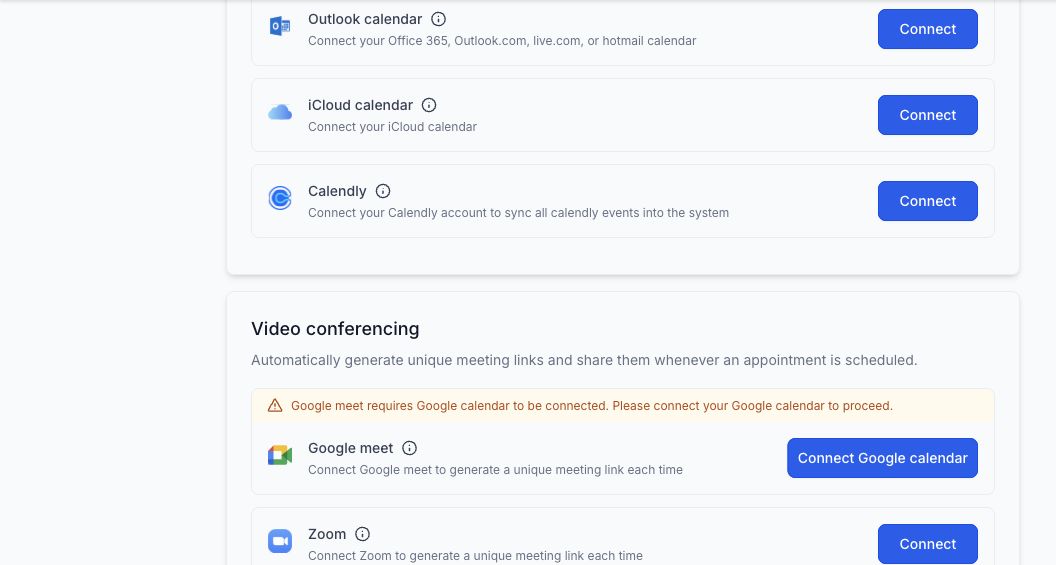
Go to Calendar Settings > Connections while signed in as the affected user or with the correct administrative access.
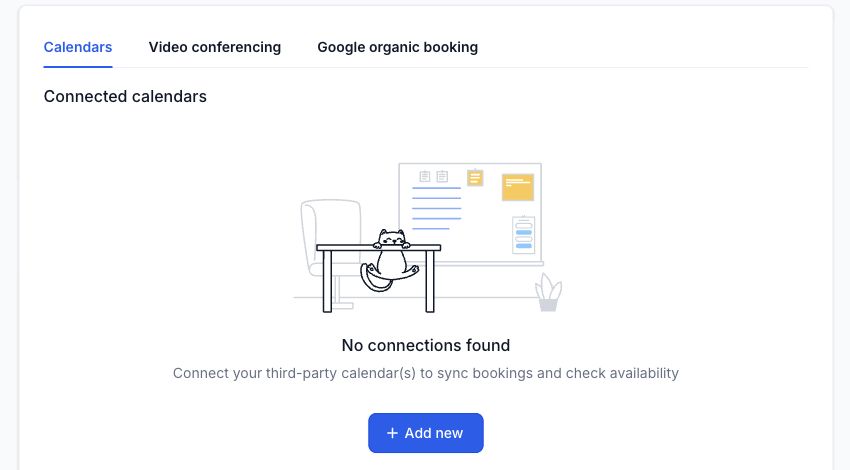
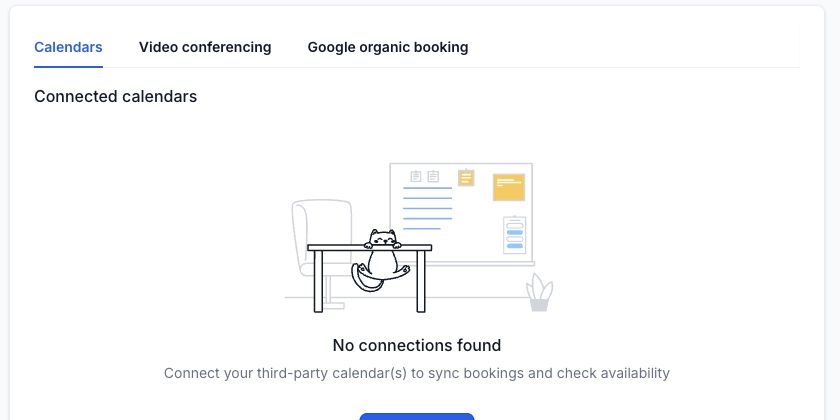
Confirm:
- The connected Google email belongs to the intended staff member.
- The tile is not outlined in red and no reconnect banner appears.
- The intended Google calendar still exists.
- The user has write permission if HighLevel needs to write appointments back.
Google tokens can expire, permissions can be revoked, and a calendar can be deleted after the original setup. HighLevel’s Google Calendar integration guide says incomplete permissions can cause sync failures and recommends using Reconnect when required access is missing.
Reconnect without guessing
Click Reconnect, choose the correct Google account, and accept the required calendar access. If several Google accounts are open in the browser, verify the email carefully before approving.
After reconnecting, allow HighLevel to complete its catch-up sync. Do not immediately disconnect and reconnect again because the first test event takes a moment to appear.
If the original Google calendar was deleted, use HighLevel’s Fix This or deleted-calendar cleanup option when shown. Remove the broken instance, then select an active calendar.
Step 2: Verify the linked calendar
In the user’s Calendar Configuration, check the Linked Calendar selection.
The linked calendar should be the primary work calendar that needs to receive HighLevel bookings. Confirm the intended sync preference and whether write-back is enabled.
HighLevel currently describes two relevant behaviors:
- With default or one-way behavior, an external event can appear as blocked time without creating a contact or triggering appointment workflows.
- With two-way sync, external events can become appointments, create contacts for guests, and trigger appointment automation.
Do not enable two-way sync only because a Google event is not visible as a normal contact appointment. If the business only needs the time blocked, one-way conflict behavior is cleaner and avoids creating CRM records for every external guest.
Step 3: Add every real blocker as a conflict calendar
If a busy Google event does not close the HighLevel slot, edit Conflict Calendars for that user.
Confirm:
- The calendar containing the busy event is selected.
- Use as Conflict Calendar or the current equivalent is enabled.
- The Google event is marked Busy, not Free.
- The booking calendar assigns the same user whose conflict calendar you configured.
HighLevel reads selected conflict calendars to block overlapping availability. An event marked Free can be visible in the calendar without making the time unavailable.
For a staff member with work and personal calendars, one practical setup is:
- Work calendar as the linked calendar and a conflict calendar.
- Personal calendar as a conflict calendar only.
- Write-back enabled only on the primary work calendar.
Step 4: Stop duplicate events by limiting write-back
If one HighLevel appointment appears twice in Google, look for more than one route writing the same event.
Common causes include:
- More than one linked calendar has write-back enabled.
- Two HighLevel users connect the same shared Google calendar and both receive the booking.
- Zapier, Make, or another calendar integration also creates the event.
- A booking is copied to a shared calendar by a Google automation after HighLevel writes it.
HighLevel recommends enabling write-back only on the primary work calendar. Disable it on secondary calendars that only need to block availability.
After changing the setting, test with a new appointment. Existing duplicate events will not prove whether the new configuration is correct.
Step 5: Align time zones at every relevant layer
Wrong-hour events usually come from a mismatch between:
- The HighLevel location time zone.
- The assigned user’s HighLevel time zone or availability.
- The individual HighLevel calendar setting.
- The Google Calendar time zone.
- The customer’s time zone shown on the booking widget.
Use a named test in a future slot and record the expected time in both the business and customer’s zones. Confirm that the appointment represents the same moment in HighLevel and Google.
Do not “fix” a two-hour shift by manually moving the event in Google. Correct the underlying time-zone setting, create a new test booking, and compare it again.
Step 6: Use the built-in calendar troubleshooting tool
Open Settings > Calendars, find the affected calendar, and select the wrench icon or Troubleshoot Calendar.
Choose the date with the problem and hover over the unavailable or available slot. HighLevel’s calendar troubleshooting guide says the tool can explain availability, user settings, connection problems, and booking conflicts.
Use it to answer one concrete question: Why was 2:00 PM offered, or why was it blocked?
If the tool says the user is unavailable, inspect that user’s availability and assignment. If it shows no conflict even though Google contains a busy event, return to the connection and conflict-calendar checks.
A controlled four-part sync test
Once the settings look correct, run these tests in order:
Test 1: HighLevel to Google
Book a future appointment through the public HighLevel calendar. Confirm one event appears in the intended Google calendar with the correct time.
Test 2: Google to HighLevel availability
Create a Google event marked Busy. Refresh the public booking widget and confirm the overlapping time is unavailable.
Test 3: Reschedule and cancel
Reschedule the HighLevel appointment, then cancel it. Confirm the linked Google event follows the change according to the configured sync behavior.
Test 4: Workflow behavior
Confirm that the test appointment starts only the workflows you expect. A one-way external blocked slot should not automatically behave like a customer booking.
Record the test contact, user, calendar, expected result, and actual result. This makes a team calendar repair repeatable.
Common calendar sync problems
| Problem | Check | Expected fix |
|---|---|---|
| Red connection banner | Google token or revoked permission | Reconnect the correct account and approve full required access |
| Google event does not block booking | Conflict calendar selection and Busy status | Enable the correct conflict calendar and mark the event Busy |
| HighLevel booking does not appear in Google | Linked calendar and write-back | Select the primary linked calendar and enable the intended write-back behavior |
| Duplicate Google events | Multiple writers | Keep one primary write-back path and disable the extras |
| Wrong appointment time | Location, user, calendar, and Google time zones | Align the zones and retest with a new booking |
| One user’s calendar fails | User-specific integration | Reconnect and configure that user’s account |
| Deleted calendar warning | Connected calendar no longer exists | Use the cleanup option, remove the deleted reference, and select an active calendar |
What to do next
Once the sync works, document the calendar assigned to each user, the linked calendar, conflict calendars, write-back destination, and time zone. Repeat the controlled test after changing staff, permissions, domains, or external calendar ownership.
If the account uses round robin or several locations, review user assignment separately. A healthy Google connection cannot block a slot for a staff member who is not the user assigned to that booking calendar.
Frequently asked questions
Why does Google show an event but GoHighLevel still offers that time?
The Google calendar may not be selected as a conflict calendar, the event may be marked Free, or the booking calendar may assign a different HighLevel user. Check all three before reconnecting the account.
Why did a Google event create a new contact in GoHighLevel?
Two-way sync can create an appointment and contact from an external event’s guest details. If the business only needs external events to block availability, review whether default one-way behavior is more appropriate.
Can one Google Calendar be connected to several HighLevel users?
HighLevel treats calendar integrations as user-specific. Reusing one shared calendar across users can also produce confusing write-back or duplicate behavior. Configure each user’s intended calendar and test the team assignment.
Why are HighLevel appointments appearing twice in Google?
More than one connection or automation may be writing the event. Check linked calendars, write-back settings, shared users, Zapier, Make, and Google-side automations. Retest with a new appointment after leaving one writer.
Will reconnecting Google delete appointments?
HighLevel says upcoming appointments can catch up after a reconnect or selected-calendar change. Even so, record the current configuration and test with a safe future appointment before making broader changes.
Need this fixed for you?
Start with a $149 small fix for one clearly defined issue, subject to scope confirmation. If the cause is unclear or spans several workflows, choose the $200 workflow audit. The audit report is delivered within five business days after we receive the required access and journey details.
2 Comments