
GoHighLevel WhatsApp Integration: Setup, Coexistence, Templates and Common Errors
Okay, so before you connect WhatsApp to GoHighLevel, decide which onboarding path you actually need. You may be connecting a new number, migrating an existing WhatsApp Business Platform account or keeping the WhatsApp Business App through Coexistence. The wrong path can create verification delays, missing history or a number that does not work the way your team expects.
I will walk you through each path, the setup order, template behavior and the checks I would make when onboarding or message delivery fails.
WhatsApp should connect to the same system as your other channels. Use the after-hours lead journey for routing, the automatic qualification and booking guide for decision logic, and the AI appointment-setter workflow when conversations should move into a calendar.
First, choose the correct WhatsApp setup path
HighLevel currently presents three onboarding paths inside Settings > WhatsApp. Pick the path based on how the number is being used today, not how you plan to use it later.
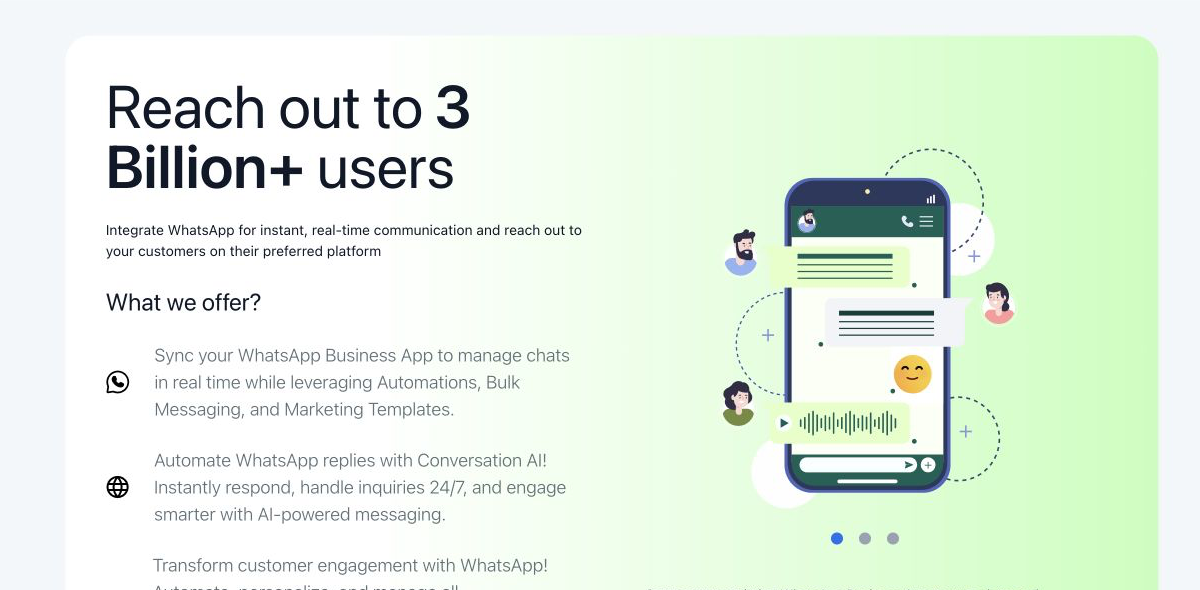
| Your current situation | Choose this path | What to expect |
|---|---|---|
| The number is active in the WhatsApp Business App and staff still need the phone app | Coexistence | The phone app and HighLevel can use the same number, and recent history can be imported |
| The business is starting fresh with an unused mobile number, landline, or eligible new number | Create a new WhatsApp Business Account | The number is registered through Meta and used through the Business Platform |
| The number already runs through Twilio, 360Dialog, Wati, Manychat, or another Business Solution Provider | Migrate from an existing BSP | The supported migration moves the existing WABA to LeadConnector while preserving eligible assets |
Do not choose a new-account setup for a number that must remain active in the WhatsApp Business App. Use Coexistence when the app must remain available. Likewise, do not delete an existing WABA simply because another provider currently manages it. Review the migration route first.
HighLevel’s current WhatsApp onboarding guide explains the three paths and their prerequisites.
What to prepare before connecting WhatsApp
Collect these items before opening Meta’s embedded signup:
- A Facebook profile with access to the correct Meta Business Portfolio.
- The exact WhatsApp number and its country code.
- Access to receive an SMS or voice verification call, unless the selected path uses a different verification process.
- The approved business display name you want customers to see.
- The current WABA and provider details if you are migrating from another BSP.
- The phone with the latest WhatsApp Business App if you are using Coexistence.
- A recent chat backup before removing or migrating any number.
If you are migrating from another BSP, check the prerequisites shown in HighLevel before starting. HighLevel currently instructs users to confirm Meta business verification and display-name approval, and to turn off two-step verification for the migration process.
Set up the GoHighLevel WhatsApp integration
Step 1: Open WhatsApp settings in the correct sub-account
Enter the client or business sub-account that will own the WhatsApp connection. Go to Settings > WhatsApp.
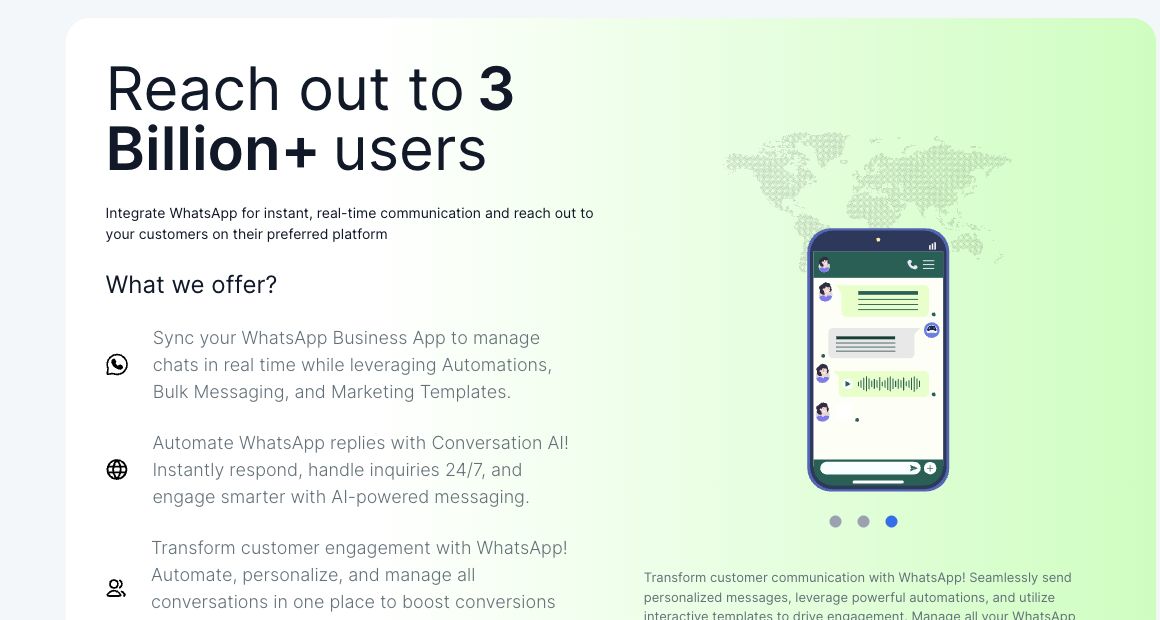
Check the sub-account name again before continuing. A WhatsApp subscription, number, templates, conversations, and workflows need to live in the intended location.
Step 2: Select the onboarding route
Choose Coexistence, a new WhatsApp Business Account, or BSP migration based on the decision table above. Read the prerequisites displayed for that route before clicking Connect with Facebook.
Step 3: Complete Meta embedded signup
Sign in to Facebook, choose the correct Meta business, select or create the required WABA, and verify the number. Do not create a second business portfolio only because the expected asset is missing. First confirm that the Facebook profile has access to the original portfolio and WABA.
Step 4: Finish any route-specific action
- Coexistence: Keep the WhatsApp Business App updated and available. Confirm the connection in the app and scan the requested QR code promptly.
- New account: Make sure the number is no longer active in personal WhatsApp or the WhatsApp Business App unless the onboarding screen explicitly supports the selected arrangement.
- BSP migration: Follow the migration prompts for the existing account. Confirm the number, display name, templates, quality rating, and messaging limits after the move.
Step 5: Review the connection in HighLevel
Return to Settings > WhatsApp. Check the account status, Meta business-verification status, connected number, and template area. Do not build production workflows while the number or display name is still pending.
Step 6: Run a two-direction test
Use a test contact that has consented to receive the message.
- Send an inbound message from the test phone to the connected WhatsApp number.
- Confirm that the contact and conversation appear inside HighLevel.
- Reply from HighLevel while the customer-service window is open.
- Send an approved template from a workflow or conversation when testing business-initiated messaging.
- Confirm the delivered status and check that replies return to the same conversation.
This test proves more than a green connection badge. It verifies number routing, conversation creation, sending, delivery, and reply handling.
How WhatsApp Coexistence works in HighLevel
Coexistence is for a business that already relies on the WhatsApp Business App and does not want staff to lose mobile access. The same number can be used in the app and HighLevel, while HighLevel adds centralized conversations and workflow automation.
The current HighLevel Coexistence guide lists these practical limits:
- Template messages are sent from HighLevel, not from the WhatsApp Business App.
- The WhatsApp business profile remains managed in the mobile app.
- One number can be connected through Coexistence per account.
- Availability is restricted for some countries. Check the live onboarding screen before promising this route to a client.
- Up to six months of chat history can be imported during supported onboarding.
If chat history does not appear immediately, keep the phone online, keep WhatsApp open, and accept the sync confirmation in the mobile app. HighLevel’s chat-history troubleshooting steps explain that the sync can take time depending on conversation volume.
Create WhatsApp templates that can actually send
WhatsApp templates are pre-approved messages used to start or reopen a business-initiated conversation. Free-form messages are normally used only inside the customer-service window after the contact has messaged the business. Outside that window, use an approved template.
Go to Settings > WhatsApp > Templates > Create Template, then complete these fields:
- Give the template a clear internal name.
- Choose the correct category, such as Utility or Marketing, based on the message’s real purpose.
- Select the language.
- Write a complete body that still makes sense when variables are replaced.
- Add variables in sequence and provide realistic sample values for Meta’s review.
- Add a header, footer, quick reply, opt-out, or call-to-action button only when it helps the recipient.
- Submit the template and monitor its status.
A utility template should describe an expected transaction or service update. Do not label a promotional message as Utility simply to seek a different classification. Meta can reject or reclassify it.
Create and manage new templates inside HighLevel after onboarding. HighLevel’s template status guide notes that the initial import from Meta is not an ongoing two-way template sync.
Common WhatsApp integration errors and fixes
| Problem | Likely cause | What to do |
|---|---|---|
| Existing chat history is missing | The mobile sync was not confirmed or the app lost connectivity | Open the latest WhatsApp Business App, keep the phone online, accept the sync prompt, and allow the process to finish |
| The Coexistence QR code expired | The code was not scanned in time | Restart that onboarding step with the phone unlocked and the app already open |
| The number is registered to an existing WhatsApp account | A non-Coexistence setup is trying to register a number still attached to an app or account | Return to the decision step. Use Coexistence if eligible, or properly release the number before a new-account setup |
| Meta says a payment method already exists on the WABA | The selected WABA has prior billing or provider history that blocks this onboarding path | Review the migration route. If HighLevel’s specific error screen instructs it, create a new WABA under the correct Meta business without deleting the old one |
| A template is rejected | Wrong category, duplicate wording, broken variables, missing samples, sensitive requests, or policy issues | Read the rejection reason, fix the content and variables, then resubmit |
| A template exists in Meta but not HighLevel | It was created in Meta after HighLevel’s one-time import | Recreate the template inside HighLevel |
| An approved template will not send | Its quality status may be Paused or Disabled, the number may not be connected, or required variables may be empty | Check the template status, number status, workflow execution, and variable values |
| Messages appear under duplicate contacts | Phone matching is inconsistent or deduplication preferences are incomplete | Normalize the number with country code and review the sub-account’s contact deduplication preferences |
Never solve a connection error by repeatedly deleting Meta assets. First identify whether the number is in the mobile app, another BSP, another WABA, or the wrong business portfolio.
A final launch checklist
Before adding WhatsApp to a live lead workflow, confirm all of the following:
- The correct sub-account and Meta business are connected.
- The number status and display name are approved.
- Inbound and outbound test messages reach the same test contact.
- At least one compliant template is Active.
- Every template variable has a fallback or guaranteed value.
- The workflow stops or routes correctly when a customer replies.
- Opt-in records and opt-out behavior are appropriate for the campaign and jurisdiction.
- A team member owns incoming conversations that need a human response.
What to do next
If the number is new, complete a simple inbound and template-message test before building a long workflow. If the business already uses WhatsApp daily, map the current number, WABA, provider, and mobile-app requirement before choosing Coexistence or migration.
For a client account with existing automations, we also check which workflows, templates, users, and routing rules will depend on the new WhatsApp channel. That prevents a successful connection from becoming a broken follow-up process.
Frequently asked questions
Can I keep using the WhatsApp Business App with GoHighLevel?
Yes, when the account and number are eligible for Coexistence. This path keeps the WhatsApp Business App available while conversations also appear in HighLevel. Review the current regional and account restrictions in the live onboarding screen.
Will GoHighLevel import my old WhatsApp conversations?
Coexistence can import up to six months of supported chat history during onboarding. The phone needs a stable connection, the current WhatsApp Business App, and confirmation of the sync prompt.
Why is my WhatsApp template stuck or rejected?
Check its status in Settings > WhatsApp > Templates. Common causes include an incorrect category, invalid or missing variable samples, duplicate content, sensitive-information requests, and policy violations. A previously active template can also be paused after negative feedback.
Can I create a template directly in Meta and use it in HighLevel?
Templates present during initial onboarding may be imported, but HighLevel says there is no continuing template sync afterward. Create new templates inside HighLevel if they need to be available in HighLevel conversations or workflows.
Does connecting WhatsApp automatically make my workflow compliant?
No. The technical connection does not create customer consent or replace the policies and laws that apply to your messages. Keep evidence of the opt-in, use the correct template category, honor opt-outs, and avoid sending irrelevant bulk messages.
Need this connected, built or tested for you?
Book a free 30-minute call to define the integration or automation scope and get a fixed quote. Custom APIs and integrations are quoted separately from Business System Setup. Already configured with one clearly defined native HighLevel issue? The $149 small fix may fit; we confirm eligibility and scope before payment.
One Comment