
GoHighLevel Branded Calendar Domain Not Working: DNS, SSL and Embed Fixes
If a GoHighLevel branded calendar domain is not working, check the domain assignment and DNS record before changing the calendar. Most failures come from a conflicting record, proxied CNAME, incomplete propagation, missing SSL certificate or an embed that still uses the old URL.
When we troubleshoot this, we separate three layers: the DNS provider, HighLevel’s connected-domain status and the page or widget showing the calendar. Fixing the wrong layer wastes time and can break another service using the same domain.
Quick check: Confirm the exact subdomain in HighLevel, copy the required DNS record without adding the root domain twice, turn off Cloudflare proxying while verifying, remove conflicting A or CNAME records and wait for HighLevel to confirm the domain before testing the final calendar URL.
Once the calendar URL and embed work, test the wider after-hours lead and booking journey so the customer does not reach a working calendar and then lose the follow-up.
First, confirm the exact domain you are fixing
HighLevel can use different domains for websites, white-label login, API branding, email sending, client portals and calendars. A working website domain does not prove that the calendar domain was added or assigned correctly.
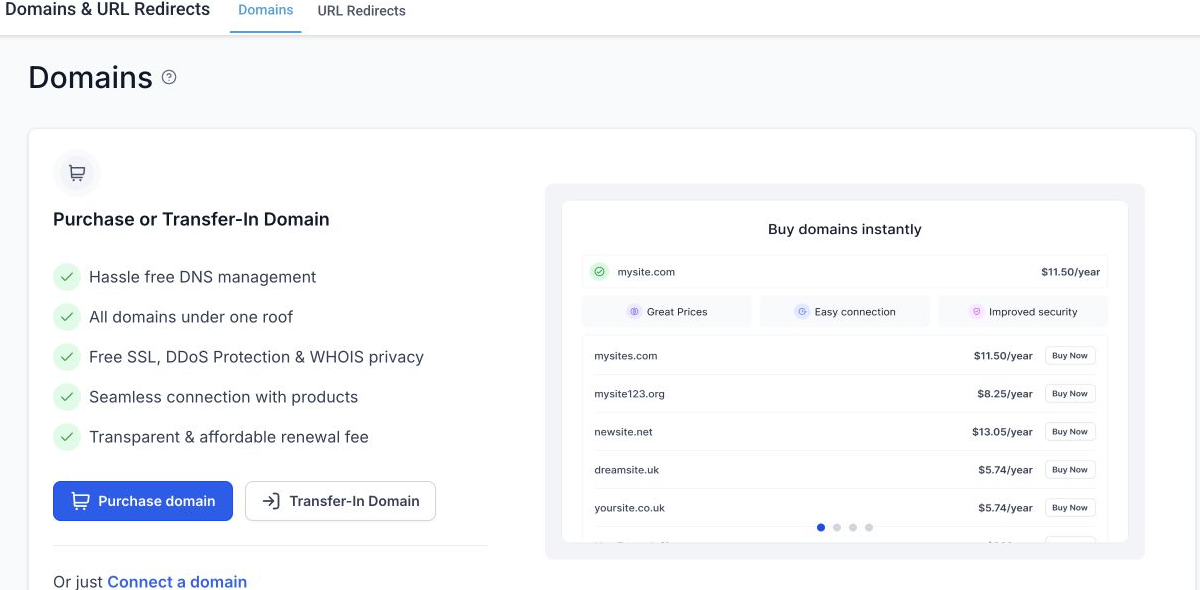
Write down the exact calendar URL you expect, such as book.example.com. Then check whether that same hostname appears inside the correct HighLevel location and calendar settings.
Do not reuse one hostname for two incompatible services. A subdomain cannot normally point to both an existing website host and HighLevel at the same time.
GoHighLevel branded calendar domain troubleshooting
- Open the connected-domain record in HighLevel. Confirm the domain has not been added to a different sub-account or assigned to another product.
- Compare the required DNS record. Copy the record type, host and target exactly. DNS providers handle the Name field differently, so make sure the root domain has not been appended twice.
- Remove conflicts. The same hostname should not have an old A record, URL forwarding rule or another CNAME. Duplicate records can make verification unpredictable.
- Check Cloudflare proxy status. HighLevel’s domain documentation recommends turning proxying off for manual CNAME verification. Use DNS-only while the connection and certificate are being established.
- Allow DNS to propagate. A record may appear at one resolver before another. Avoid repeatedly deleting and recreating it while propagation is in progress.
- Verify the SSL status. HighLevel issues the certificate after the domain verifies. If DNS is correct but HTTPS still fails, wait for certificate issuance and then recheck the status.
- Assign the domain to the intended calendar. A connected domain is not always automatically used by every calendar. Open the calendar settings and confirm the public booking URL.
- Update website embeds and buttons. An Elementor button, iframe or funnel may still point to the default HighLevel URL or an older domain.
Why the domain verifies but the calendar still fails
The calendar link is using a different slug
Domains and paths work together. Confirm the current calendar slug and copy the live share link from the calendar itself instead of assembling the URL from memory.
The embed contains an old URL
An iframe does not automatically update when the calendar’s public URL changes. Replace the source URL in the website or funnel, then clear only the relevant page cache.
A redirect is intercepting the subdomain
Registrar forwarding, Cloudflare rules and website redirects can send calendar traffic somewhere else before HighLevel receives it. Test the hostname directly and review redirect rules outside HighLevel.
The page works in one browser only
Cached DNS, an old SSL state or a service worker can produce different results. Test in a private window and on a mobile network, but still use the public DNS record as the source of truth.
Check the calendar after the domain loads
A working branded URL does not guarantee the booking experience is correct. Complete a real test booking and confirm:
- The correct calendar and team member appear.
- Availability matches the intended timezone.
- The connected calendar blocks existing conflicts.
- The contact and appointment are created in HighLevel.
- Confirmation and reminder workflows start once.
- The thank-you page and tracking scripts load.
- Cancel and reschedule links use the expected branded experience.
If the domain loads but appointment availability is wrong, use our GoHighLevel calendar guide. For a complete account configuration, see our Business System Setup.
Branded calendar domain FAQs
How long does a GoHighLevel domain take to verify?
DNS changes can appear quickly or take longer depending on the provider and record TTL. HighLevel can issue SSL after verification, so HTTPS may become ready after the DNS record itself is visible.
Should the Cloudflare CNAME be proxied?
HighLevel’s manual domain guidance recommends switching Cloudflare proxy status off while configuring the record. Use DNS-only for verification unless current HighLevel instructions for that specific domain type say otherwise.
Can I use my root domain for a calendar?
A dedicated subdomain such as book.example.com is usually safer because the root domain may already host the main website. Follow the exact record shown by HighLevel for the selected domain type.
Why does the default HighLevel calendar URL work but my domain does not?
That normally means the calendar itself is active while the custom domain, DNS, SSL or public link assignment is incomplete. Troubleshoot the domain layer without rebuilding the calendar.
Need this fixed for you?
Start with a $149 small fix for one clearly defined issue, subject to scope confirmation. If the cause is unclear or spans several workflows, choose the $200 workflow audit. The audit report is delivered within five business days after we receive the required access and journey details.

5 Comments