
GoHighLevel Multi-Timezone Calendars: How to Manage Multiple Locations
Your New York and Los Angeles teams can both work nine to five without sharing the same availability window. Create a separate calendar and availability schedule for each location, set the schedule in that location’s timezone, assign the correct staff and label the booking page clearly. Let the widget convert availability for the visitor.
Here is where teams usually get caught: the customer sees the correct time, but the assigned user reads it in another timezone and misses the appointment. We test the booking page, confirmation, assigned calendar and user view from both locations.
The key is to separate three settings that are often confused: the subaccount business timezone, the staff or calendar availability timezone, and the timezone a user chooses for viewing appointments.
Start by fixing the base Google Calendar sync, then verify the branded domain and embed. Test the post-booking workflow in every location, including appointments created by the AI appointment setter.
First, let us settle how GoHighLevel handles timezones
- Business timezone: The main timezone used by the subaccount.
- Availability schedule timezone: The timezone used to define a staff member’s working hours.
- Booker’s timezone: The booking widget can show slots in the visitor’s detected or selected timezone.
- User viewing timezone: Each logged-in user can choose how appointment times appear in the app without changing booking logic.
HighLevel’s appointment viewing timezone guide confirms that this user-specific display setting does not change availability or scheduling behavior.
Recommended structure for East Coast and West Coast locations
Use a predictable naming system:
- Discovery Call | New York | ET
- Discovery Call | Los Angeles | PT
- Support Appointment | New York | ET
- Support Appointment | Los Angeles | PT
Create one reusable schedule for each location or staff pattern. HighLevel’s Schedules guide explains that a schedule can store weekly hours, date-specific hours and a timezone for reuse across calendars.
Step 1: Confirm the subaccount business timezone
Open the business profile and confirm the main timezone. Choose the timezone that best represents the business headquarters or primary operating location. Do not change this setting repeatedly to manage appointments in other regions.
Step 2: Create one schedule per location
Create an Eastern Time schedule for East Coast staff and a Pacific Time schedule for West Coast staff. Enter each team’s real local working hours.
For example, both teams can work 9:00 AM to 5:00 PM in their local schedule. The system then stores and converts those windows correctly.
Step 3: Create separate calendars
Build a calendar for each location and service combination that needs different availability, staff or meeting information. Assign the appropriate schedule and team members.
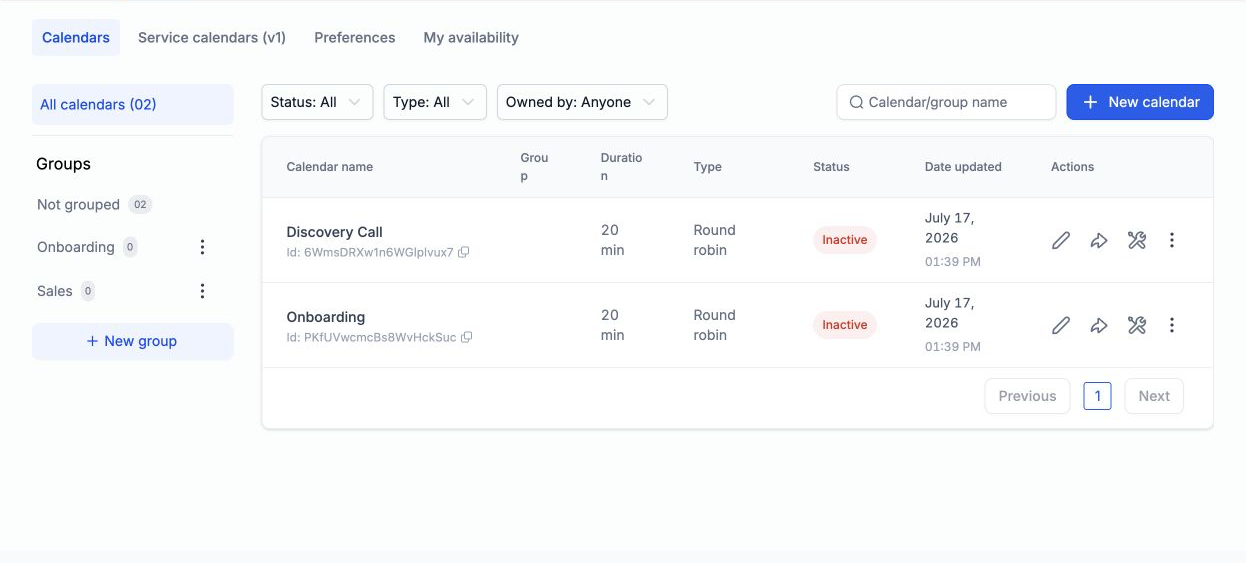
Separate calendars are easier to report on and troubleshoot than one calendar full of conditional exceptions.
Step 4: Label the location and timezone clearly
Show the city, branch or service area in the calendar name, description and confirmation. If the booking widget displays appointments in the visitor’s timezone, explain that clearly near the time selector.
Do not put a fixed timezone abbreviation beside a time that the widget has already converted for the visitor.
Step 5: Assign staff availability to the correct location
For businesses using Services, HighLevel supports multiple locations and location-specific staff availability. Its Locations in Services guide notes that a location will not appear in booking unless staff availability is connected to it.
Step 6: Set each user’s viewing preference
An East Coast manager can view appointments in Eastern Time while a West Coast team member views the same appointments in Pacific Time. This changes only how times are displayed to that logged-in user.
Step 7: Test from both timezones
Use the booking link in private browser windows and manually select Eastern and Pacific timezones. Confirm:
- The local working hours convert correctly.
- The correct staff and location are assigned.
- The confirmation email states the appointment time clearly.
- Calendar reminders use the correct appointment time.
- Rescheduling keeps the same location and calendar.
Common multi-timezone mistakes
- Changing the whole subaccount timezone for each branch.
- Using one calendar for teams with different local hours.
- Writing ET or PT beside a visitor-converted time.
- Assigning a staff member to the wrong schedule.
- Testing only from the administrator’s timezone.
- Forgetting daylight saving changes in manual workarounds.
If an AI booking bot serves several services or departments, HighLevel also supports Conversation AI multi-calendar routing. Give each calendar a clear description so the bot can select the right one.
If calendars, reminders and pipelines need a complete rebuild, compare our GoHighLevel setup services.
Frequently asked questions
Can one GoHighLevel subaccount use several timezones?
Yes. Keep one business timezone, then use separate schedules and calendars for location-specific availability.
Will customers see appointment times in their own timezone?
The booking widget can display converted availability based on the visitor’s detected or selected timezone. Test the exact widget configuration you publish.
Does changing my viewing timezone change the appointment?
No. The user viewing preference changes how the time appears in the app, not the stored appointment or availability.
Should each location have a separate subaccount?
Not always. Separate subaccounts are useful when locations need independent branding, phone systems, permissions, reporting or billing. Calendars and schedules can handle many multi-location cases inside one subaccount.
How should I handle daylight saving time?
Use named regional timezones in schedules instead of fixed UTC offsets. Test upcoming dates around daylight saving changes.
Need this fixed for you?
Start with a $149 small fix for one clearly defined issue, subject to scope confirmation. If the cause is unclear or spans several workflows, choose the $200 workflow audit. The audit report is delivered within five business days after we receive the required access and journey details.


One Comment